









You rebooted your iPhone 18 Pro or iPhone 18 Pro Max, turned off Airplane Mode, and restarted your router, yet you still have spotty Wi-Fi. Should you bring your iPhone in for repairs? Not yet.
Consider going through a few more troubleshooting tips. Here are some quick, simple fixes for iPhones that keep connecting and disconnecting from Wi-Fi networks.
1. Forget the Malfunctioning Network
Before doing anything complex, try removing the malfunctioning network from your iPhone 18 Pro Max. Otherwise, it’ll keep joining the Wi-Fi connection. This fix will likely work if you recently changed your Wi-Fi password, your internet has been spotty, or you set up a new router.
So, follow the simple instructions below:
- Launch Settings and go to Wi-Fi.
-
Find the malfunctioning network, then tap the (i) button on the right side of its name. It will open the Information page.
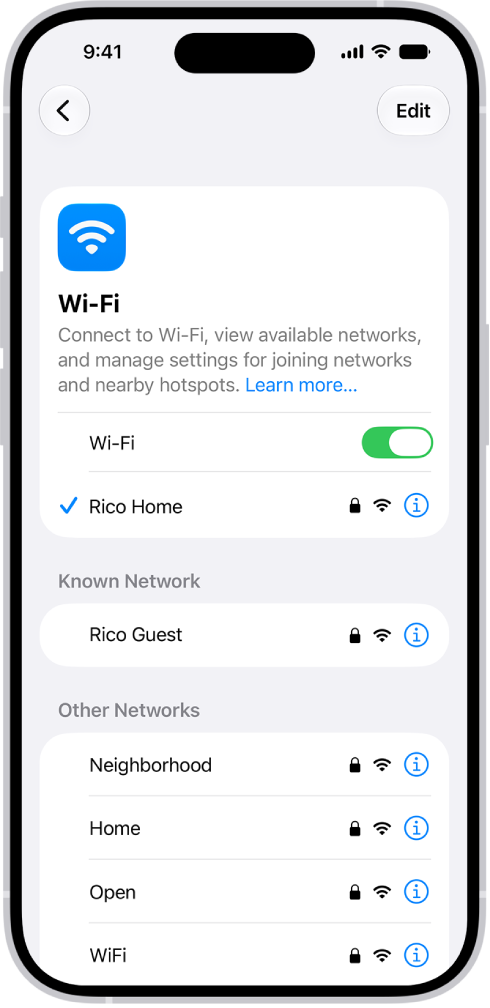
- Hit Forget This Network, then confirm the action by tapping Forget in the dialogue box.
- Go back to the Wi-Fi menu and rejoin the network manually. Double-check your password—someone might have changed it without you knowing.
2. Check Your iPhone’s VPN Settings
There are several free VPNs for iPhones. They’ll help you bypass geo-restrictions, access confidential information, or use insecure networks safely.
Just don’t leave them running. VPN apps occasionally cause internet connectivity problems, especially when switching between networks. Disable them if you’re using your home Wi-Fi.
You can turn off your VPN within the respective apps. But if your VPN merges with your iPhone’s built-in VPN client, follow these steps in the Settings app:
- Go to Settings > General.
- Scroll down to VPN & Device Management—you’ll find it near the bottom of the page.
- Tap VPN and remove any active VPN configurations.
3. Turn Off the Connectivity Assist Feature
When Connectivity Assist is on, iPhone uses cellular data along with Wi-Fi to keep your internet connection reliable when Wi-Fi is weak, busy, or not connected to the internet. Let’s say a page has been loading for over 30 seconds. Instead of stubbornly running the same network, your iPhone automatically uses your cellular data.
Although helpful, this feature is expensive.
We suggest turning off Connectivity Assist by default. Just use your data as needed. Otherwise, you’ll drain your cellular data plan if you’re often stuck with weak Wi-Fi.
- Go to Settings > Wi-Fi.
- Turn off Connectivity Assist.
4. Reset Your Network Settings
Reset your iPhone’s network settings if it disconnects from Wi-Fi even after following the troubleshooting steps above. Doing this can fix several hidden network issues. Just note that your device loses all saved network passwords, Wi-Fi names, and Bluetooth pairings.
- Open Settings > General.
- Scroll down and tap Transfer or Reset iPhone, which you’ll find at the bottom of the page.
- Now, tap Reset > Reset Network Settings, then enter your passcode for confirmation.
5. Update Your iOS
If your iPhone 18 Pro Max still disconnects from Wi-Fi after resetting the network settings, check your iOS version. Update to the latest iOS firmware available. Apple might have fixed the glitch that’s making your device intermittently drop Wi-Fi connections. Here’s what you need to do:
- Go to Settings > General > Software Update.
- Check if an update is available.
Keep Your iPhone Connected to Wi-Fi
Try all the above tips if your iPhone 18 Pro or iPhone 18 Pro Max keeps dropping the Wi-Fi connection. You should regain internet access shortly. Connectivity problems often stem from minor bugs—they rarely indicate serious hardware or software issues, so don’t panic.
But if none of your devices can connect to Wi-Fi, check the internet connection. Your router or ISP might be to blame. Follow standard troubleshooting steps, like switching to a wired connection, checking your network card, and restarting your router.


