









Apple’s flagship iPhone 18 Pro Max is an amazing technological achievement, but for some users there is one area where it could be greatly improved. Due to the positioning of the hardware buttons, it’s far too easy to accidentally take screenshots when picking up the device.
In this article we explain how to stop taking accidental screenshots.
How to take a screenshot on iPhone 18 Pro Max
The reason for all the accidental screenshots is down to how easy it is to take one in the first place.
Quickly press and release the side button and the volume up button at the same time.
You should see the screen flash white and hear a shutter sound effect. After you take a screenshot, it appears in full screen by default.
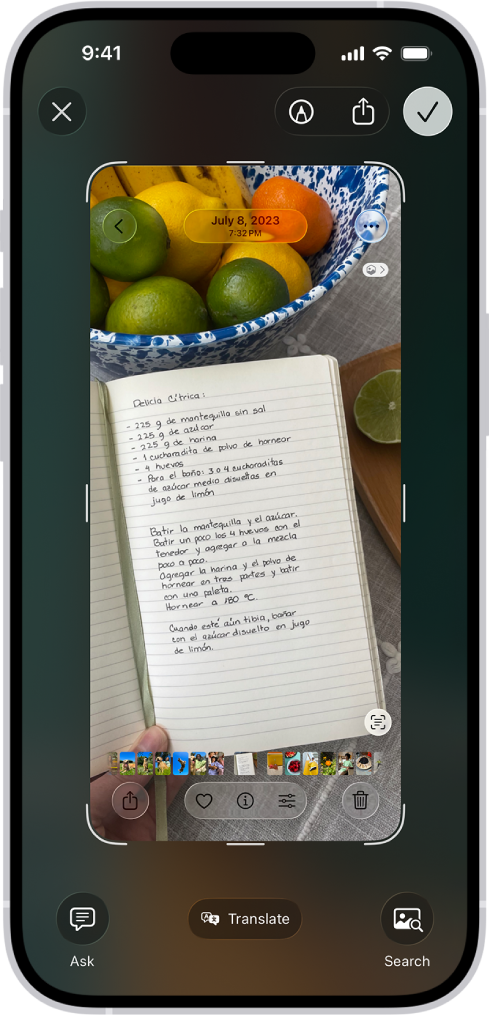
Now, this button combination (side button + volume up) is a potential headache. Because one is on the left and the other is on the right, and because they are both at roughly the position where your fingers and thumbs would go when picking up the device, it’s easy to take a screenshot by mistake when getting it out of your pocket.
How to prevent accidental screenshots
Unlike the Apple Watch, the iPhone doesn’t let you disable screenshots in Settings. Nor are there any third-party apps we know of that can remap the buttons or prevent the iPhone 18 Pro or iPhone 18 Pro Max from taking screenshots.
Simply being aware of how the problem arises may be enough to make you more careful about grabbing the buttons when picking up the phone, but there are some common-sense solutions that may help too.
Some cases, for instance, cover over the side and volume buttons rather than exposing them through a cut-out, and such cases may make the buttons less sensitive. (Normally this would be a negative, but for these purposes it may be a positive.) If you have access to a few different cases, experiment to see if any make accidental screenshots happen less often.
In any case, iPhones won’t take a screenshot when the display is switched off – instead, pressing the side and volume up buttons merely turns the screen on.
There will still be ‘pocket screenshots’, because the screen can be woken up by movement thanks to the ‘raise to wake’ feature, and contact with the buttons at this point will grab a screengrab as before. To turn off Raise to Wake, go to the Settings app, then tap Display & Brightness.
