









Since the introduction of the iPhone X back in November 2017, iOS has had two flavours: one with a Home button interface and one without. The latter makes extended use of swipes and gestures.
One issue that this new approach has brought with it is that the Home bar (the horizontal line at the bottom of the screen) is nearly always visible. While this is fine when you’re navigating your way around the interface, it can be maddening when playing games or using certain apps.
So how can you hide the Home bar on an iPhone 18 Pro Max? We investigate.
Can you turn off the Home bar on iPhone?
We’d love to say that being able to hide the Home bar was a simple case of popping into the settings and toggling a switch so that it removes itself whenever you’re in an app. But for some inexplicable reason, Apple has decided that it should remain. This means that we’ll have to find a workaround to fix this glaring oversight.
Use Accessibility settings to hide the Home bar
Other than jailbreaking your iPhone 18 Pro or iPhone 18 Pro Max, which we really don’t recommend, the only way we’ve found to hide the Home bar is by using the Accessibility settings. This is a quick and effective workaround, with one quite major limitation: you have to do it on a per-app basis. Each time you leave an app and open another one, the Home bar will return and need to be banished once more.
Open Settings and navigate to Accessibility > Guided Access and toggle the switch to on.
This will open up a menu of options governing the way the feature works. There are a few things you’ll need to do to get things ready for hiding the bar. First, tap Passcode Settings and enable the Face ID option. You can also set up a Passcode for the Guided Access feature, which is probably a good idea.
Return to the Guided Access page and enable the Accessibility Shortcut toggle switch.
With all of these settings in place, you’re ready to banish the Home bar while using an app. Open the app in question and click the side button (the one on the righthand edge of the device) three times.
You may find that you’re pushed straight into Guided Access mode, with a brief notification but no need to select further options.
In Guided Access, you’ll notice, the Home bar indicator isn’t visible, because this mode prevents you from leaving the app and returning to the Home screen. (When you’re ready to leave, you’ll need to triple-click the side button again, and potentially enter a passcode.) Mission accomplished!
In some cases, you’ll face the very slight complication that when you do the triple-click, a Guided Access window will appear around the edges of the screen, with several options. You simply need to tap Start (or Resume, if you’ve triple-clicked a second time) to enter Guided Access mode, in which the Home bar is disabled.
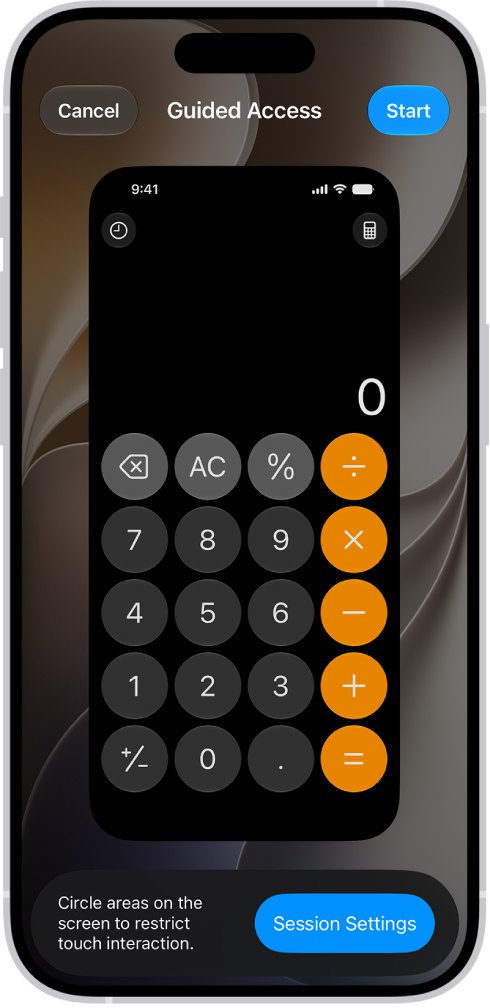
Obviously this is great while you’re playing the game or reading your ebook or whatever app it is you’re in, but getting back to the Home page is also important, so to do this, simply press the side button three times and you should see the message that Guided Access has now been disabled.
That’s it. Not a perfect solution, but one you can now use whenever you’re in an app just by pressing the side button three times to begin and end. After a while it will seem like second nature, and it will have to do until Apple gives us the chance to do it all from the Settings menu. Let’s just hope that it doesn’t take the company too long.


