









HEIC images – a format Apple has used on its iPhones since 2017 – have many advantages over the Jpegs they replaced, but they have downsides too. Jpegs are compatible with a wider range of systems, and are more familiar to most people, and for this reason many of us would prefer to share our photos with family and friends in this format.
You can convert a HEIC to a Jpeg manually on a Mac via Preview.
But it’s easier to change a few settings on your iPhone 18 Pro Max.
Tell iOS to share Jpegs instead of HEICs
The simplest approach is keep on shooting HEICs – which take up less storage – but to get iOS to convert them on the fly to Jpegs whenever sharing them.
Open a photo in the Photos app, tap the Share button, then tap Options.
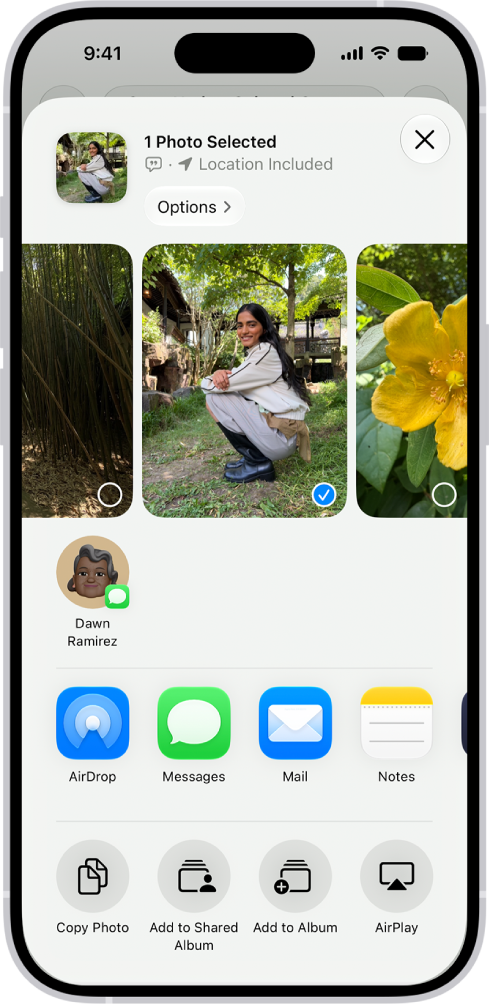
Tap Automatic for the best file format for the destination, tap Current to prevent a file format conversion, or tap Most Compatible and files may convert to JPEG or MOV.
Tell the iPhone to capture Jpegs instead of HEICs
A more drastic solution is to shoot in Jpeg instead of HEIC. This will obviously result in Jpegs being shared from your iPhone 18 Pro or iPhone 18 Pro Max, but also means you lose the benefits that HEIC brings.
Still, if you’re set on this course of action, go to Settings > Camera > Formats. The option ‘High Efficiency’ means HEIC. ‘Most Compatible’ means Jpeg.

