









It’s normal for all tech gadgets to have a hiccup now and then. Fortunately, you can often resolve the problem at home without any cost. The solution is to soft reset your device.
Let’s first quickly look at what an iPhone soft reset does. Then, we’ll go through the steps on how to soft reset an iPhone 18 Pro or iPhone 18 Pro Max.
What Is an iPhone Soft Reset?
A soft reset is also known as a force restart. A soft reset differs from a “normal” restart. The latter simply involves turning off your iPhone and turning it on again. You can restart your iPhone even if the buttons are broken.
Take note that a soft reset also differs from a hard reset. When you hard reset or factory reset your iPhone, the procedure erases your iPhone’s data and restores your device to its blank, default state, as though you just bought it.
You’ll likely soft reset your iPhone when it’s completely frozen. For example, when your iPhone is stuck on the Apple logo. A soft reset does not erase any data.
How to Soft Reset an iPhone 18 Pro Max
Follow these steps to soft reset your iPhone:
- Press the Volume Up button once and release it.
- Press the Volume Down button once and release it.
-
Press and hold the Side button until you see the Apple logo. You can now release the Side button.
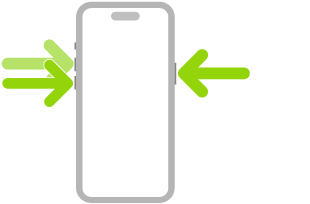
It’s important to press each button in immediate succession. However, you don’t need to rush through the steps urgently. Pacing it at one button per second is sufficient.
Carry Out an iPhone Soft Reset Easily
Whenever you face issues with your device, a quick go-to solution is to simply soft reset your iPhone 18 Pro Max.
However, if the problem persists, you might need to put your iPhone in recovery mode and reinstall iOS. Just don’t forget to back up all your data before you do that.


