Got a tip for us?

Files

In the Files app, you can organize documents, images, and other files in folders.

You can create a folder, copy or compress a file, and make other changes to a file or a folder, or rename it. You can also modify multiple files or folders at the same time. Depending on the item, some options may not be available, and New Folder only appears where you’re allowed to create one.

Create a folder

  1. Open the Files app on your iPad.
  2. Open a location or an existing folder.
  3. Tap the New Folder button.

    Note: If you don’t see New Folder, you can’t create a folder in that location.

Copy, compress, and make other changes to a file or a folder

  1. Open the Files app on your iPad.
  2. Open a location or an existing folder.
  3. Touch and hold the file or folder. Choose an option: Copy, Move, Share, Compress, Duplicate, or Delete.

The item you select determines which options are available. An app library, which is a folder labeled with the app name, can’t be deleted or moved, for example.

To modify multiple files or folders at the same time, tap Select, tap to select the files or folders you want to modify, then tap an option at the top of the screen (Share, Duplicate, Move, Delete, and so on).

Rename a file or folder

  1. Open the Files app on your iPad.
  2. Open a location or an existing folder.
  3. Touch and hold the file or folder and choose Rename.

With Apple Intelligence, Files recommends a name above the keyboard when you rename a file.

Note: Apple Intelligence on iPadOS 27 or later is available on an Apple Intelligence-enabled iPad mini (A17 Pro) and iPad models with M1 or later. Apple Intelligence is not available in all languages or regions. Usage limits may apply.*

Zip or unzip a file or folder

To save storage space on your iPad, you can zip a file or folder to compress it, and you can unzip a compressed file or folder as well.

  1. Open the Files app on your iPad.
  2. Touch and hold the file or folder you want to zip. Then tap Compress.

To unzip a compressed file or folder, touch and hold it, then tap Uncompress.

Tag a file or folder

  1. Open the Files app on your iPad.
  2. Open a location or an existing folder.
  3. Touch and hold the file or folder, tap Tags, and then tap one or more tags.
  4. Tap Done.

In the sidebar, tagged items appear below Tags.

To remove a tag, tap it again.

Mark a folder as a favorite

  1. Open the Files app on your iPad.
  2. Open a location or an existing folder, touch and hold the folder, and tap Favorite.

*Apple Intelligence is available with Siri and device language set to Chinese (Simplified), Chinese (Traditional), Danish, Dutch, English, French, German, Italian, Japanese, Korean, Norwegian, Portuguese, Spanish, Swedish, Turkish, or Vietnamese. Some features may not be available in all regions or languages. Some devices may not be available in all regions. Siri AI is available in beta in iOS 27, iPadOS 27, macOS 27, watchOS 27, and visionOS 27 and requires an Apple Intelligence–enabled device set to a supported language. Available in English to start. Siri AI will not be initially available in the EU on iOS, iPadOS, and watchOS. Certain Apple Intelligence features that rely on server-side models are subject to daily usage limits, including but not limited to Siri AI, Intelligent Photo Editing Tools, Image Playground, and AFM 3 Cloud models in Shortcuts. Daily limits may vary by feature, request complexity, system demand, system policies, and other factors. Expanded access to such features will be available for a fee in the future. Use of these features is subject to the Apple Intelligence Terms and Conditions.

See also
Tag: Files

In the Files app, you can locate and view your files, organize and rearrange them in folders, compress, rename, and share them with friends, and transfer them to and from iCloud Drive and other locations. Downloads, iCloud Drive, and Recents are all in the sidebar.

  1. Open the Files app on your iPad.
  2. Do any of the following:

    • View files downloaded from email or the internet: Tap the Sidebar button at the top of the screen and tap Downloads in the sidebar. See Find your downloaded files.

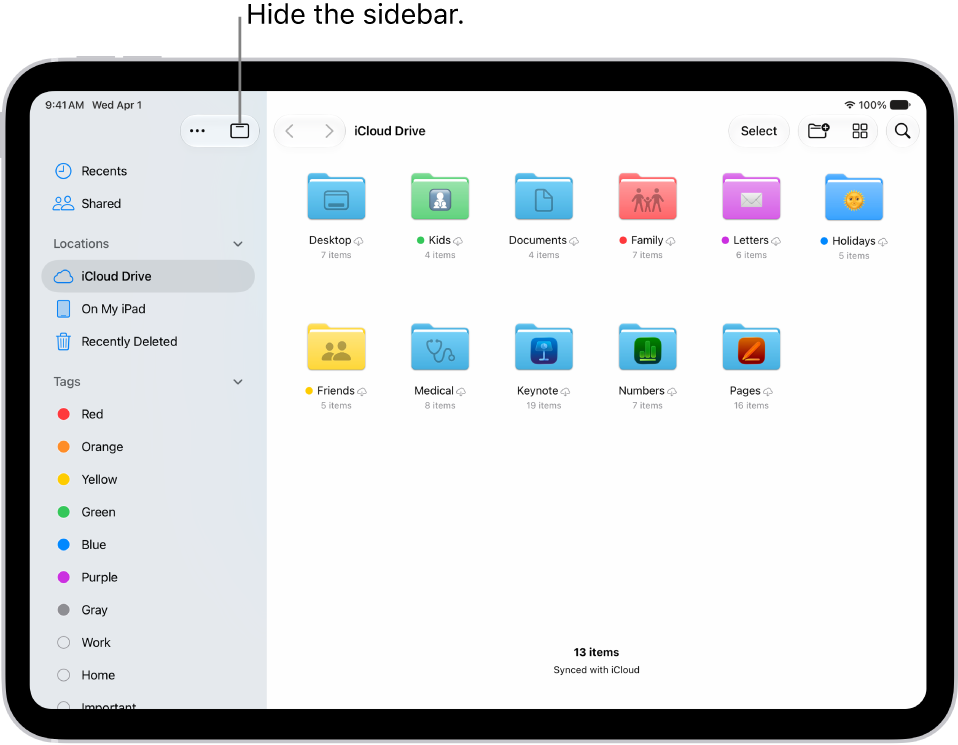
      Note: If you don’t see the Sidebar button, tap the Hide Sidebar button.

    • Browse your files on iCloud Drive: Tap the Sidebar button at the top of the screen. See Browse iCloud Drive.
    • View files you opened recently: Tap the Sidebar button at the top of the screen and then tap Recents at the top of the sidebar.
    • View shared files: Tap the Sidebar button at the top of the screen and then tap Shared in the sidebar.
    • Copy, move, share, or delete a file or folder: Locate the file or folder, touch and hold it and then tap Copy, Move, Share, or Delete. See Modify files and folders in Files.
Tag: Files

You can copy, move, customize, share, and delete your documents, images, folders, and other files on iPad.

You can add colors and icons to your folders to make them easier to spot, and change your view of the files in a location or folder to icons, a list, or columns. You can also move a file or folder to a new place.

Here’s how to modify files and folders in Files on iPad.

The Files app displaying multiple folders and locations named Downloads, Letters, Family, and so on. At the bottom of the screen are buttons for Recent files, Shared files, and the Browse tab.

Customize the appearance of your folders

Color and icons make your folders easier to spot.

  1. Go to the Files app on your iPad.
  2. Touch and hold the folder you want to customize, then choose Customize Folder & Tags.
  3. Tap Tags, choose a color, and then tap the Back button.
  4. Select an icon or tap Emoji to add an emoji to the folder.

To remove the icon from the folder, tap Clear below the icons.

Change to icon, list, or column view

In an open location or folder on iPad, you can change your view of the files.

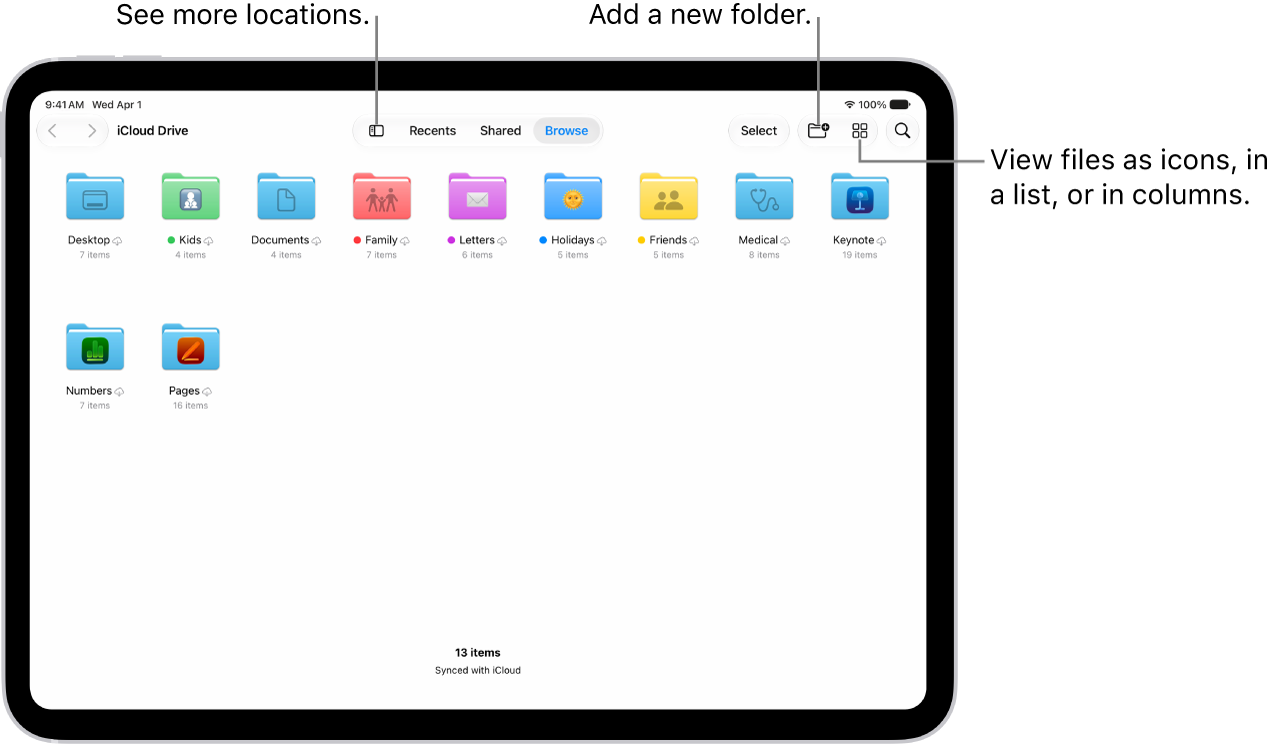
The Files app showing the files and folders in your iCloud Drive. At the top of the screen are buttons for selecting items, creating a new folder, changing the view (List, Icons, Columns), and Search.

  1. Start the Files app on your iPad.
  2. Tap a location at the top of the screen—Recents, Shared, or Browse— or tap the Sidebar button. Tap a location in the sidebar.
  3. Tap the List button, the Icons button, or the ColumnView button and choose how to view the files.

    To look deeper into a file hierarchy in List view, tap the Forward button next to a folder to expand it.

    To look deeper into a folder hierarchy in the Column view, tap an item in the rightmost column. To see a preview of a file along with its metadata (such as its kind, size, and creation date), tap the file in Column view. (If the preview doesn’t appear in the rightmost column, swipe left.) To view the file and perform various actions on it without leaving Files, tap Open below the file preview.

Move a folder to the Dock for easy access

To make a folder you access frequently easy to find and open, move it to the Dock.

  1. Start the Files app on your iPad.
  2. Touch and hold the folder you want to move until a menu opens.
  3. Choose Add To in the menu and tap Dock.

You can tap the folder in the Dock to expand it and see the files in it. To open a file from a folder in an app, drag the file to the app in the Dock or, if the app is already open, directly into the app’s window. For example, if you have Messages open, you can drag a file from a folder directly into a conversation you’ve pulled up.

Rearrange the sidebar

  1. Start the Files app on your iPad.
  2. Tap the Sidebar button to show the sidebar.
  3. Tap the More button at the top of the sidebar, tap Edit Sidebar, and then do any of the following:
    • Hide a location: Turn the location off.
    • Delete a tag and remove it from all items: Tap the Remove button next to the tag. (See Tag a file or folder.)
    • Remove an item from the Favorites list: Tap the Remove button next to the item. (See Mark a folder as a favorite.)
    • Change the order of an item: Touch and hold the Reorder button and then drag it to a new position.

Delete a file or folder

  1. Start the Files app on your iPad.
  2. Locate the file or folder you want to delete.
  3. Touch and hold the item and tap Delete.

See also

Tag: Files

Configuration profiles define settings for using iPhone with corporate or school networks or accounts. You might be asked to install a configuration profile that was sent to you in an email, or one that’s downloaded from a webpage.

You’re asked for permission before the profile is installed, and when you open the file, you see information about what it contains. You can see all the profiles you’ve installed, too. If you delete a profile, all the settings, apps, and data associated with it are deleted as well.

If you delete a profile, all of the settings, apps, and data associated with the profile are also deleted.

Tag: Files

In the Files app, you can locate and view your files, organize and rearrange them in folders, compress, rename, and share them with friends, transfer them to and from iCloud Drive and other devices, and more. You can browse iCloud Drive, view files you opened recently in Recents, or see shared files in Shared.

  1. Open the Files app on your iPhone.
  2. Do any of the following:
Tag: Files

There are multiple ways to transfer photos, videos, and other files between your iPhone and other devices like an iPad, Mac, or Windows device.

You can transfer files wirelessly with features like AirDrop or apps like Mail and Messages, or you can connect your iPhone to a computer or an external storage device with a cable, and then transfer or sync files. You can also use iCloud to store your files, photos, videos, and more, and keep everything up to date on all your devices where you’re signed in to the same Apple Account.

Important: Transferring, sharing, or syncing may be restricted for some types of data, such as files saved in an app’s proprietary format, files saved in older software versions, and files protected by copyrights.

Transfer files from your iPhone wirelessly

You can use AirDrop to quickly share a file, photo, or other item from your iPhone with a nearby Apple device.

Another way to transfer files from your iPhone to another device is to send the file as an attachment in the Mail or Messages app.

Transfer files by connecting your iPhone with a cable

With a cable, you can connect your iPhone to your Mac or Windows device to transfer files to a file server, an external storage device, or your computer. To transfer files to your Mac or Windows device, you’ll use the Finder, Apple Devices, or iTunes, depending on your computer’s model and operating system.

Note: You can only transfer files from iPhone apps that support file sharing.

Sync your iPhone with other devices

Connecting your iPhone to your Mac or Windows device also lets you sync supported content, such as music, movies, TV shows, and more. Say you add a movie to your iPhone. When you sync, that movie appears on your computer, too.

Syncing files to your Mac or Windows device works through the Finder, Apple Devices, or iTunes. The one you need depends on the model and operating system of your computer.

  • Sync content with your Mac (macOS 10.15 or later): Use the Finder.
  • Sync content with your Windows device (Windows 10 or later): Use Apple Devices for Windows.
  • Sync content with your Mac (macOS 10.14 or earlier) or Windows device (Windows 7 or earlier): Use iTunes.

Automatically keep your files in sync with iCloud

When you store your files, photos, videos, and more in iCloud, you can access them on all your devices and supported web browsers and keep them in sync. Change a file on a device signed in to your Apple Account, and that change shows up on every device signed in to the same Apple Account.

Note: You’ll need OS X 10.10 (or later) or Windows 7 (or later). Your iPhone, your computer, and any supported web browsers you might be using also need to be signed in to the same Apple Account.

Tags: Files, iCloud

In the Files app, you can organize documents, images, and other files in folders.

You can create a folder in a location or an existing folder, then copy, compress, and make other changes to a file or folder. You can also rename a file or folder, zip or unzip a file or folder, tag a file or folder, and mark a folder as a favorite. If you don’t see New Folder, though, you can’t create a folder in that location.

Create a folder

  1. Start the Files app on your iPhone.
  2. Open a location or an existing folder.
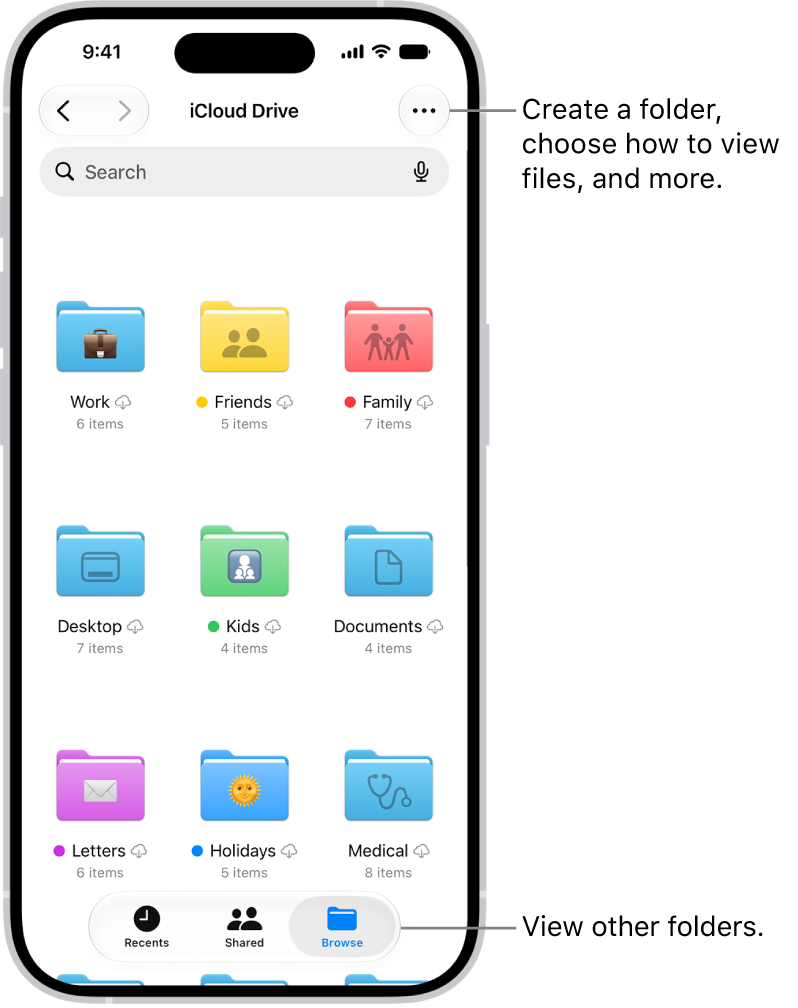
  3. Tap the More button, then tap New Folder.

Note: If New Folder doesn’t appear, you can’t create a folder in that location.

Copy, compress, and make other changes to a file or folder

  1. Start the Files app on your iPhone.
  2. Open a location or an existing folder.
  3. Touch and hold the file or folder. Choose an option: Copy, Move, Compress, Duplicate, or Delete.

Depending on the item you select, some options may not be available. You can’t delete or move an app library, for example, which is a folder labeled with the app name.

To modify multiple files or folders at the same time, tap the More button, tap Select, tap to select the files or folders you want to modify, then tap an option at the bottom of the screen (for example, Share, Move, or Delete).

Rename a file or folder

  1. Start the Files app on your iPhone.
  2. Open a location or an existing folder.
  3. Touch and hold the file or folder and choose Rename.

With Apple Intelligence, Files recommends a name above the keyboard when you rename a file.

Note: Apple Intelligence on iOS 27 or later is available on an Apple Intelligence-enabled iPhone 15 Pro, iPhone 15 Pro Max, or iPhone 16 model or later. Apple Intelligence is not available in all languages or regions. Usage limits may apply.*

Zip or unzip a file or folder

Zipping a file or folder compresses it so it takes up less storage space on your iPhone, and unzipping a compressed file or folder works, too.

  1. Start the Files app on your iPhone.
  2. Touch and hold the file or folder you want to zip. Then tap Compress.

To unzip a compressed file or folder, touch and hold it, then tap Uncompress.

Tag a file or folder

  1. Start the Files app on your iPhone.
  2. Open a location or an existing folder.
  3. Touch and hold the file or folder, tap Tags, and then tap one or more tags.
  4. Tap Done.

To find tagged items, tap Browse, then tap an item below Tags.

To remove a tag, tap it again.

Mark a folder as a favorite

  1. Start the Files app on your iPhone.
  2. Open a location, touch and hold the folder, and tap Favorite.

To find Favorites, tap Browse.

*Apple Intelligence is available with Siri and device language set to Chinese (Simplified), Chinese (Traditional), Danish, Dutch, English, French, German, Italian, Japanese, Korean, Norwegian, Portuguese, Spanish, Swedish, Turkish, or Vietnamese. Some features may not be available in all regions or languages. Some devices may not be available in all regions. Siri AI is available in beta in iOS 27, iPadOS 27, macOS 27, watchOS 27, and visionOS 27 and requires an Apple Intelligence–enabled device set to a supported language. Available in English to start. Siri AI will not be initially available in the EU on iOS, iPadOS, and watchOS. Certain Apple Intelligence features that rely on server-side models are subject to daily usage limits, including but not limited to Siri AI, Intelligent Photo Editing Tools, Image Playground, and AFM 3 Cloud models in Shortcuts. Daily limits may vary by feature, request complexity, system demand, system policies, and other factors. Expanded access to such features will be available for a fee in the future. Use of these features is subject to the Apple Intelligence Terms and Conditions.

Tag: Files

In the Files app, you can find and view your documents, images, and other files that you downloaded from the internet or your mail app. They’re in the Downloads folder on the Browse screen. If you don’t see the folder there, it may be in iCloud Drive, or you can check your downloads in Safari.

  1. Open the Files app on your iPhone.
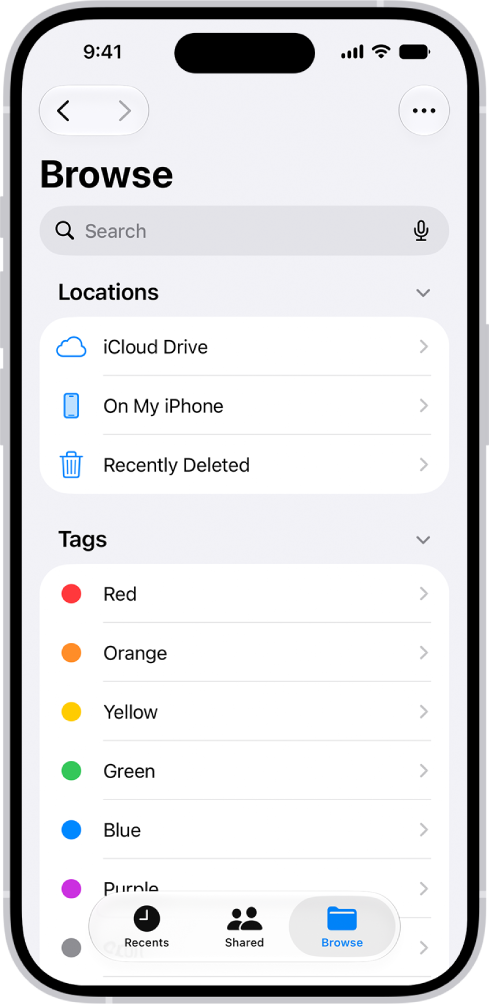
  2. Tap Browse.
  3. Tap the Downloads folder to see your downloaded files.

Quick tip: Tap iCloud Drive if the Downloads folder isn’t on the Browse screen.

Note: When your downloaded files are nowhere to be found, go to the Safari app on your iPhone and tap the Download button, where you can check the status of a downloading file or get to downloaded files quickly.

Tag: Files

You can copy, move, customize, share, and delete your documents, images, and other files on your iPhone.

Your folders don’t have to look alike, either. You can customize the appearance of your folders with color and icons, change to list view or icon view, and rearrange the Browse screen. And you can delete a file or folder you no longer need. That command doesn’t appear for the Desktop, Documents, or Downloads folders, though.

The Files app displaying multiple folders and locations named Downloads, Letters, Family, and so on. At the bottom of the screen are buttons for Recent files, Shared files, and the Browse tab.

Customize the appearance of your folders

To make your folders easier to spot, add color and icons to them.

  1. Open the Files app on your iPhone.
  2. Touch and hold a folder you want to customize and choose Customize Folder & Tags.

    Note: This command doesn’t appear for the Desktop, Documents, or Downloads folders.

  3. Tap Tags, choose a color, and then tap the Back button.
  4. Select an icon or tap Emoji to add an emoji to the folder.

To remove the icon from the folder, tap Clear below the icons.

Change to list view or icon view

The Files app showing the files and folders in your iCloud Drive. The More menu has options for Selecting items, creating a new folder, Scan Documents, and Connect to Server. Below that are options to view items on the screen as Icons or a List. At the bottom are sort options for Name, Kind, Date, Size, and Tags followed by View Options.

  1. Open the Files app on your iPhone.
  2. From an open location or folder, tap the More button. Tap Icons or List to change your view of the files.

To look deeper into a file hierarchy in List view, tap the Forward button next to a folder to expand it.

Rearrange the Browse screen

  1. Open the Files app on your iPhone.
  2. Tap Browse.
  3. On the Browse screen, tap the More button, tap Edit, and do any of the following:
    • Hide a location: Turn the location off.
    • Delete a tag and remove it from all items: Tap the Remove button next to the tag.
    • Remove an item from the Favorites list: Tap the Remove button next to the item.
    • Change the order of an item: Touch and hold the Reorder button and then drag it to a new position.

Delete a file or folder

  1. Open the Files app on your iPhone.
  2. Tap Browse and then locate the file or folder you want to delete.
  3. Touch and hold the file, then tap Delete.
Tag: Files

In the Files app, you can search for and view your documents, images, and other files.

You can focus your search on Recents or a location or tag, and start a new search at any time, too. You can also select an app to open a file, and choose a default app for a type of file.

Here’s how to find and view files and folders in Files on iPhone.

Find a specific file or folder

  1. Open the Files app on your iPhone.
  2. Enter a filename, folder name, or document type in the search field.

When you search, you have these options:

  • Focus the scope of your search: Below the search field, tap Recents or the name of the location or tag.
  • Hide the keyboard and see more results on the screen: Tap Search.
  • Start a new search: Tap the Clear Text button in the search field.
  • Open a result: Tap it.

Select an app to open a file

When you open a file, you can specify which app to open it with.

  1. Open the Files app on your iPhone.
  2. Touch and hold the file you want to open.
  3. Choose Open With from the menu. Choose an option.

Choose a default app for opening a file

You can specify a default app to open a file with, so that the file always opens in that app when you tap it.

  1. Open the Files app on your iPhone.
  2. Touch and hold the file, then choose Get Info.
  3. Below the Preview, tap the pop-up menu next to Always Open With. Then select an app.

If you choose a new default app for opening the file, a prompt asks you to confirm whether the default app should change for that file or file type.

Open a file in Quick Look

In Quick Look, you can preview an image file or a PDF.

  1. Open the Files app on your iPhone.
  2. Touch and hold the file, tap Open With, and choose Preview with Quick Look.

Browse files and folders

  1. Open the Files app on your iPhone.
  2. Tap Browse. Tap a document on the Browse screen.
  3. If you don’t see the Browse screen, tap Browse again.
  4. To view recently opened files, tap Recents.
  5. To open a file, location, or folder, tap it.

Note: A file created by an app you haven’t installed still opens, as a preview in Quick Look.

Change how files and folders are sorted

  1. Open the Files app on your iPhone.
  2. From an open location or folder, tap the More button.
  3. Choose an option: Name, Kind, Date, Size, or Tags.
Tag: Files