Got a tip for us?

Home Screen

You can change how app icons and widgets look on your Home Screen—adjust their size, apply a color tint, or switch between light and dark appearances. Auto gives icons and widgets a dark look at night, and a light appearance during the day.

In large size, the app names disappear, and a clear look makes the icons translucent. You can resize a widget, too. Some apps don’t offer every widget size, though, while others offer sizes up to extra large.
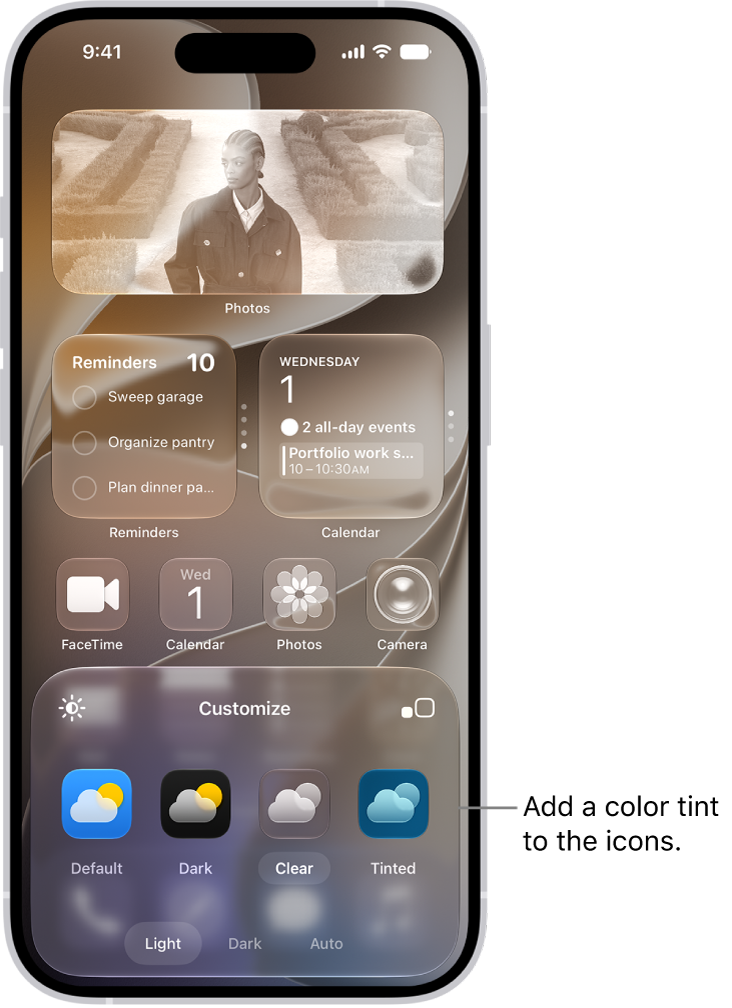
A customized Home Screen clear icons tinted blue and arranged to frame the photo, and controls at the bottom of the screen for customizing icons. Options include Automatic, Dark, Light, and Tinted buttons, options for choosing color and saturation, and Small and Large buttons for setting the icons’ size.

Customize the look of app icons

  1. Go to the Home Screen.
  2. Touch and hold the Home Screen background until the icons begin to jiggle.
  3. Tap the Edit button, then choose Customize.
  4. Do any of the following:
    • Make the icons larger: Tap the Large App Icon button. In large size, the names of the apps disappear.
    • Choose a dark appearance: Tap Dark. To show icons and widgets with a dark appearance at night and a light appearance during the day, tap Auto.
    • Give the icons a clear look: Tap Clear to make the icons translucent, then choose Light, Dark, or Auto.
    • Add a color tint: Tap Tinted. Use the sliders to choose the color and saturation (or use the eyedropper to select a color in your wallpaper). Then choose Light, Dark, or Auto.

Resize a widget

  1. Go to the Home Screen.
  2. Touch and hold the app icon or widget on your Home Screen.
  3. Choose a widget size.

Note: Widget sizes vary by app. Some provide only small and medium widgets, while others go up to extra large.

To change the widget back to an app icon, touch and hold it, then tap the App Icon button.

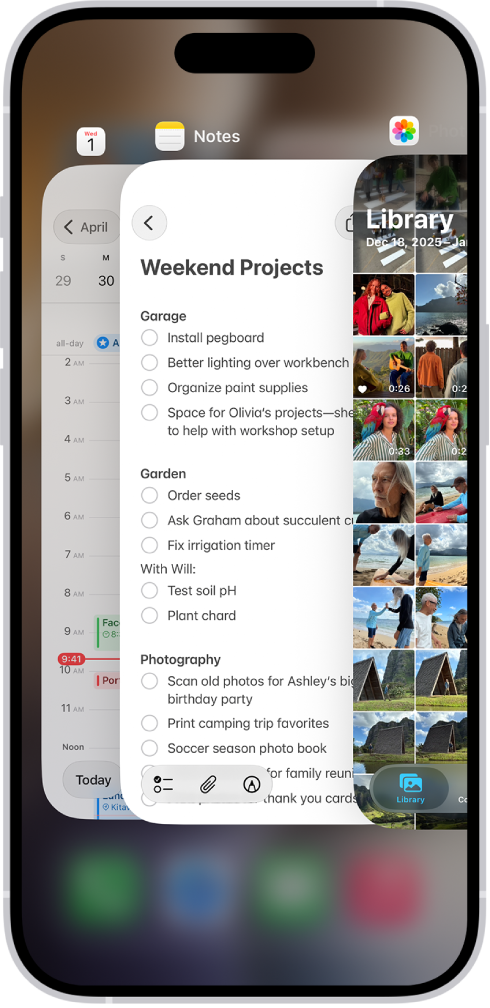
You can quickly switch from one open app to another on your iPhone. When you switch back, you can pick up right where you left off. The App Switcher shows all your open apps, and on an iPhone with Face ID, there’s an even quicker way to switch between open apps.

Use the App Switcher

  1. To see all your open apps, do one of the following:
    • On an iPhone with Face ID: Swipe up from the bottom of the screen, pause in the center of the screen and then lift your finger.
    • On an iPhone with a Home button: Double-click the Home button.
  2. To browse the open apps, swipe right and tap the app you want to use.

The App Switcher. Icons for the open apps appear at the top, and the current screen for each open app appears below its icon.

Switch between open apps

To quickly switch between open apps on an iPhone with Face ID, swipe right along the bottom edge of the screen.

You can move apps and widgets anywhere on the Home Screen to create the ideal layout: frame your wallpaper photo, align apps and widgets along the side or bottom, or move them to other Home Screen pages. If you have multiple Home Screen pages, each one can have a unique layout.

You can also temporarily hide Home Screen pages and change where new apps get downloaded. And if you change your mind, you can reset the Home Screen and apps to their original layout.

Quick tip: One Home Screen page can hold all your apps and widgets for a particular Focus, such as your Work Focus, and you can make that page accessible during that Focus.

Move apps and widgets on your Home Screen

  1. Go to the Home Screen.
  2. Touch and hold the Home Screen background until the items begin to jiggle.
  3. Drag the app or widget to one of the following locations:

    • Another location on the same page—including the top, bottom, or side of the screen
    • Another Home Screen page

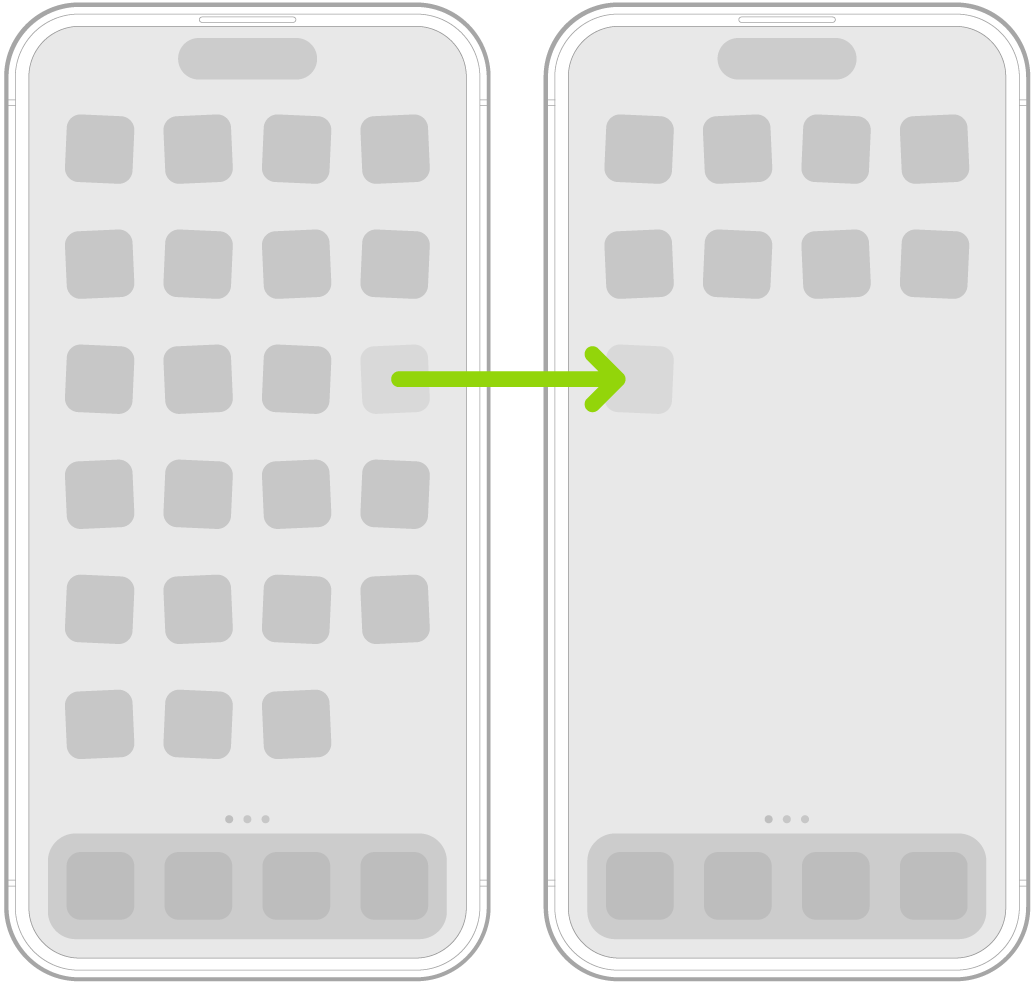
      Drag the app or widget to the right edge of the screen. You might need to wait a moment for the new page to appear. The dots show how many pages you have and which one you’re viewing.

    Jiggling apps on the Home Screen with an arrow showing one app being dragged to the next page.

  4. When you’re finished, press the Home button (on an iPhone with a Home button) or tap the Home Screen background (on other iPhone models).

Reset the Home Screen and apps to their original layout

  1. Open the Settings app on your iPhone.
  2. Tap General, then tap Transfer or Reset iPhone.
  3. Tap Reset and tap Reset Home Screen Layout. Then tap Reset Home Screen.

Apps you downloaded are arranged alphabetically after the apps that came with your iPhone, and any folders you created are removed.