Got a tip for us?

Home Screen

On the Home Screen, in Control Center, and in apps, you can see previews, open Quick Actions menus, and more. You can preview an image in Photos and see a list of options, preview the message contents in Mail, and respond to a notification on the Lock Screen. Control Center has options for items like Camera, too.

  • In Photos, touch and hold an image to preview it and see a list of options.
  • In Mail, touch and hold a message in a mailbox to preview the message contents and see a list of options.
  • On the Home Screen, touch and hold an app icon briefly to open a Quick Actions menu. If the icons start to jiggle, tap Done at the top right or press the Home button (on an iPad with a Home button), then try again.
  • Open Control Center, then touch and hold an item like Camera or the brightness control to see options.
  • On the Lock Screen, touch and hold a notification briefly to respond to it.
  • When typing, touch and hold the Space bar with one finger to move the insertion point.

See also

App Library shows your apps—including any you’ve removed from your Home Screen—organized into categories, such as Social, Entertainment, and Productivity & Finance. At the top of the screen, Suggestions shows the apps you use most, and Recently Added shows your newest apps.

App Library is always available, and you can bring it closer by hiding Home Screen pages. You can open it quickly from the Dock, too, or browse an alphabetical list, and easily move an app back to the Home Screen.
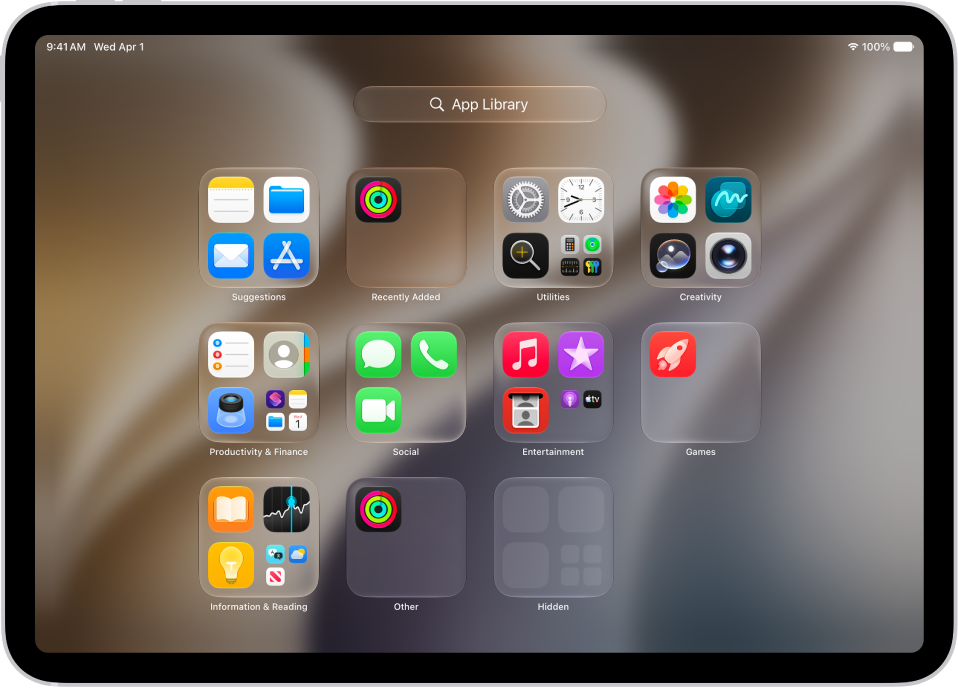
App Library on iPad showing the apps organized by category (Entertainment, Productivity & Finance, and so on).

Note: The apps in App Library land in categories intelligently, depending on how you use your apps. And while you can add apps in App Library to your Home Screen, moving one to another App Library category isn’t possible.

Find and open an app in App Library

  1. Go to the Home Screen and swipe left past all your Home Screen pages to get to App Library.

    You can also open App Library quickly by tapping the App Library button, the rightmost button in the Dock at the bottom of the screen.

  2. Tap the search field at the top of the screen. Then enter the name of the app you’re looking for.

    Or scroll to browse the alphabetical list.

  3. To open an app, tap it.

If a category in App Library has a few small app icons, you can tap them to expand the category and see all the apps in it.

Move an app from App Library to the Home Screen

If you moved an app from the Home Screen to App Library, you can easily move it back to the Home Screen.

  1. Go to App Library.
  2. Touch and hold the app until the app icons begin to jiggle and the app moves to the Home Screen and then lift your finger.

Hide and show Home Screen pages

Because you can find all of your apps in App Library, you might not need as many Home Screen pages for apps. You can hide some Home Screen pages, which brings App Library closer to your first Home Screen page. (When you want to see the hidden pages again, you can show them.)

  1. Go to the Home Screen. Then touch and hold the Home Screen wallpaper until the app icons begin to jiggle.
  2. Tap the dots at the bottom of the screen.

    Thumbnail images of your Home Screen pages appear with checkmarks below them.

  3. To hide pages, tap to remove the checkmarks.

    To show hidden pages, tap to add the checkmarks.

  4. Tap the Done button.

With the extra Home Screen pages hidden, you can go from the first page of the Home Screen to App Library (and back) with only one or two swipes.

Note: Apps you download from the App Store while Home Screen pages are hidden may show up in App Library, not on the Home Screen.

Reorder Home Screen pages

Multiple Home Screen pages can be reordered. Gather your favorite apps on one page, for example, and then make that page your first Home Screen page.

  1. Go to the Home Screen. Then touch and hold the Home Screen background until the app icons begin to jiggle.
  2. Tap the dots at the bottom of the screen.

    Thumbnail images of your Home Screen pages appear with checkmarks below them.

  3. To move each Home Screen page, touch and hold it. Drag it to a new position.
  4. Tap the Done button.

Change where new apps get downloaded

You can put new apps you download from the App Store on the Home Screen and in App Library, or in App Library only.

  1. Start the Settings app on your iPad.
  2. Tap Home Screen & App Library.
  3. Choose Add to Home Screen or App Library only.

Note: For app notification badges to show up on apps in App Library, turn on Show in App Library.

See also

You can browse and open apps from the Home Screen. Your Apple Watch comes with a collection of helpful apps designed to keep you connected right from your wrist, and these built-in apps work with your iPhone to help you stay active, communicate with others, and access important information.

The dynamic app grid shows the apps you use most and the ones you’ve used recently. And if an app isn’t responding, you can quit and reopen it.

Open apps from the Home Screen

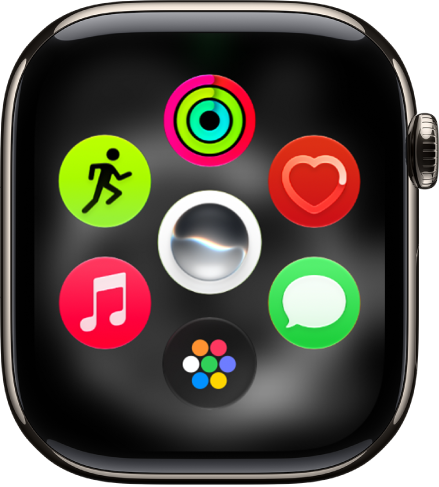
  1. From the watch face, press the Digital Crown to see the dynamic app grid, which shows the apps you use most and have used most recently.

    The dynamic app grid shows the apps you use most.

  2. Tap an app to open it.
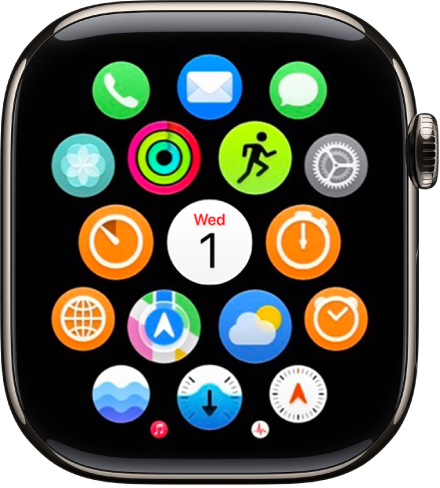
  3. To see more apps, turn the Digital Crown.

    The Home Screen showing all your apps.

To return to the Home Screen from an app, press the Digital Crown once, then press it again to switch to the watch face.

Apps included with Apple Watch

App icon App name For more information
Activity icon Activity Track daily activity
Alarm icon Alarms Add an alarm
App Store icon App Store Get apps
Audiobooks icon Audiobooks Listen to audiobooks
Blood Oxygen icon Blood Oxygen

(not available on Apple Watch SE; not available in all countries or regions)

Measure blood oxygen levels
Calculator icon Calculator Use Calculator
Calendar icon Calendar Check and update your calendar
Camera Remote icon Camera Remote Use Camera Remote
Compass icon Compass Use the compass
Contacts icon Contacts See contact information
Cycle Tracking icon Cycle Tracking Use Cycle Tracking
Depth icon Depth Measure underwater temperature, duration, and depth
ECG icon ECG Record an electrocardiogram
Find My icon Find My Set up Find My
Heart Rate icon Heart Rate Check your heart rate
Home icon Home Control your home
Mail icon Mail Read and write mail
Maps icon Maps Get directions
Medications icon Medications Track your medications
Memoji icon Memoji Use Memoji
Messages icon Messages Read and respond to messages
Mindfulness icon Mindfulness Practice mindfulness
Music icon Music Add and play music
Music Recognition icon Music Recognition Identify songs with Shazam
News icon News

(not available in all countries or regions)

Read news stories
Noise icon Noise Measure noise levels
Notes icon Notes Take notes
Now Playing icon Now Playing Use Now Playing
Phone icon Phone Answer and make phone calls
Photos icon Photos View photos and Memories
Podcasts icon Podcasts Play podcasts
Readiness

(available on Apple Watch Series 12 and Apple Watch Ultra 4)

Use the Readiness app
Reminders icon Reminders Use reminders
Remote icon Remote Control Apple TV 4K
Settings icon Settings Change the settings
Shortcuts icon Shortcuts Use shortcuts
Siren icon Siren

(available on Apple Watch Ultra models)

Activate the siren
Siri icon Siri

(Siri AI is available in beta on watchOS 27 or later on Apple Watch Series 9 and later, Apple Watch Ultra 2 and later, and Apple Watch SE 3 when paired with an Apple Intelligence-enabled iPhone 15 Pro, iPhone 15 Pro Max, or iPhone 16 model or later with Siri and device language set to a supported language. Available in English to start. Siri AI will not initially be available in the EU on iOS and watchOS. Usage limits may apply.)*

Use the Siri app
Sleep icon Sleep Track your sleep
Stocks Track stocks
Stopwatch Use a stopwatch
Tides Tides
Timers Set timers
Tips View tips
Translate Translate text and voice
Vitals Track your vitals
Voice Memos Record and play voice memos
Wallet Set up cards and passes
Weather Check the weather
Workout Start a workout
World Clock Check the time in other locations

Quit an app

If an app isn’t responding, you can quit and reopen it to try to resolve the issue. (Typically, there’s no reason to quit an app; quitting it doesn’t save battery power, for example.)

  1. From the app you want to quit, press and hold the side button until the sliders appear.
  2. Press and hold the Digital Crown until the watch face appears.

*Apple Intelligence is available with Siri and device language set to Chinese (Simplified), Chinese (Traditional), Danish, Dutch, English, French, German, Italian, Japanese, Korean, Norwegian, Portuguese, Spanish, Swedish, Turkish, or Vietnamese. Some features may not be available in all regions or languages. Some devices may not be available in all regions. Siri AI is available in beta in iOS 27, iPadOS 27, macOS 27, watchOS 27, and visionOS 27 and requires an Apple Intelligence–enabled device set to a supported language. Available in English to start. Siri AI will not be initially available in the EU on iOS, iPadOS, and watchOS. Certain Apple Intelligence features that rely on server-side models are subject to daily usage limits, including but not limited to Siri AI, Intelligent Photo Editing Tools, Image Playground, and AFM 3 Cloud models in Shortcuts. Daily limits may vary by feature, request complexity, system demand, system policies, and other factors. Expanded access to such features will be available for a fee in the future. Use of these features is subject to the Apple Intelligence Terms and Conditions.

See also

You can rearrange your apps in the grid view, list the apps in alphabetical order, and delete apps you don’t use.

Deleting an app from your iPhone removes it from Apple Watch, too, but you can also remove an app from your watch alone. Not all apps can be removed, though. And you can switch between list and grid view in the Settings app.

Here’s how to organize apps on Apple Watch.

Rearrange your apps on the App Grid

  1. Press the Digital Crown, then turn the Digital Crown to see all your apps.
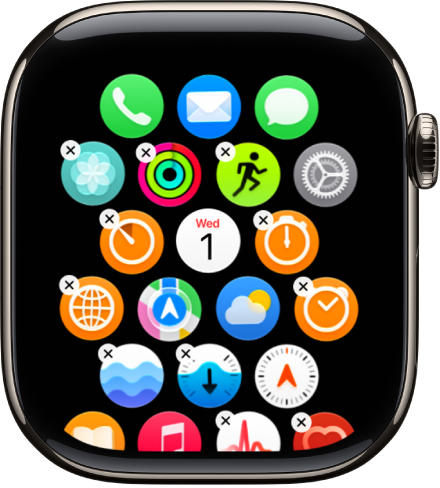
  2. Touch and hold an app and drag the app to a new location.

    The Home Screen in edit mode.

  3. Press the Digital Crown when you’re done.

You can also go to the Apple Watch app on your iPhone, tap My Watch, tap App View, then tap Arrangement. Touch and hold an app icon, then drag it to a new location.

Switch to the list or grid view

  1. Press the Digital Crown, then turn the Digital Crown to see all your apps.
  2. Scroll to the bottom and choose an option:

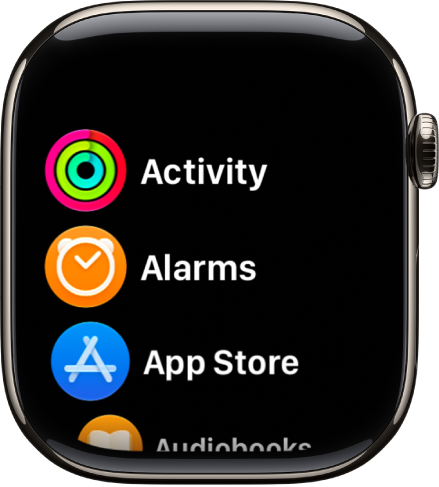
    • List view

      The Home Screen in list view, with apps in alphabetical order.

    • Grid view

      The Arrangement screen in the Apple Watch app showing a grid of icons.

You can also go to the Settings app, tap App View, then choose an option.

Remove an app from Apple Watch

If you remove an app from your iPhone, that app is also deleted from Apple Watch. To remove an app on Apple Watch only, do the following:

  1. Press the Digital Crown, then turn the Digital Crown to see all your apps.
  2. Touch and hold an app. Then tap the Delete button.

    Note: Not all apps can be removed from Apple Watch.

The deleted app stays on your paired iPhone until you delete it there as well. You can restore any app, including built-in Apple apps, if you download it from the App Store on your iPhone or Apple Watch.

See also

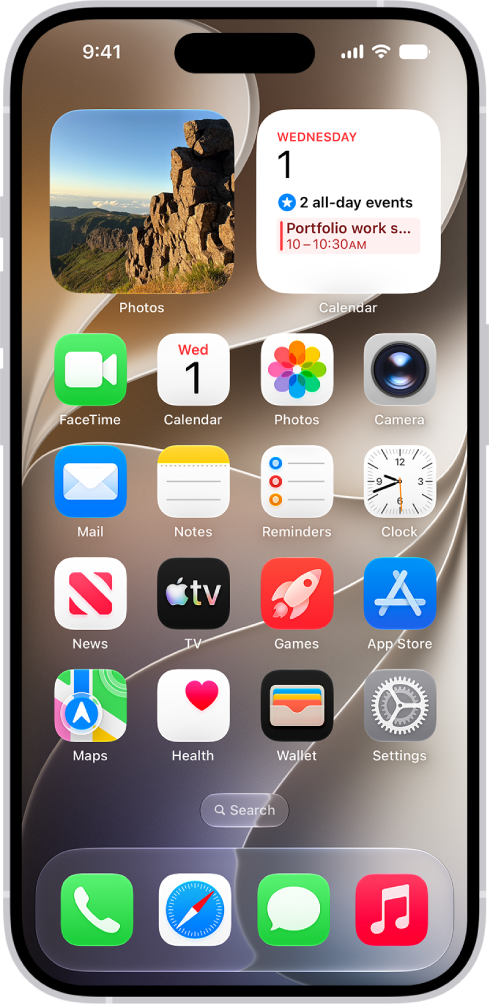
You can quickly open apps from one of your Home Screen pages or your App Library. App Library is past all your Home Screen pages. It’s where your apps are organized by category, and you can browse apps on other Home Screen pages, too, then return to App Library whenever you like.

A screenshot showing an example of the default Home Screen.

  1. To go to the Home Screen, swipe up from the bottom edge of the screen (on an iPhone with Face ID) or press the Home button (on an iPhone with a Home button).
  2. Swipe left to browse apps on other Home Screen pages.
  3. Swipe left past all your Home Screen pages to see App Library, where your apps are organized by category.
  4. To open an app, tap its icon.
  5. To return to App Library, swipe up from the bottom edge of the screen (on an iPhone with Face ID) or press the Home button (on an iPhone with a Home button).

You can organize your apps into folders to make them easier to find on your Home Screen pages.

A folder can hold more than one screen’s worth, too: it can contain multiple pages of apps. You can create, rename, or delete a folder, or move an app from a folder back to the Home Screen. Organizing your apps on the Home Screen doesn’t affect App Library, either.

Here’s how to organize your apps in folders on iPhone.

Create a folder

  1. Go to the Home Screen.
  2. Touch and hold the Home Screen background until the apps begin to jiggle.
  3. To create a folder, drag an app onto another app and then drag other apps into the folder.

    A folder can contain multiple pages of apps.

  4. To rename the folder, touch and hold it, tap Rename, and then enter a new name.

    If the apps begin to jiggle, tap the Home Screen background and try again.

  5. When you’re finished, tap Done.

Note: If you organize your apps on the Home Screen, it doesn’t affect the organization of apps in App Library.

Delete a folder from your Home Screen

  1. Go to the Home Screen.
  2. Touch and hold the Home Screen background until the apps begin to jiggle.
  3. Tap the folder to open it. Then drag all the apps out of it onto the Home Screen.

    When the folder is empty, it’s deleted automatically.

Move an app from a folder to the Home Screen

Moving an app from a folder to the Home Screen makes it easier to locate and open.

  1. Go to the Home Screen.
  2. Locate the folder that contains the app. Tap the folder to open it.
  3. Touch and hold the app until the apps begin to jiggle.
  4. Drag the app from the folder to the Home Screen.

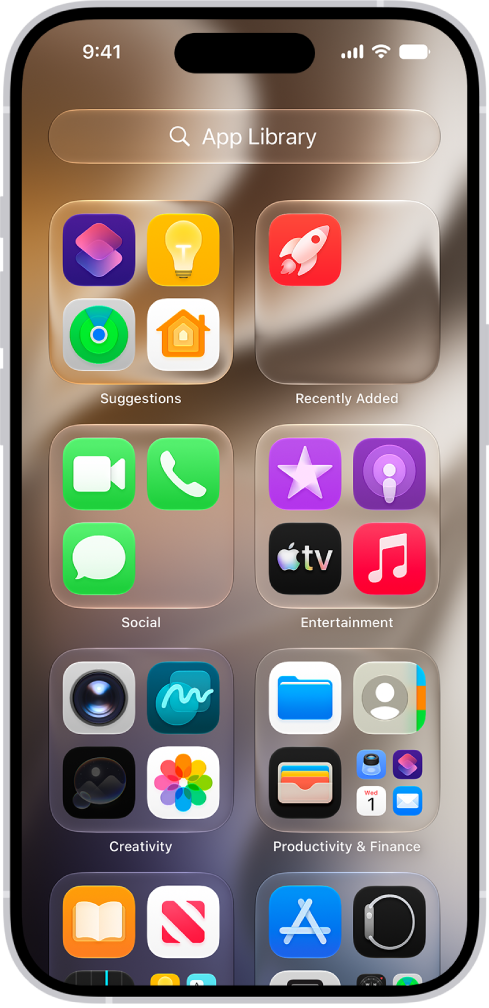
App Library shows your apps, including any you’ve removed from your Home Screen, organized into categories, such as Social, Entertainment, and Productivity & Finance. At the top of the screen, Suggestions shows the apps you use most, and Recently Added shows your newest apps.

App Library is always available, and you can bring it closer by hiding Home Screen pages. You’ll find it just past all your Home Screen pages.

App Library on iPhone showing the apps organized by category (Utilities, Social, Entertainment, and so on).

Note: The apps in App Library are sorted into categories intelligently, based on how you use them. You can add apps in App Library to your Home Screen, but there is no way to move them to another category in App Library.

Find and open an app in App Library

  1. Go to the Home Screen and swipe left past all your Home Screen pages to get to App Library.
  2. Tap the search field at the top of the screen and enter the name of the app you’re looking for. Or scroll up and down to browse the alphabetical list.
  3. To open an app, tap it.

If a category has a few small app icons, you can tap them to expand the category and see all the apps in it.

Move an app from App Library to the Home Screen

Downloaded an app to App Library? You can easily move it to the Home Screen.

  1. Go to App Library.
  2. Touch and hold the app until the app icons begin to jiggle and the app moves to the Home Screen and then lift your finger.

Hide and show Home Screen pages

Because you can find all of your apps in App Library, you might not need as many Home Screen pages. You can hide some Home Screen pages, which brings App Library closer to your first Home Screen page. (When you want to see the hidden pages again, you can show them.)

  1. Go to the Home Screen. Then touch and hold the Home Screen wallpaper until the app icons begin to jiggle.
  2. Tap the dots at the bottom of the screen.

    Thumbnail images of your Home Screen pages appear with checkmarks below them.

  3. To hide pages, tap to remove the checkmarks.

    To show hidden pages, tap to add the checkmarks.

  4. Tap the Done button, or press the Home button on an iPhone with a Home button.

Note: If you’ve hidden Home Screen pages, new apps you download from the App Store may end up in App Library instead of the Home Screen.

Reorder Home Screen pages

With multiple Home Screen pages, you can change their order. Gather your favorite apps on one Home Screen page, for example, and then make that page your first Home Screen page.

  1. Go to the Home Screen. Then touch and hold the Home Screen wallpaper until the app icons begin to jiggle.
  2. Tap the dots at the bottom of the screen.

    Thumbnail images of your Home Screen pages appear with checkmarks below them.

  3. To move each Home Screen page, touch and hold it. Drag it to a new position.
  4. Tap the Done button, or press the Home button on an iPhone with a Home button.

Change where new apps get downloaded

Once you download new apps from the App Store, you can add them to both the Home Screen and App Library, or to App Library only.

  1. Start the Settings app on your iPhone.
  2. Tap Home Screen & App Library.
  3. Choose Add to Home Screen or App Library Only.

Note: Turn on Show in App Library if you want app notification badges to appear on apps in App Library.

Widgets show you information from an app at a glance, like today’s headlines, weather, reminders, and battery levels. You can add them to your Home Screen, and turn an app icon into a widget. A Smart Stack, a widget with dots next to it, shows the most relevant widget based on the time and your location.

What are widgets?

With widgets, current information from an app is easy to view at a glance, whether it’s today’s headlines, the weather, reminders, or battery levels. You’ll find them in Today View, and you can add them to your Home Screen or Lock Screen to keep that information at your fingertips.

Quick tip: A widget with dots next to it is a Smart Stack. It’s a combined set of widgets that automatically shows the most relevant one at the appropriate time in your day, based on information such as the time, your location, and activity. You can add a Smart Stack to the Home Screen from the widget gallery, then swipe up and down through it to see the widgets inside.

Add a widget to your Home Screen

  1. Go to the Home Screen and then find the Home Screen page where you want to add the widget.
  2. Touch and hold the background until the apps begin to jiggle, tap the Edit button, and then tap Add Widget.
  3. Scroll or search to find the widget you want, tap it, and then swipe through the size and style options.
  4. When you see the size you want, tap Add Widget.
  5. While the apps are still jiggling, move the widget where you want it. Then tap the Done button.

Turn an app icon into a widget

An app icon can quickly become a widget.

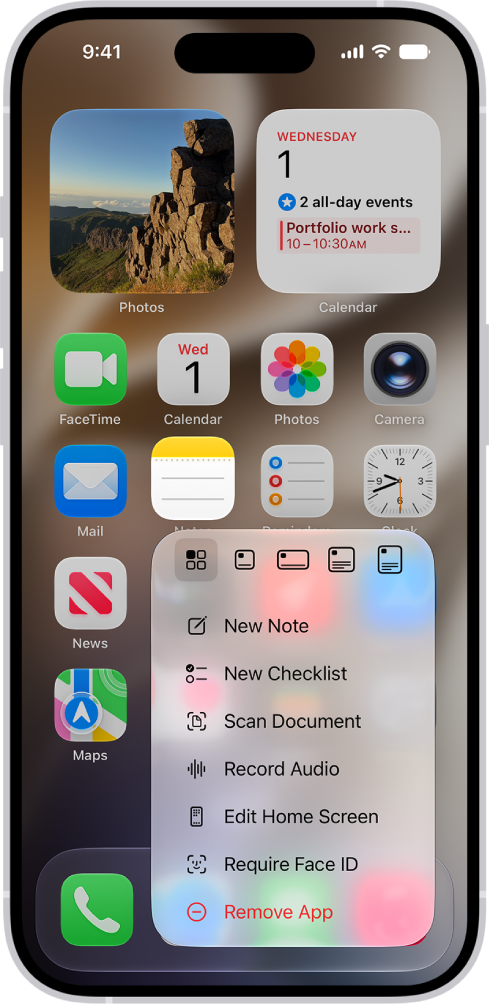
  1. Touch and hold the app icon on your Home screen.
  2. To choose the size of the widget, tap one of the icons at the bottom of the pop-up menu.

To change the widget back to an app icon, touch and hold it, then tap the App Icon button.

Interact with widgets

You can perform tasks by tapping widgets on your Home Screen, Lock Screen, or StandBy. Tap an item in the Reminders widget to check it off, tap the Play button in the Podcasts widget to play an episode, or tap the Home widget to turn on your living room lights—all without opening an app.

Edit a widget on your Home Screen

You can adjust most widgets right from your Home Screen so they display the information you want to see. For example, for a Mail widget, you can tap the mailbox shown in the widget, then choose a different mailbox so the messages in that mailbox are displayed in the widget.

  1. Touch and hold the widget.
  2. Tap Edit Widget (or Edit Stack, if it’s a Smart Stack). Choose options.

    For a Smart Stack, you can reorder widgets by dragging them within the stack, drag a widget from the Smart Stack to the Home Screen, or remove a widget by tapping the Remove button in its upper-left corner.

  3. Tap Done.

View widgets in Today View

To view widgets in Today View, swipe right from the left edge of the Home Screen, then scroll up and down.

View widgets in Today View when iPhone is locked

  1. Open the Settings app on your iPhone.
  2. Tap Face ID & Passcode (on an iPhone with Face ID) or Touch ID & Passcode (on other iPhone models).
  3. Make sure Today View and Search is turned on (below Allow Access When Locked).

On the Home Screen, in App Library, in Control Center, and in apps, you can use Quick Actions menus, see previews, and more. In Photos, you can preview an image and see a list of options. In Mail, there’s a preview of the message contents and a list of options, too.

Perform quick actions from Control Center, the Home Screen, and App Library

On the Home Screen and in Control Center and App Library, touch and hold apps to open Quick Actions menus.

A blurred Home Screen, with the Camera Quick Actions menu showing below the Camera app icon.

Here are a few examples:

  • Touch and hold Camera, then choose Selfie.
  • Touch and hold Maps, then choose Send My Location.
  • Touch and hold Notes, then choose New Note.

Note: Touch and hold an app too long before choosing a quick action, and all of the apps start to jiggle. If that happens, tap Done on an iPhone with Face ID, or on other iPhone models, press the Home button, and then try again.

See previews and other Quick Actions menus

  • In Photos, touch and hold an image to preview it and see a list of options.
  • In Mail, touch and hold a message in a mailbox to preview the message contents and see a list of options.
  • Open Control Center, then touch and hold an item like Camera or the brightness control to see options.
  • On the Lock Screen, touch and hold a notification to respond to it.
  • When typing, touch and hold the Space bar with one finger to move the insertion point.

Widgets show you current information from your favorite apps at a glance. On iPhone, you can add a Mail widget and choose which mailbox it shows on your Home Screen, from recent unread emails to new emails from your VIPs or any other mailbox.

Add a Mail widget to your Home Screen

  1. Go to the Home Screen and then find the Home Screen page where you want to add the widget.
  2. Touch and hold the background until the apps begin to jiggle, tap the Edit button, and then tap Add Widget.
  3. Scroll or search to find Mail, tap it, and then swipe through the size and style options.
  4. When you see the size you want, tap Add Widget.
  5. While the apps are still jiggling, move the widget where you want it. Then tap the Done button.

Choose which mailbox the Mail widget shows

You can tap the mailbox shown in the widget, then choose a different mailbox so the messages in that mailbox are displayed in the widget. You can also change it from the widget’s options:

  1. Touch and hold the widget.
  2. Tap Edit Widget and then choose options.
  3. Tap Done.