Use the Alarms app to play a sound or vibrate your Apple Watch at a set time. It’s flexible. You can set, edit, and delete alarms, skip a wake-up alarm, choose the days of the week you want an alarm to repeat, and even stop yourself from snoozing.
And if you want, you can receive alarms on both iPhone and Apple Watch.
Here’s how to add an alarm on Apple Watch.
Siri: Ask Siri something like, “Set repeating alarm for 6 a.m.” See Use Siri for your daily routine.
Set an alarm on Apple Watch
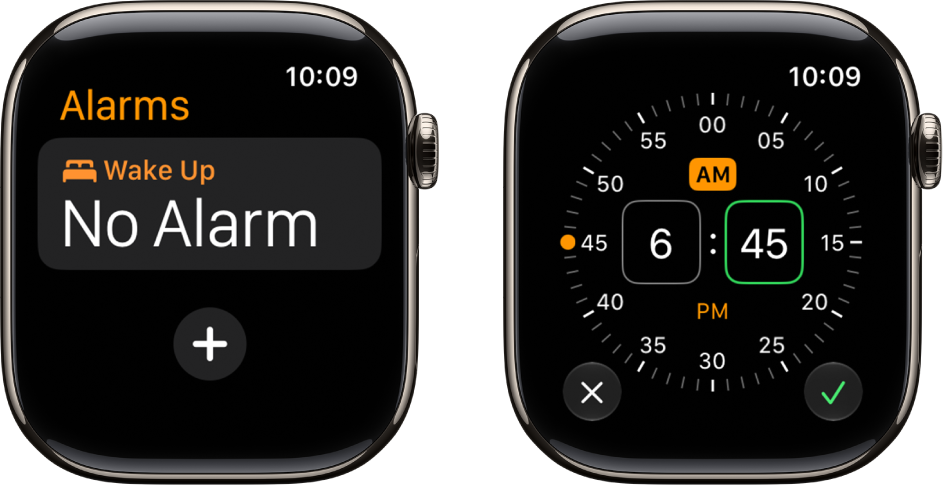
- Start the Alarms app on your Apple Watch.
- Tap the Add button.
- Tap AM or PM. Tap the hours or minutes.
- Turn the Digital Crown to adjust. Then tap the Check button.
To turn the alarm on or off, tap its switch.
Edit an alarm
- Start the Alarms app on your Apple Watch.
-
Tap the alarm time. Then tap any of the following options to edit your alarm:
- Change time: Change the alarm time.
- Repeat: Choose the days of the week you want the alarm to repeat.
- Label: Give the alarm a name, like “Water the plants.”
- Snooze: Turn on to see a Snooze button with your alarm.
- Snooze Duration: Choose how long to pause the alarm.
- Break Through Silent Mode: Turn on to have sound always play while wearing Apple Watch.
Tip: To create an alarm that taps your wrist, but doesn’t make a sound, turn on Silent Mode.
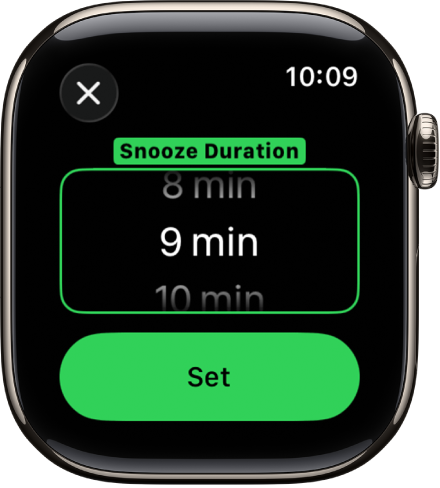
Don’t let yourself snooze
When an alarm sounds, you can tap Snooze to wait several minutes before the alarm sounds again. If you don’t want to allow snooze, follow these steps:
- Start the Alarms app on your Apple Watch.
- Tap the alarm in the list of alarms. Turn off Snooze.
Delete an alarm
- Start the Alarms app on your Apple Watch.
- Swipe left on an alarm. Then tap the Delete button.
Skip a wake-up alarm
You can skip a wake-up alarm that’s part of your sleep schedule for just that evening.
- Start the Alarms app on your Apple Watch.
- Tap the alarm that appears below Alarms and tap Skip for Tonight.
If you’d like a sleep schedule with wake-up alarms, read our guide, Set up your first recurring sleep schedule on Apple Watch.
Receive alarms on both iPhone and Apple Watch
- Set the alarm on your iPhone.
- Start the Apple Watch app on your iPhone.
- Tap My Watch and tap Clock. Turn on Push Alerts from iPhone.
Your Apple Watch alerts you when an alarm goes off so you can snooze or dismiss the alarm. (You aren’t alerted on your iPhone when your Apple Watch alarms go off.)
Set up Apple Watch as a nightstand clock with alarm
- Start the Settings app on your Apple Watch.
- Tap General and tap Nightstand Mode. Turn on Nightstand Mode.
When you connect your Apple Watch to its charger facing up with nightstand mode turned on, it displays charging status, the current time and date, and the time of any alarm you’ve set. To see the time, tap the display or lightly nudge your Apple Watch. Even nudging or tapping the table might work.
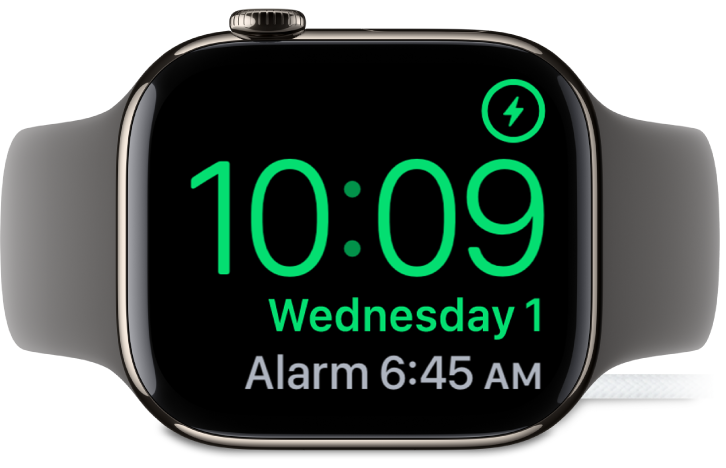
If you’ve set an alarm in the Alarms app, your Apple Watch gently wakes you in nightstand mode with a unique alarm sound.
When the alarm sounds, press the side button to turn it off, or press the Digital Crown to snooze.
See also
- Adjust the volume for alerts, alarms, timers, and system sounds
- Set timers
- Open and choose a stopwatch
- Check the time in another city