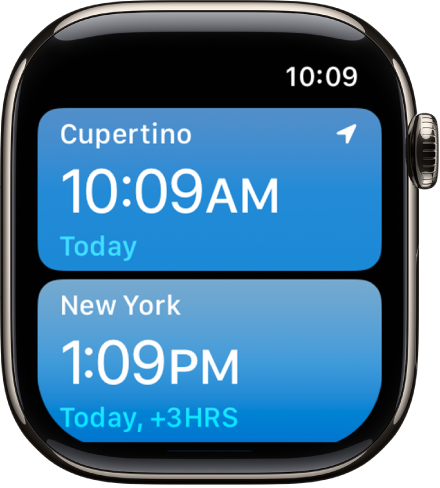
Use the World Clock app on your Apple Watch to check the time in cities around the globe.
Cities you add on your iPhone show up in World Clock on your watch, too, and you can add and remove cities right on Apple Watch. And for a city you always want to see, there’s a World Clock complication for your watch face.
Here’s how to use World Clock on Apple Watch to check the time in other locations.
Siri: Ask Siri something like, “What time is it in Auckland?” See Ask Siri to get information.
Add and remove cities in World Clock
- Start the World Clock app on your Apple Watch.
- Tap the List button, then tap the Add button.
- Enter the city name and tap Search.
- Tap the city name to add it to World Clock.
To remove a city, swipe left on its name in the city list, then tap the Delete button.
The cities you add on your iPhone also appear in World Clock on your Apple Watch.
Check the time in another city
- Start the World Clock app on your Apple Watch.
- Tap the List button and then turn the Digital Crown or swipe to scroll through the list.
- Tap a city to see more information, like the time of sunrise and sunset.
- To change the time in a city and compare it to your current location, turn the Digital Crown.
- When you’re finished, tap the List button to return to the city list.
To always see the time in a particular city, you can add a World Clock complication to your watch face and choose that city to display.
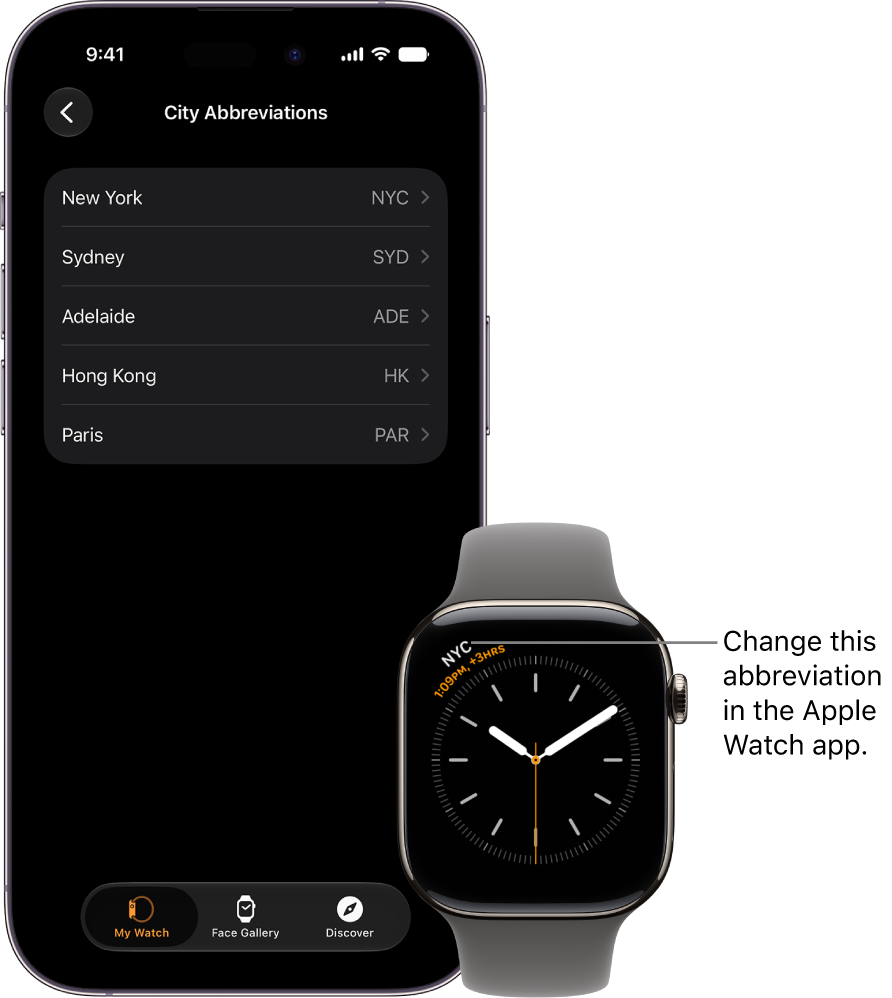
Change city abbreviations
You can change a city abbreviation used on your Apple Watch.
- Start the Apple Watch app on your iPhone.
- Tap My Watch and tap Clock. Tap City Abbreviations.
-
Tap any city to change its abbreviation.
See also