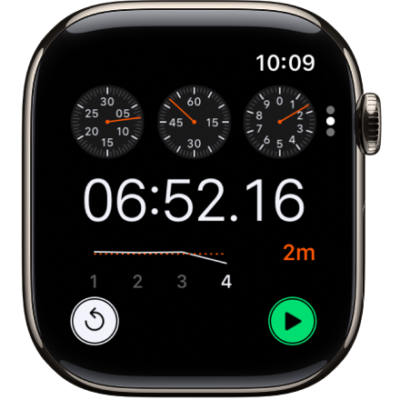
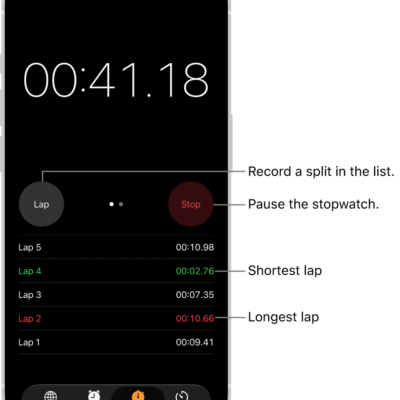
The Timers app on Apple Watch can help you keep track of time. You can set multiple timers that track time for up to 24 hours.
When a timer goes off, you can start a timer of the same duration. On supported models, timers update once a second when your wrist is down, as long as Always On Display is on. And if you want a timer with a label, like “Pizza,” you can create it with Siri.
Here’s how to set timers on Apple Watch.
Siri: Ask Siri something like, “Set a timer for 20 minutes.” See Use Siri for your daily routine.
Quickly set a timer
- Open the Timers app on your Apple Watch.
- To quickly start a timer, tap a duration (like 1, 3, or 5 minutes) or tap a timer you’ve recently used.
When a timer goes off, you can tap the Repeat Timer button to start a timer of the same duration.
Note: On supported models, timers update once a second while your wrist is down if you turn on Always On Display. To turn on Always On Display, go to the Settings app and tap Display & Brightness, and then turn on Always On Display.
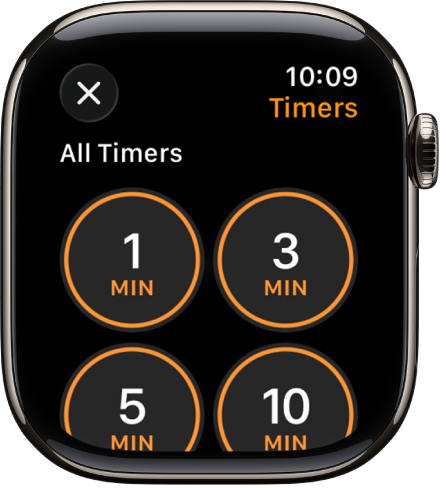
Create a custom timer
- Open the Timers app on your Apple Watch.
- Scroll down, then tap the Add button.
- Tap hours, minutes, or seconds and then turn the Digital Crown to adjust.
-
Tap Start.
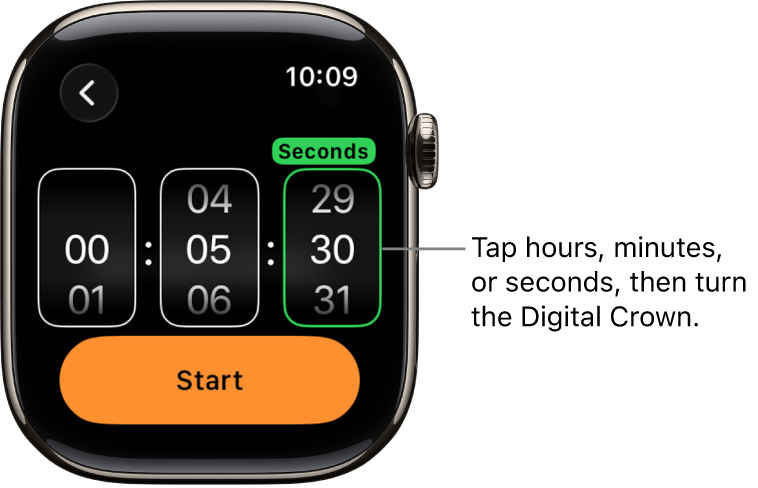
Pause or end a timer
- With a timer running, open the Timers app on your Apple Watch.
- Tap the Pause button to pause, tap the Play button to resume, or tap the End button to end.
Create multiple timers
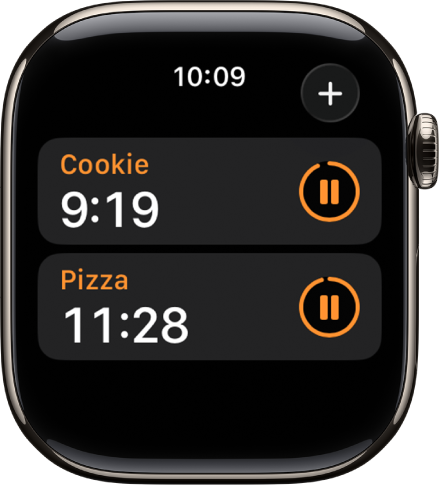
- Open the Timers app on your Apple Watch.
-
Create and start a timer.
Tip: To assign a label such as “Pizza” to a timer, use Siri to create the timer. Raise your Apple Watch, then say something like “Set a 12-minute pizza timer.”
- Tap the Add button to return to the Timers screen. Create and start another timer.
Tap the Back button to display your running timers on the Timers screen. Tap the Pause button to pause a timer, and tap the Play button to resume.
To delete a running or paused timer that appears on the Timers screen, swipe left, then tap the Delete button.
Edit the Timers screen
From the Timers screen, you can pin your favorite timers and delete custom timers.
- Open the Timers app on your Apple Watch.
- Scroll down, then tap Edit.
- Do any of the following:
- Pin a timer: Tap the Pin button.
- Unpin a timer: Tap the Unpin button.
- Delete a timer: Tap the Delete button.
- When you’re finished, tap Done.
See also
- Adjust the volume for alerts, alarms, timers, and system sounds
- Set an alarm
- Open and choose a stopwatch
- Check the time in another city