Got a tip for us?

Clock

You can see the local time in time zones around the world. In the Clock app, World Clock lets you manage your list of cities, so you can add a city, delete a city, or reorder the cities. You can also set an alarm in Clock on iPad.

Siri: Ask Siri something like: “What time is it?” or “What time is it in London?” Learn how to use Siri.

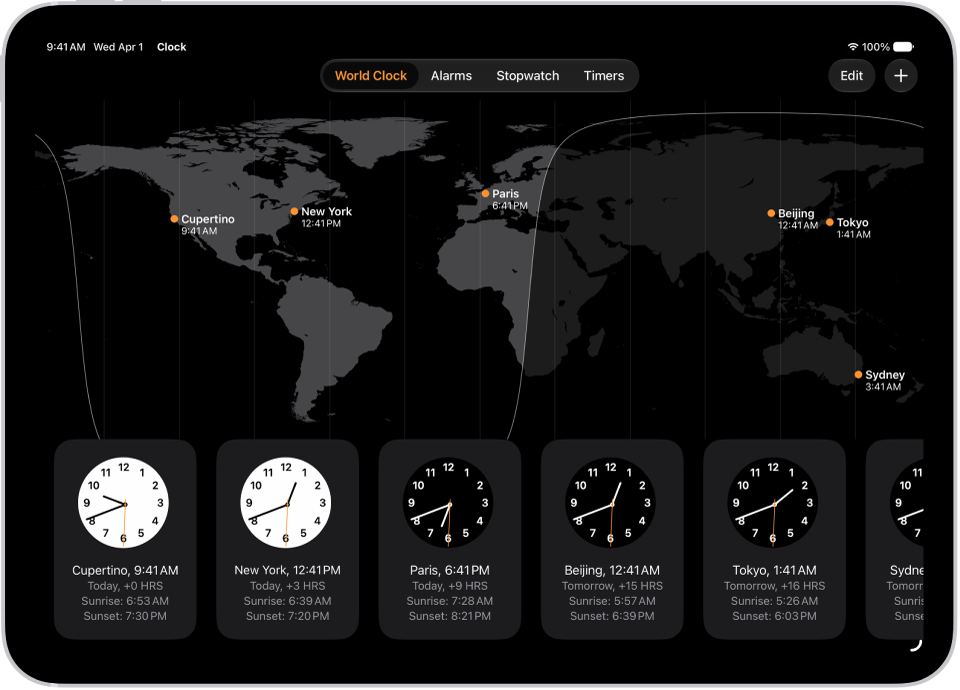
The World Clock tab, showing the time in various cities. The Edit button near the upper-left corner lets you reorder or delete clocks. The Add button near the upper-right corner lets you add more clocks. World Clock, Alarm, Stopwatch, and Timers buttons are along the bottom.

  1. Start the Clock app on your iPad.
  2. Tap World Clock.
  3. To manage your list of cities, do any of the following:
    • Add a city: Tap the Add button and choose a city.
    • Delete a city: Tap Edit, then tap the Delete button. When you’re finished, tap the Done button.
    • Reorder the cities: Touch and hold a clock and drag it to a new position.

See also

Tag: Clock

The time zone on your iPad is set automatically, but if you don’t have Location Services on or you don’t have service, you can change it manually.

You can also change the clock format to use a 24-hour clock, and show AM or PM or the date in the status bar. You can even choose a city for your time zone.

Here’s how to change the date and time on iPad.

Change the clock format

  1. Start the Settings app on your iPad.
  2. Tap General, then tap Date & Time.
  3. Do any of the following:
    • Display time using a 24-hour clock: Turn 24-Hour Time on.
    • Show AM or PM in the status bar: Turn on Show AM/PM.
    • Show the date in the status bar: Turn on Show Date.

Change the time zone

  1. Start the Settings app on your iPad.
  2. Tap General, then tap Date & Time.
  3. Turn Set Time Zone Automatically off and then do one of the following:
    • Choose a city: Tap Time Zone City, then search for a city.
    • Select a time zone offset: Tap Set By and tap Time Zone Offset. Then tap + or -.

Change the date and time

  1. Start the Settings app on your iPad.
  2. Tap General, then tap Date & Time.
  3. Turn off Set Automatically and then set the date and time.

Quick tip: The clock on the Lock Screen can have a different font color and style; see our guide, Create a custom Lock Screen.

See also

Tag: Clock

You can set timers to count down from specified times.

You can give a timer a name, like “Take the cookies out of the oven,” and choose a sound to play when the timer ends. You can also set multiple timers, or set a timer to stop playing audio or video, and a timer keeps going even when iPad goes to sleep.

Here’s how to set timers in Clock on iPad.

Siri: Ask Siri something like: “Set the timer for 3 minutes.” Learn how to use Siri.

Set a custom timer

  1. Start the Clock app on your iPad.
  2. Tap Timers and then set a duration of time.
  3. Choose any of the following options:
    • Label: Give the timer a name, like “Take the cookies out of the oven.”
    • When Timer Ends: Choose a sound to play when the timer ends.
  4. Tap Start.

Note: The timer keeps going even if you open another app or iPad goes to sleep.

Any custom timer you set appears below Recent, so it’s there whenever you want to start the same timer again.

Set a timer to stop playing audio or video

The timer can also stop audio or video playback after a specific amount of time, which helps if you fall asleep while listening to the radio, for example.

  1. Start the Clock app on your iPad.
  2. Set a custom timer, as above.
  3. Tap When Timer Ends and tap Stop Playing at the bottom of the list of sounds.
  4. Tap Set, then tap Start.

Set multiple timers

To keep track of different tasks at the same time, you can add more timers after you start a custom timer.
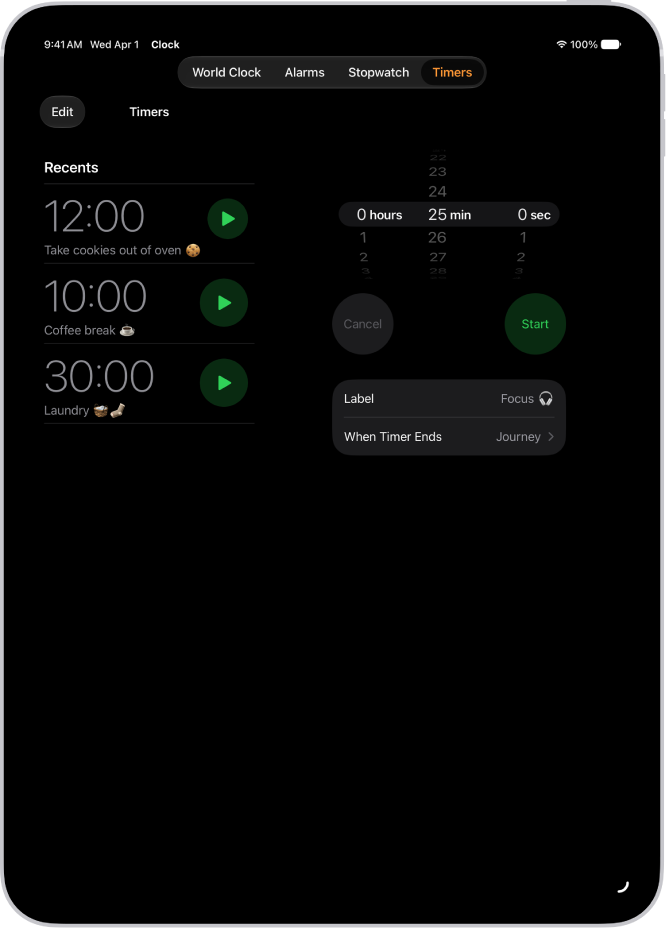
The Timers tab showing settings to set a timer. A recently created timer is below the timer settings. The World Clock, Alarm, Stopwatch, and Timers buttons are along the bottom.

  1. Start the Clock app on your iPad.
  2. Tap Timers, then start a timer.
  3. Tap the Add button at the top right and then do one of the following:

    • Add a custom timer: Set a duration of time, add a label or sound and tap the Start button.
    • Add a preset timer: Swipe left below Presets. Tap a preset duration of time (like 1, 5, or 10 minutes).
    • Add a recent timer: Tap the Start button next to a timer you’ve recently set.

      If you select a preset or recent timer, tap the timer to edit the label and sound.

Stop, pause, or remove a timer

When a timer ends, you get a notification at the top of your screen, no matter which app you’re using. Tap the Cancel button to clear the notification, or tap the Reset button if you want the timer to run again. You can also tap Repeat or Stop from the Lock Screen.

You can also pause or remove a timer early.

  1. Start the Clock app on your iPad.
  2. Tap Timers and then do any of the following:
    • Pause a timer: Tap the Pause button next to the timer to stop it momentarily. Tap the Start button to continue counting down.
    • Remove a timer: Swipe left, then tap the Trash button.
    • Remove several timers: Tap Edit and tap the Remove button. Then tap the Trash button.

From your Lock Screen, you can swipe left on a timer, then tap Clear.

See also

Tag: Clock

You can turn your iPad into an alarm clock, or simply ask Siri to set one for you. Alarms can be set for any time and repeated on specific days of the week, and you can adjust how long the snooze lasts.

You can give an alarm a label and choose a song or ringtone. You can also change the alarm’s volume, and turn off or remove an alarm whenever you like.

Siri: Ask Siri something like: “Set an alarm for 7 a.m.” Learn how to use Siri.

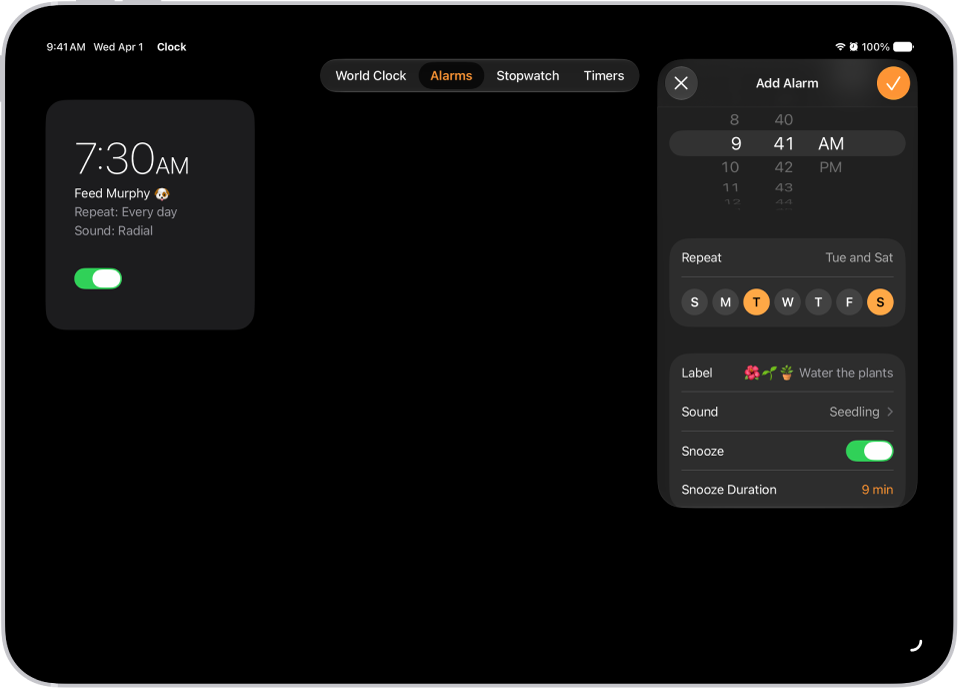
The Alarms tab in the Clock app, with settings to change the time of the alarm, choose whether the alarm repeats, add an alarm label, select an alarm sound, turn on snooze, and change the snooze duration.

Set an alarm

  1. Open the Clock app on your iPad.
  2. Tap Alarms and tap the Add button.
  3. Set the time and choose any of the following options:
    • Repeat: Choose the days of the week you want the alarm to repeat.
    • Label: Give the alarm a name, like “Water the plants.”
    • Sound: Choose a song or a ringtone.
    • Snooze: Turn on to see a Snooze button with your alarm.
    • Snooze Duration: Choose how long to pause the alarm.
  4. Tap the Done button.

To change the alarm, tap the alarm time. Or tap Edit at the top left, then tap the alarm time.

Change the alarm’s volume

  1. Open the Settings app on your iPad.
  2. Tap Sounds and then do any of the following below Alarms and Timers:
    • Turn off Match Ringtone Volume, then drag the volume slider.
    • Turn on Match Ringtone Volume.

Quick tip: If you’d like the volume buttons on your device to adjust the alarm volume, turn on Change with Buttons.

Your alarm sounds even when you:

  • Turn on Silent mode.
  • Turn on Do Not Disturb (or another Focus).
  • Connect headphones to your iPad. The alarm plays at a set volume through both the built-in speakers on your iPad as well as your headphones.

Turn off an alarm

  1. Open the Clock app on your iPad.
  2. Tap Alarms.
  3. Tap the button below the alarm time.

Remove an alarm

  1. Open the Clock app on your iPad.
  2. Tap Alarms.
  3. Tap Edit at the top right, tap the Delete button, and tap the Done button.

See also

Tag: Clock

In the Clock app, you can use the stopwatch to measure the duration of an event. It keeps timing even when you open another app or iPad goes to sleep, and you can record laps or splits. You can also switch between digital and analog stopwatch faces in portrait orientation.

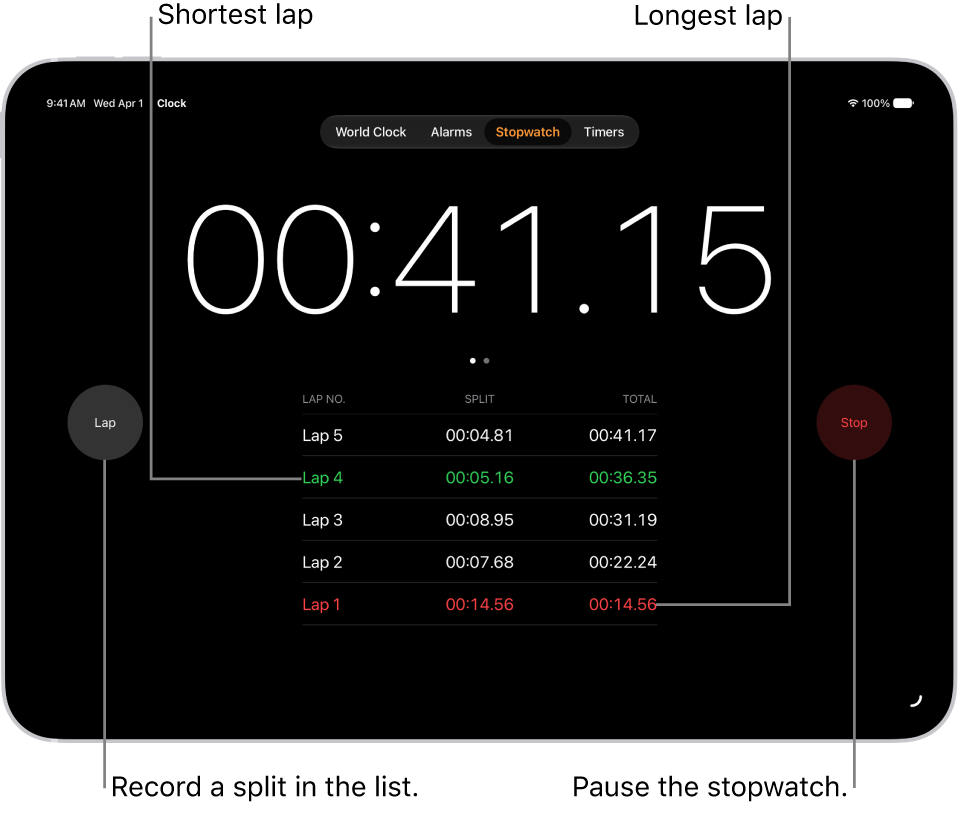
A stopwatch in the Clock app shows the overall time passed in an event, and below it are several laps listed within that event.

  1. Start the Clock app on your iPad.
  2. Tap Stopwatch.

    Note: With iPad in portrait orientation, you can switch between the digital and analog faces by swiping the stopwatch.

  3. Tap Start.

    The timing continues even if you open another app or if iPad goes to sleep.

  4. To record a lap or split, tap Lap.
  5. Tap Stop to record the final time.
  6. Tap Reset to clear the stopwatch.

See also

Tag: Clock

See the time on the watch face, hear the time spoken aloud, and feel the time as taps on your wrist. You can also turn on 24-hour time.

Just raise your wrist to see it on the watch face, or in the top-right corner of most apps. Apple Watch can also play chimes on the hour, like Bells or Birds. You can glance at the time without raising your wrist, too, with Always On.

Here’s how to tell time on Apple Watch.

See the time

The time shows in the top-right corner of most apps and on the watch face, so you can simply raise your wrist to see it.

Always On lets you glance at the watch face and time without raising your wrist.

Turn on 24-hour time

24-hour time doesn’t use AM and PM. Afternoon and evening hours appear as 13:00 through 23:59, so 8:00 PM, for example, shows as 20:00.

  1. Open the Apple Watch app on your iPhone.
  2. Tap My Watch, tap Clock, and turn on 24-Hour Time.

Ask Siri for the time

Once you’ve turned on Raise to Speak, you can simply raise your wrist and say “What time is it?”

Hear the time with a gesture

  1. Open the Settings app on your Apple Watch.
  2. Tap Clock, then turn on Speak Time.
  3. Hold two fingers on the watch face to hear the time.

Apple Watch can also play chimes on the hour. In the Settings app on Apple Watch, tap Clock, then turn on Chimes. Tap Sounds to choose Bells or Birds.

Play chimes and haptics at specified time intervals

With chimes turned on, Apple Watch plays your selected sound and haptics at regular time intervals.

  1. Open the Settings app on your Apple Watch.
  2. Tap Accessibility and tap Chimes.
  3. Turn on Chimes, then set the following:
    • Schedule: Choose Hourly, 30 minutes, or 15 minutes.
    • Sounds: Choose Bells or Birds.

You can also set up chimes on your iPhone—go to the Apple Watch app, tap My Watch, tap Accessibility, then tap Chimes.

See also

Tag: Clock

Taptic Time tells you the current time as taps on your wrist—without anyone else hearing it. You can choose Digits, which uses long taps for tens and short taps for ones, Terse, which is accurate to a 15-minute period, or Morse Code.

Set up Taptic Time

  1. Start the Settings app on your Apple Watch.
  2. Tap Clock and scroll down. Then tap Taptic Time.
  3. Turn on Taptic Time. Then select the pattern you want Taptic Time to use.

    • Digits: Conveys the hours and minutes by using long taps for tens and short taps for ones.

      For example, two long taps and three short taps, followed by three long taps and four short taps, would mean 23:34, or 11:34 p.m.

    • Terse: Conveys the time accurate to a 15-minute period; it’s less precise than Digits. It uses long taps to signify that 5 hours have passed since midnight, followed by short taps for the remaining hours and then long taps again for each quarter-hour.

      For example, three long taps, four short taps, and two long taps would convey a time between 19:30 (7:30 p.m.) and 19:44 (7:44 p.m.).

    • Morse Code: Taps out each digit of the current time in Morse Code. This is handy for people who are familiar with this coding system.

If VoiceOver is on, turn on Taptic Time by double-tapping the watch face while the display is inactive.

You can also configure Taptic Time on iPhone. Go to the Apple Watch app on iPhone, tap My Watch, go to Clock > Taptic Time, then turn it on.

Note: Taptic Time doesn’t work if Apple Watch is set to always speak the time. To use Taptic Time, first go to Settings > Clock, and then turn on Control With Silent Mode under Speak Time.

Use Taptic Time

When Taptic Time is turned on, touch and hold two fingers on the watch face to feel the current time as taps on your wrist.

See also

Time events with accuracy and ease. Apple Watch can time full events and keep track of lap or split times, then show the results as a list, a graph, or live on your watch face. The Chronograph Pro watch face has the stopwatch built in.

The stopwatch keeps timing even when you switch to the watch face or open other apps.

Here’s how to time events with a stopwatch on Apple Watch.

Open and choose a stopwatch

  1. Open the Stopwatch app on your Apple Watch.
  2. To choose a different format, turn the Digital Crown.

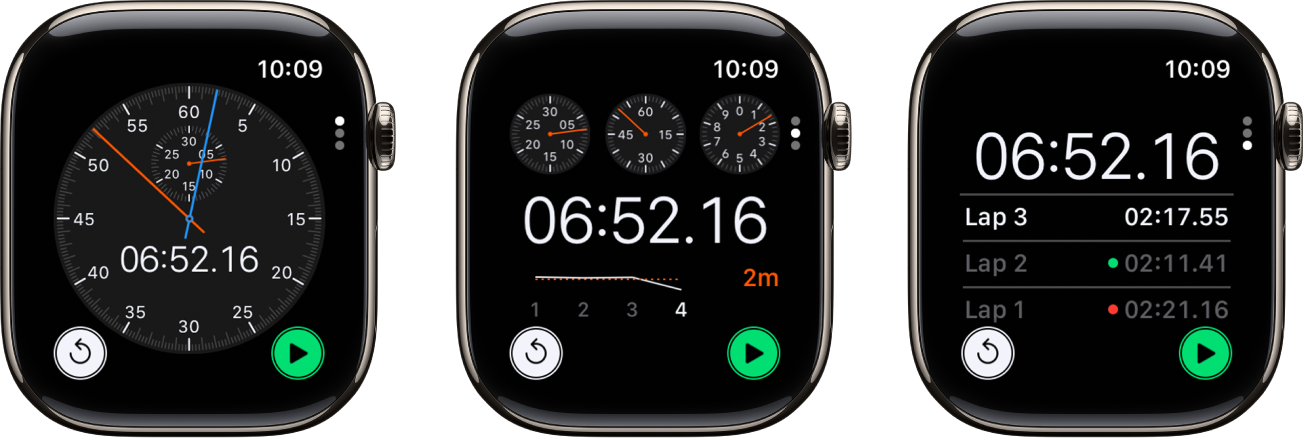
    You can choose Analog, Hybrid, or Digital.

Three kinds of stopwatches in the Stopwatch app: An analog stopwatch, a hybrid stopwatch that shows time in both analog and digital forms, and a digital stopwatch with a lap counter. Each watch has start and reset buttons.

Start, stop, and reset the stopwatch

  1. Open the Stopwatch app on your Apple Watch.
  2. Turn the Digital Crown to choose a format and then do any of the following:
    • Start: Tap the Start button.
    • Record a lap: Tap the Lap button.
    • Record the final time: Tap the Stop button.
    • Reset the stopwatch: With the stopwatch stopped, tap the Reset button.

Open other apps or switch back to the watch face, and the timing continues.

Note: If you turn on Always On Display on a supported model, the stopwatch updates once a second even while your wrist is down. You can turn on Always On Display in the Settings app: Go to Settings, tap Display & Brightness, then turn on Always On Display.

You can review results on the display you used for timing, or switch displays to analyze your lap times in the format you prefer, including your fastest/slowest laps, marked with green and red.

See also

Tag: Clock

The Timers app on Apple Watch can help you keep track of time. You can set multiple timers that track time for up to 24 hours.

When a timer goes off, you can start a timer of the same duration. On supported models, timers update once a second when your wrist is down, as long as Always On Display is on. And if you want a timer with a label, like “Pizza,” you can create it with Siri.

Here’s how to set timers on Apple Watch.

Siri: Ask Siri something like, “Set a timer for 20 minutes.” See Use Siri for your daily routine.

Quickly set a timer

  1. Open the Timers app on your Apple Watch.
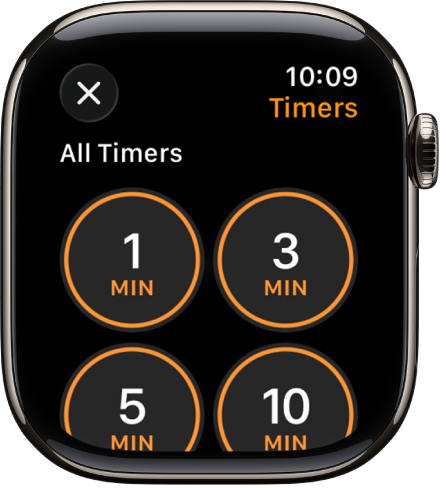
  2. To quickly start a timer, tap a duration (like 1, 3, or 5 minutes) or tap a timer you’ve recently used.

When a timer goes off, you can tap the Repeat Timer button to start a timer of the same duration.

Note: On supported models, timers update once a second while your wrist is down if you turn on Always On Display. To turn on Always On Display, go to the Settings app and tap Display & Brightness, and then turn on Always On Display.

The Timer app screen, showing the add button to create a new timer, and quick timers for 1, 3, 5, or 10 minutes.

Create a custom timer

  1. Open the Timers app on your Apple Watch.
  2. Scroll down, then tap the Add button.
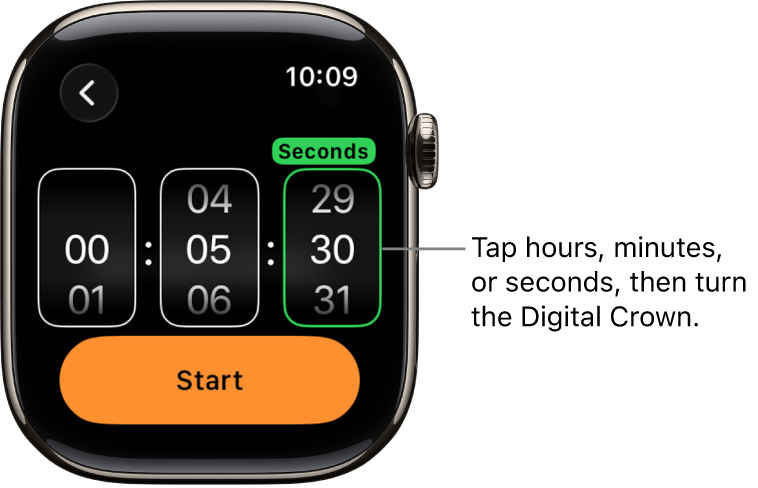
  3. Tap hours, minutes, or seconds and then turn the Digital Crown to adjust.
  4. Tap Start.

    Settings for creating a custom timer, with the hour on the left, the minutes in the middle, and seconds on the right. The Start button is below.

Pause or end a timer

  1. With a timer running, open the Timers app on your Apple Watch.
  2. Tap the Pause button to pause, tap the Play button to resume, or tap the End button to end.

Create multiple timers

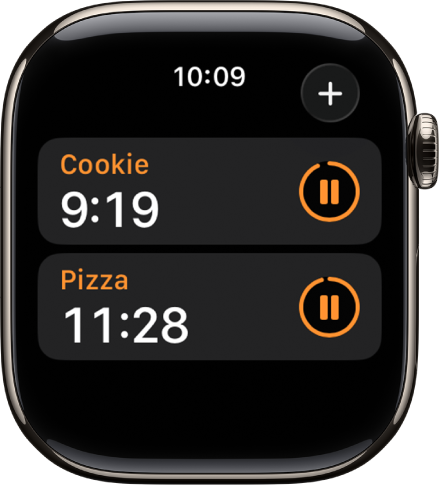
Two timers in the Timers app. Each timer shows the remaining time below the timer’s name and a pause button to the right. An Add button is at the top right.

  1. Open the Timers app on your Apple Watch.
  2. Create and start a timer.

    Tip: To assign a label such as “Pizza” to a timer, use Siri to create the timer. Raise your Apple Watch, then say something like “Set a 12-minute pizza timer.”

  3. Tap the Add button to return to the Timers screen. Create and start another timer.

Tap the Back button to display your running timers on the Timers screen. Tap the Pause button to pause a timer, and tap the Play button to resume.

To delete a running or paused timer that appears on the Timers screen, swipe left, then tap the Delete button.

Edit the Timers screen

From the Timers screen, you can pin your favorite timers and delete custom timers.

  1. Open the Timers app on your Apple Watch.
  2. Scroll down, then tap Edit.
  3. Do any of the following:
    • Pin a timer: Tap the Pin button.
    • Unpin a timer: Tap the Unpin button.
    • Delete a timer: Tap the Delete button.
  4. When you’re finished, tap Done.

See also

Tag: Clock

Use the World Clock app on your Apple Watch to check the time in cities around the globe.

Cities you add on your iPhone show up in World Clock on your watch, too, and you can add and remove cities right on Apple Watch. And for a city you always want to see, there’s a World Clock complication for your watch face.

Here’s how to use World Clock on Apple Watch to check the time in other locations.

Siri: Ask Siri something like, “What time is it in Auckland?” See Ask Siri to get information.

Add and remove cities in World Clock

  1. Start the World Clock app on your Apple Watch.
  2. Tap the List button, then tap the Add button.
  3. Enter the city name and tap Search.
  4. Tap the city name to add it to World Clock.

To remove a city, swipe left on its name in the city list, then tap the Delete button.

The cities you add on your iPhone also appear in World Clock on your Apple Watch.

Check the time in another city

  1. Start the World Clock app on your Apple Watch.
  2. Tap the List button and then turn the Digital Crown or swipe to scroll through the list.
  3. Tap a city to see more information, like the time of sunrise and sunset.
  4. To change the time in a city and compare it to your current location, turn the Digital Crown.
  5. When you’re finished, tap the List button to return to the city list.

To always see the time in a particular city, you can add a World Clock complication to your watch face and choose that city to display.

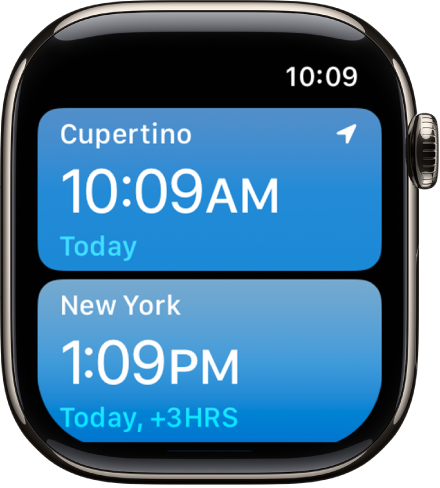
The World Clock app with a list of cities.

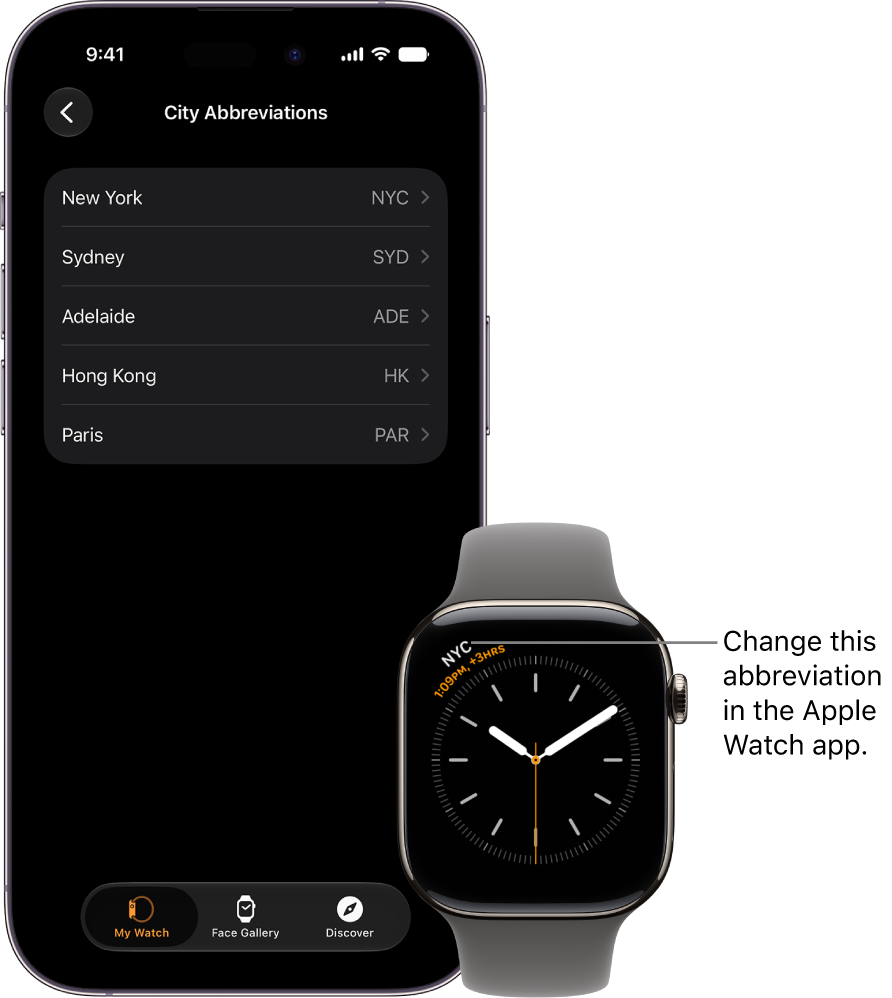
Change city abbreviations

You can change a city abbreviation used on your Apple Watch.

  1. Start the Apple Watch app on your iPhone.
  2. Tap My Watch and tap Clock. Tap City Abbreviations.
  3. Tap any city to change its abbreviation.

    An iPhone and Apple Watch, side by side. The Apple Watch screen shows the time in New York City, using the abbreviation NYC. The iPhone screen shows the list of cities in Clock settings in the Apple Watch app.

See also

Tag: Clock