You can turn your iPad into an alarm clock, or simply ask Siri to set one for you. Alarms can be set for any time and repeated on specific days of the week, and you can adjust how long the snooze lasts.
You can give an alarm a label and choose a song or ringtone. You can also change the alarm’s volume, and turn off or remove an alarm whenever you like.
Siri: Ask Siri something like: “Set an alarm for 7 a.m.” Learn how to use Siri.
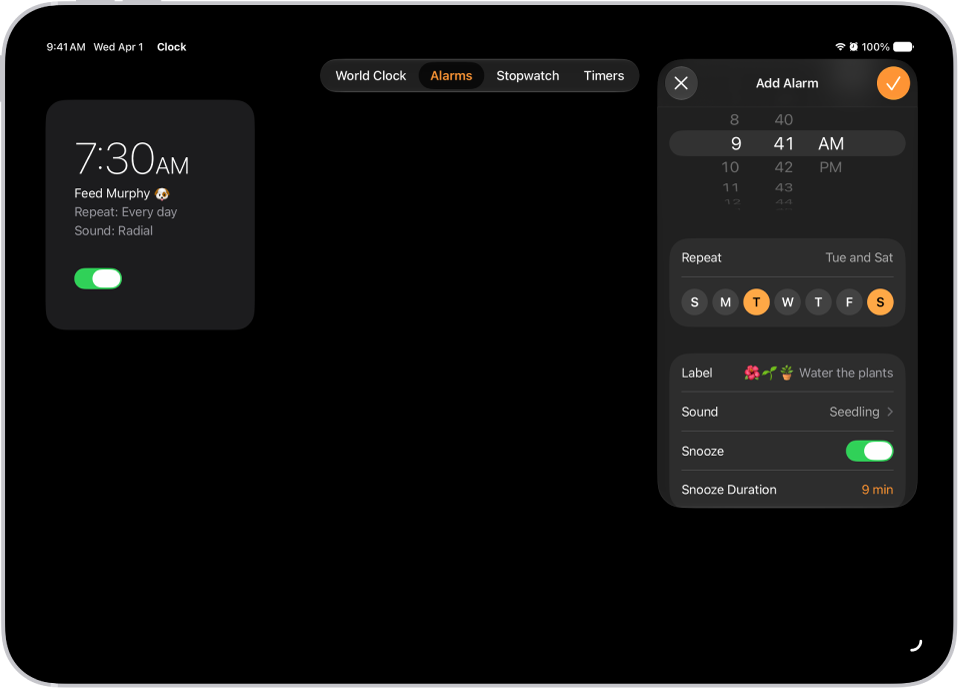
Set an alarm
- Open the Clock app on your iPad.
- Tap Alarms and tap the Add button.
- Set the time and choose any of the following options:
- Repeat: Choose the days of the week you want the alarm to repeat.
- Label: Give the alarm a name, like “Water the plants.”
- Sound: Choose a song or a ringtone.
- Snooze: Turn on to see a Snooze button with your alarm.
- Snooze Duration: Choose how long to pause the alarm.
- Tap the Done button.
To change the alarm, tap the alarm time. Or tap Edit at the top left, then tap the alarm time.
Change the alarm’s volume
- Open the Settings app on your iPad.
- Tap Sounds and then do any of the following below Alarms and Timers:
- Turn off Match Ringtone Volume, then drag the volume slider.
- Turn on Match Ringtone Volume.
Quick tip: If you’d like the volume buttons on your device to adjust the alarm volume, turn on Change with Buttons.
Your alarm sounds even when you:
- Turn on Silent mode.
- Turn on Do Not Disturb (or another Focus).
- Connect headphones to your iPad. The alarm plays at a set volume through both the built-in speakers on your iPad as well as your headphones.
Turn off an alarm
- Open the Clock app on your iPad.
- Tap Alarms.
- Tap the button below the alarm time.
Remove an alarm
- Open the Clock app on your iPad.
- Tap Alarms.
- Tap Edit at the top right, tap the Delete button, and tap the Done button.
See also
Tag: Clock