You can set timers to count down from specified times.
You can give a timer a name, like “Take the cookies out of the oven,” and choose a sound to play when the timer ends. You can also set multiple timers, or set a timer to stop playing audio or video, and a timer keeps going even when iPad goes to sleep.
Here’s how to set timers in Clock on iPad.
Siri: Ask Siri something like: “Set the timer for 3 minutes.” Learn how to use Siri.
Set a custom timer
- Start the Clock app on your iPad.
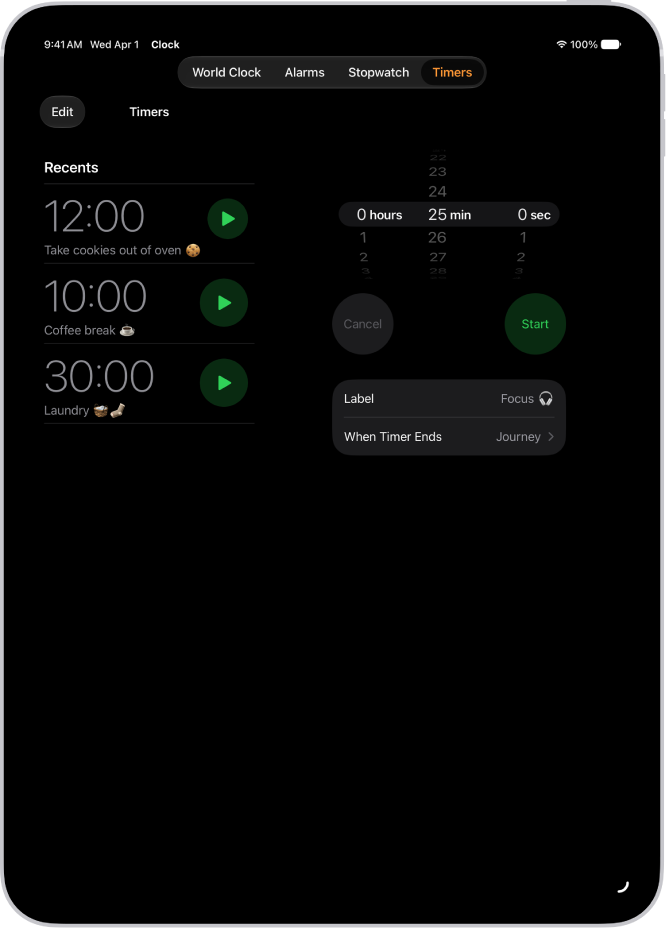
- Tap Timers and then set a duration of time.
- Choose any of the following options:
- Label: Give the timer a name, like “Take the cookies out of the oven.”
- When Timer Ends: Choose a sound to play when the timer ends.
- Tap Start.
Note: The timer keeps going even if you open another app or iPad goes to sleep.
Any custom timer you set appears below Recent, so it’s there whenever you want to start the same timer again.
Set a timer to stop playing audio or video
The timer can also stop audio or video playback after a specific amount of time, which helps if you fall asleep while listening to the radio, for example.
- Start the Clock app on your iPad.
- Set a custom timer, as above.
- Tap When Timer Ends and tap Stop Playing at the bottom of the list of sounds.
- Tap Set, then tap Start.
Set multiple timers
To keep track of different tasks at the same time, you can add more timers after you start a custom timer.
- Start the Clock app on your iPad.
- Tap Timers, then start a timer.
-
Tap the Add button at the top right and then do one of the following:
- Add a custom timer: Set a duration of time, add a label or sound and tap the Start button.
- Add a preset timer: Swipe left below Presets. Tap a preset duration of time (like 1, 5, or 10 minutes).
-
Add a recent timer: Tap the Start button next to a timer you’ve recently set.
If you select a preset or recent timer, tap the timer to edit the label and sound.
Stop, pause, or remove a timer
When a timer ends, you get a notification at the top of your screen, no matter which app you’re using. Tap the Cancel button to clear the notification, or tap the Reset button if you want the timer to run again. You can also tap Repeat or Stop from the Lock Screen.
You can also pause or remove a timer early.
- Start the Clock app on your iPad.
- Tap Timers and then do any of the following:
- Pause a timer: Tap the Pause button next to the timer to stop it momentarily. Tap the Start button to continue counting down.
- Remove a timer: Swipe left, then tap the Trash button.
- Remove several timers: Tap Edit and tap the Remove button. Then tap the Trash button.
From your Lock Screen, you can swipe left on a timer, then tap Clear.
See also