Time events with accuracy and ease. Apple Watch can time full events and keep track of lap or split times, then show the results as a list, a graph, or live on your watch face. The Chronograph Pro watch face has the stopwatch built in.
The stopwatch keeps timing even when you switch to the watch face or open other apps.
Here’s how to time events with a stopwatch on Apple Watch.
Open and choose a stopwatch
- Open the Stopwatch app on your Apple Watch.
-
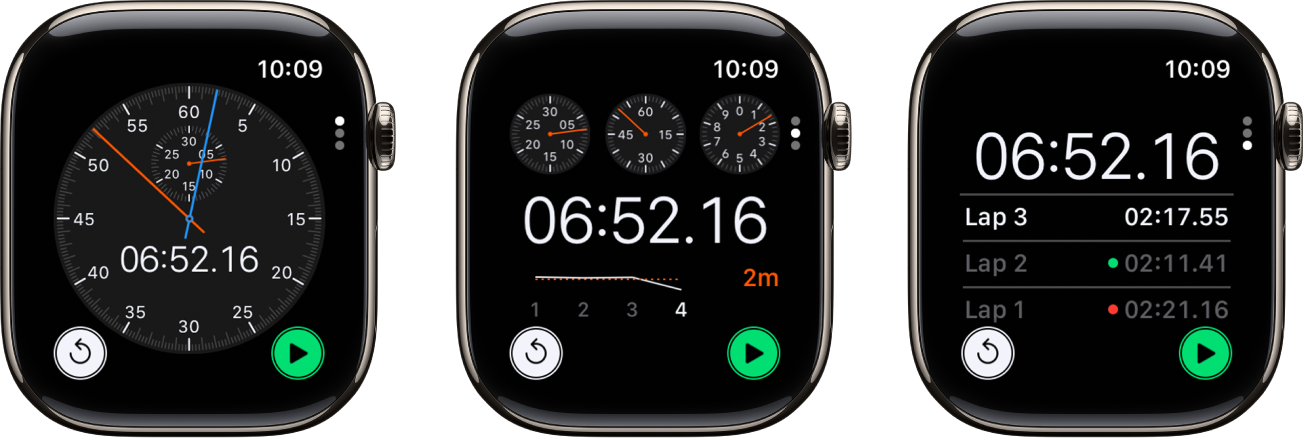
To choose a different format, turn the Digital Crown.
You can choose Analog, Hybrid, or Digital.
Start, stop, and reset the stopwatch
- Open the Stopwatch app on your Apple Watch.
- Turn the Digital Crown to choose a format and then do any of the following:
- Start: Tap the Start button.
- Record a lap: Tap the Lap button.
- Record the final time: Tap the Stop button.
- Reset the stopwatch: With the stopwatch stopped, tap the Reset button.
Open other apps or switch back to the watch face, and the timing continues.
Note: If you turn on Always On Display on a supported model, the stopwatch updates once a second even while your wrist is down. You can turn on Always On Display in the Settings app: Go to Settings, tap Display & Brightness, then turn on Always On Display.
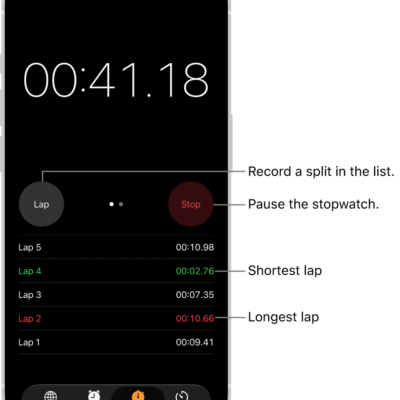
You can review results on the display you used for timing, or switch displays to analyze your lap times in the format you prefer, including your fastest/slowest laps, marked with green and red.
See also