Got a tip for us?

Clock

Use the Alarms app to play a sound or vibrate your Apple Watch at a set time. It’s flexible. You can set, edit, and delete alarms, skip a wake-up alarm, choose the days of the week you want an alarm to repeat, and even stop yourself from snoozing.

And if you want, you can receive alarms on both iPhone and Apple Watch.

Here’s how to add an alarm on Apple Watch.

Siri: Ask Siri something like, “Set repeating alarm for 6 a.m.” See Use Siri for your daily routine.

Set an alarm on Apple Watch

  1. Start the Alarms app on your Apple Watch.
  2. Tap the Add button.
  3. Tap AM or PM. Tap the hours or minutes.
  4. Turn the Digital Crown to adjust. Then tap the Check button.

To turn the alarm on or off, tap its switch.
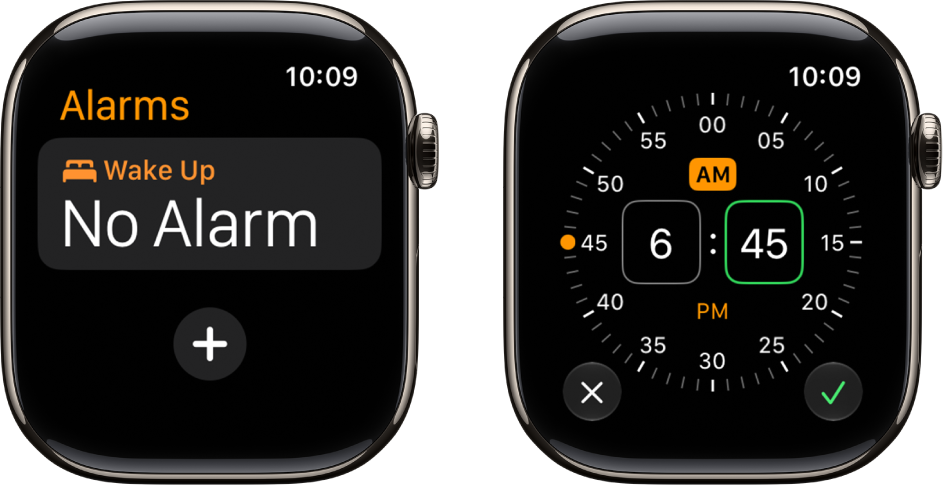
Two watch screens showing the process for adding an alarm: Tap Add Alarm, tap AM or PM, turn Digital Crown to adjust the time, then tap the check button.

Edit an alarm

  1. Start the Alarms app on your Apple Watch.
  2. Tap the alarm time. Then tap any of the following options to edit your alarm:

    • Change time: Change the alarm time.
    • Repeat: Choose the days of the week you want the alarm to repeat.
    • Label: Give the alarm a name, like “Water the plants.”
    • Snooze: Turn on to see a Snooze button with your alarm.
    • Snooze Duration: Choose how long to pause the alarm.
    • Break Through Silent Mode: Turn on to have sound always play while wearing Apple Watch.

    Tip: To create an alarm that taps your wrist, but doesn’t make a sound, turn on Silent Mode.
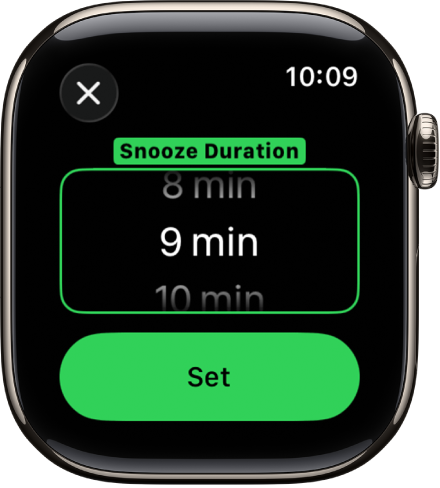
A watch screen showing options to set the Snooze Duration in the Alarms app.

Don’t let yourself snooze

When an alarm sounds, you can tap Snooze to wait several minutes before the alarm sounds again. If you don’t want to allow snooze, follow these steps:

  1. Start the Alarms app on your Apple Watch.
  2. Tap the alarm in the list of alarms. Turn off Snooze.

Delete an alarm

  1. Start the Alarms app on your Apple Watch.
  2. Swipe left on an alarm. Then tap the Delete button.

Skip a wake-up alarm

You can skip a wake-up alarm that’s part of your sleep schedule for just that evening.

  1. Start the Alarms app on your Apple Watch.
  2. Tap the alarm that appears below Alarms and tap Skip for Tonight.

If you’d like a sleep schedule with wake-up alarms, read our guide, Set up your first recurring sleep schedule on Apple Watch.

Receive alarms on both iPhone and Apple Watch

  1. Set the alarm on your iPhone.
  2. Start the Apple Watch app on your iPhone.
  3. Tap My Watch and tap Clock. Turn on Push Alerts from iPhone.

Your Apple Watch alerts you when an alarm goes off so you can snooze or dismiss the alarm. (You aren’t alerted on your iPhone when your Apple Watch alarms go off.)

Set up Apple Watch as a nightstand clock with alarm

  1. Start the Settings app on your Apple Watch.
  2. Tap General and tap Nightstand Mode. Turn on Nightstand Mode.

When you connect your Apple Watch to its charger facing up with nightstand mode turned on, it displays charging status, the current time and date, and the time of any alarm you’ve set. To see the time, tap the display or lightly nudge your Apple Watch. Even nudging or tapping the table might work.
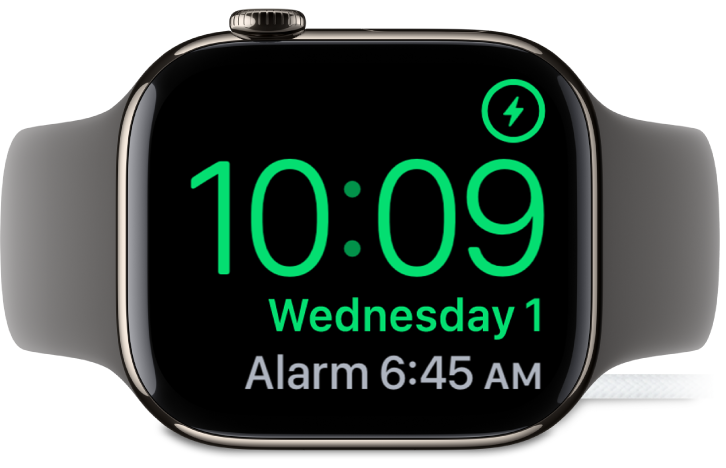
An Apple Watch placed on its side and connected to the charger, with the screen showing the charging symbol in the top-right corner, the current time below that, and the time of the next alarm.

If you’ve set an alarm in the Alarms app, your Apple Watch gently wakes you in nightstand mode with a unique alarm sound.

When the alarm sounds, press the side button to turn it off, or press the Digital Crown to snooze.

See also

Tag: Clock

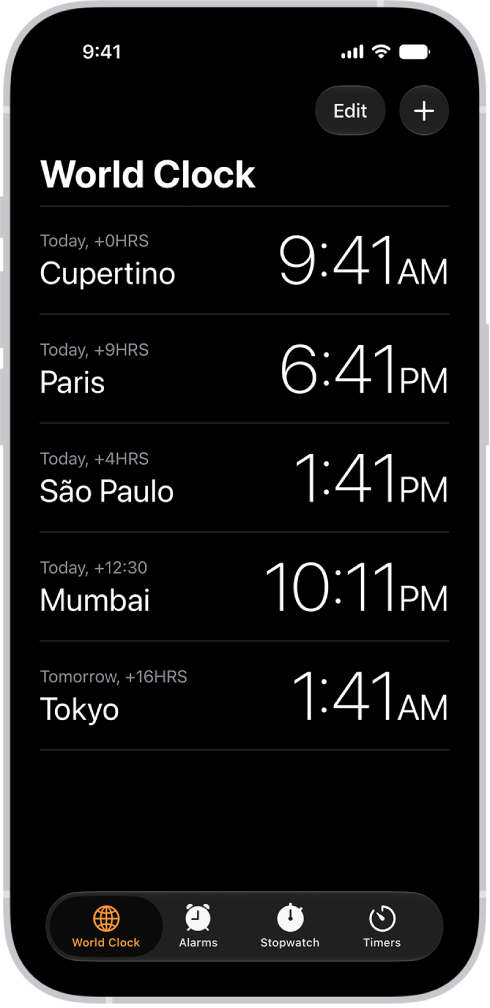
You can see the local time in time zones around the world. In the Clock app on your iPhone, World Clock lets you manage your list of cities, so you can add a city, delete a city, or reorder the cities whenever it’s useful.

Siri: Ask Siri something like: “What time is it?” or “What time is it in London?”

The World Clock tab, showing the time in various cities. The Edit button near the upper-left corner lets you reorder or delete clocks. The Add button near the upper-right corner lets you add more clocks. World Clock, Alarm, Stopwatch, and Timers buttons are along the bottom.

  1. Start the Clock app on your iPhone.
  2. Tap World Clock.
  3. To manage your list of cities, do any of the following:

    • Add a city: Tap the Add button and choose a city.
    • Delete a city: Swipe left on the city. Then tap the Trash button.
    • Reorder the cities: Tap Edit, then drag the Reorder button up or down.

      When you’re finished, tap the Done button.

Tag: Clock

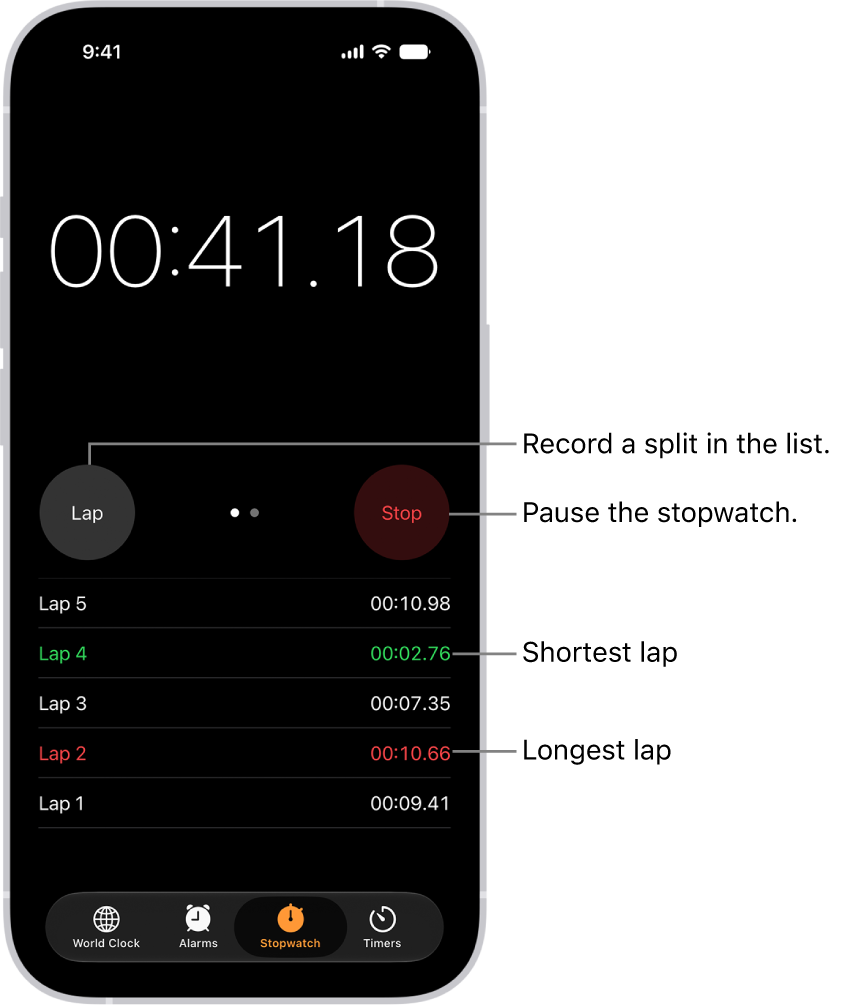
In the Clock app, you can use the stopwatch to measure the duration of an event. It keeps timing even when you open another app or iPhone goes to sleep, and you can record laps or splits. You can also switch between digital and analog stopwatch faces in portrait orientation.

A stopwatch in the Clock app shows the overall time passed in an event, and below it are several laps listed within that event.

  1. Open the Clock app on your iPhone.
  2. Tap Stopwatch.

    To switch between the digital and analog faces, swipe the stopwatch.

  3. Tap Start.

    The timing continues even if you open another app or if iPhone goes to sleep.

  4. To record a lap or split, tap Lap.
  5. Tap Stop to record the final time.
  6. Tap Reset to clear the stopwatch.
Tag: Clock

You can make changes to your wake up alarm if you’ve set up a sleep schedule in the Health app.

You can change just your wake up time, or shift your whole sleep schedule, so your bedtime and wake up time move together and your sleep duration stays the same. In Alarm Options, you can also choose a vibration or ringtone, set the alarm volume, and turn on Snooze to see a Snooze button with your alarm.

Here’s how to change your wake up alarm in Clock on iPhone.

Change your wake up alarm

  1. Start the Clock app on your iPhone.
  2. Tap Alarms, then tap Change.
  3. Do any of the following:

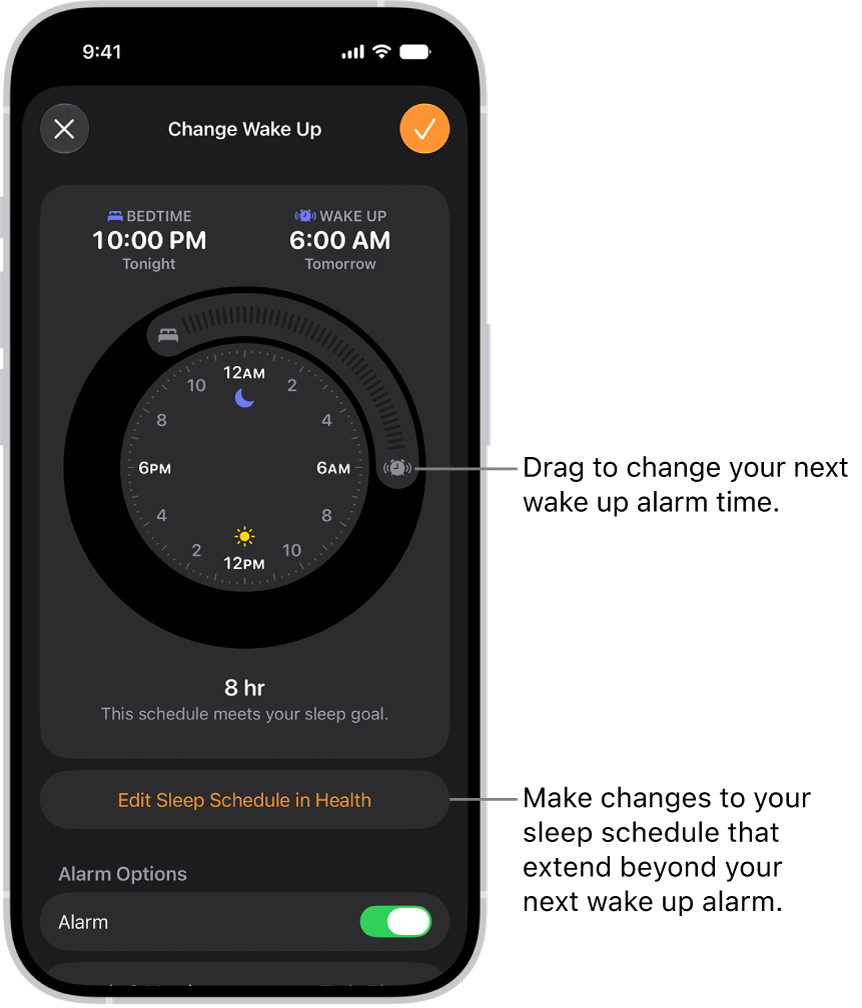
    • Change only your wake up time: Drag the Ringing Alarm button.
    • Shift your sleep schedule: Drag to rotate the arc between the Bedtime button and the Ringing Alarm button. (Your bedtime and wake up time change simultaneously, and the sleep duration remains unchanged.)

    A screen for changing the next wake up alarm. The position of the ringing alarm button sets the time of the alarm.

  4. Scroll down to Alarm Options, turn the alarm on, and then change any of the following options:

    • Sounds & Haptics: Tap to choose a vibration or ringtone.
    • Alarm volume: Drag the slider.
    • Snooze: Turn on to see a Snooze button with your alarm.
    • Snooze Duration: Choose how long to pause the alarm.
  5. Tap the Done button, then tap Change Next Alarm Only.

Note: Tap Change This Schedule, and it updates your recurring wake up alarm in your sleep schedule too.

To make changes to your sleep schedule that extend beyond your next wake up alarm, tap Edit Sleep Schedule in Health.

Turn off your next wake up alarm

  1. Start the Clock app on your iPhone.
  2. Tap Alarms, then tap Change.
  3. Scroll down to Alarm Options, then turn off Alarm.
  4. Tap the Done button, then tap Change Next Alarm Only.

Note: Your recurring wake up alarm in your sleep schedule changes too when you tap Change This Schedule.

Remove the wake up alarm

  1. Start the Clock app on your iPhone.
  2. Tap Alarms, then tap Change.
  3. Tap Edit Sleep Schedule in Health and then turn off Sleep Schedule.

You can also delete a sleep schedule or turn off all sleep schedules in the Health app.

Tag: Clock

The time zone on your iPhone is set automatically, but if you don’t have Location Services turned on or you don’t have service, you can change it manually.

You can choose a city or a time zone offset, set the date and time yourself, and turn 24-Hour Time on or off. It’s all in the Date & Time section of General settings, so there’s no need to hunt for it.

Change the clock format

  1. Start the Settings app on your iPhone.
  2. Tap General, then tap Date & Time.
  3. Turn 24-Hour Time on or off to choose how to display the time.

Change the time zone

  1. Start the Settings app on your iPhone.
  2. Turn off Set Time Zone Automatically. Then do one of the following:
    • Choose a city: Tap Time Zone City, then search for a city.
    • Select a time zone offset: Tap Set By and tap Time Zone Offset. Then tap + or -.

Change the date and time

  1. Start the Settings app on your iPhone.
  2. Tap General, then tap Date & Time.
  3. Turn off Set Time Automatically and then set the date and time.
Tag: Clock

You can turn your iPhone into an alarm clock, or simply ask Siri to set one for you. Alarms can be set for any time and repeated on specific days of the week. You can also adjust how long the snooze lasts.

You can change the alarm’s volume, too, and turn off or remove an alarm when you no longer need it.

Here’s how to set an alarm in Clock on iPhone.

Siri: Ask Siri something like, “Set an alarm for 7 a.m.”

Note: A wake up alarm can also be part of a full sleep schedule in the Health app, along with bedtimes, wake up times, and more. If you’d rather skip the sleep schedule, set a regular alarm in Clock instead for the time you want to wake up.

Set an alarm

Alarms can be set for any time, including your wake-up time. And any alarm you set up in Clock is separate from a sleep schedule.

  1. Start the Clock app on your iPhone.
  2. Tap Alarms and tap the Add button.
  3. Set the time and choose any of the following options:
    • Repeat: Choose the days of the week you want the alarm to repeat.
    • Label: Give the alarm a name, like “Water the plants.”
    • Sound: Choose a vibration, song, or ringtone.
    • Snooze: Turn on to see a Snooze button with your alarm.
    • Snooze Duration: Choose how long to pause the alarm.
  4. Tap the Done button.

To change the alarm, tap the alarm time. Or tap Edit, then tap the alarm time.

Change the alarm’s volume

  1. Start the Settings app on your iPhone.
  2. Tap Sounds & Haptics, then do any of the following below Alarms and Timers:
    • Turn off Match Ringtone Volume, then drag the volume slider.
    • Turn on Match Ringtone Volume.

Quick tip: Turn on Change with Buttons, and the volume buttons on your device change the alarm volume.

Your alarm sounds even when you:

  • Turn on Silent mode.
  • Turn on Do Not Disturb (or another Focus).
  • Connect headphones to your iPhone. The alarm plays at a set volume through both the built-in speakers on your iPhone as well as your headphones.

Turn off an alarm

  1. Start the Clock app on your iPhone.
  2. Tap Alarms.
  3. Tap the button next to the alarm time.

Remove an alarm

  1. Start the Clock app on your iPhone.
  2. Tap Alarms.
  3. Swipe left on the alarm. Tap the Trash button.
Tag: Clock

You can set timers to count down from specified times.

You can give a timer a name, like “Egg timer,” and choose a sound to play when the timer ends. You can also set multiple timers, or set a timer to stop playing audio or video, and a timer keeps going even when iPhone goes to sleep. Siri can set a timer for you, too.

Here’s how to set timers in Clock on iPhone.

Siri: Ask Siri something like: “Set the timer for 3 minutes.”

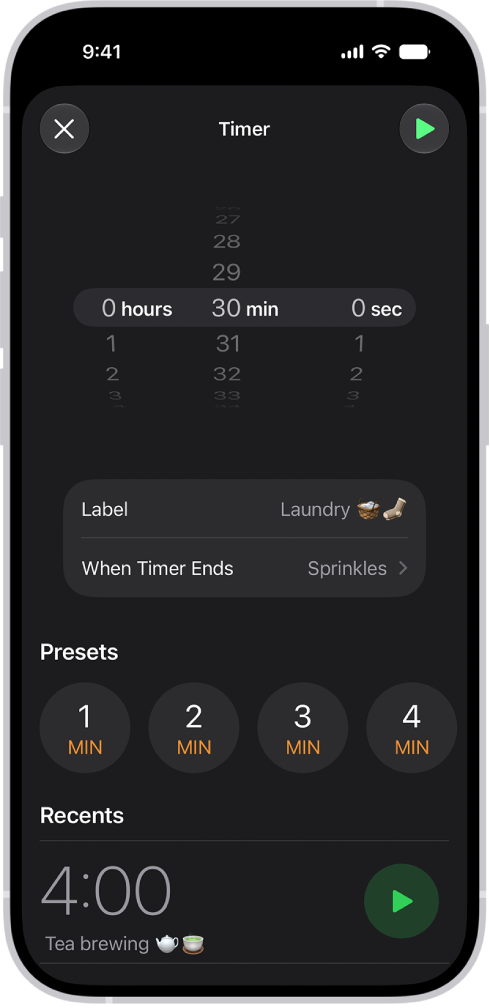
A screen for adding a timer, with settings to set a timer, and a button to start a recently created timer.

Set a custom timer

  1. Open the Clock app on your iPhone.
  2. Tap Timers and then set a duration of time.
  3. Choose any of the following options:
    • Label: Give the timer a name, like “Egg timer.”
    • When Timer Ends: Choose a sound to play when the timer ends.
  4. Tap Start.

Note: Even if you open another app or iPhone goes to sleep, the timer continues.

Set a custom timer, and it appears below Recent, so you can start the same timer again later.

Set a timer to stop playing audio or video

Want audio or video to stop playing after a specific amount of time, like when you fall asleep listening to the radio? Set the timer to stop the playback.

  1. Open the Clock app on your iPhone.
  2. Set a custom timer, as above.
  3. Tap When Timer Ends and tap Stop Playing at the bottom of the list of sounds.
  4. Tap Set, then tap Start.

Set multiple timers

Once you’ve started a custom timer, you can add more timers, keeping track of different tasks at the same time.

  1. Open the Clock app on your iPhone.
  2. Tap Timers, then start a timer.
  3. Tap the Add button. Do one of the following:
    • Add a custom timer: Set a duration of time, add a label or sound and tap the Start button.
    • Add a preset timer: Swipe left below Presets. Tap a preset duration of time (like 1, 5, or 10 minutes).
    • Add a recent timer: Tap the Start button next to a timer you’ve recently set.

If you select a preset or recent timer, tap the timer to edit the label and sound.

Stop, pause, or remove a timer

When a timer ends, you get a notification at the top of your screen, no matter which app you’re using. Tap the Cancel button to clear the notification, or tap the Reset button if you want the timer to run again. You can also tap Repeat or Stop from the Lock Screen.

You can also turn off a timer before it ends.

  1. Open the Clock app on your iPhone.
  2. Tap Timers and then do any of the following:
    • Pause a timer: Tap the Pause button next to the timer to stop it momentarily. Tap the Resume button to continue counting down.
    • Remove a timer: Swipe left, then tap the Trash button.
    • Remove several timers: Tap Edit and tap the Remove button. Then tap the Trash button.

From your Lock Screen, you can swipe left on a timer, then tap Clear.

Tag: Clock