Use Shazam in the Music Recognition app or via the Smart Stack to identify a song playing around you, see it in Apple Music, add it to a playlist, and revisit your Shazam history.
If the song is identified, you’ll see the title and artist, plus details like the album, release date, and genre. You can add it to your library, too.
Here’s how to identify songs with Shazam on Apple Watch.
Recognize music with Shazam
- Open the Music Recognition app on your Apple Watch.
-
Tap the Tap to Recognize button.
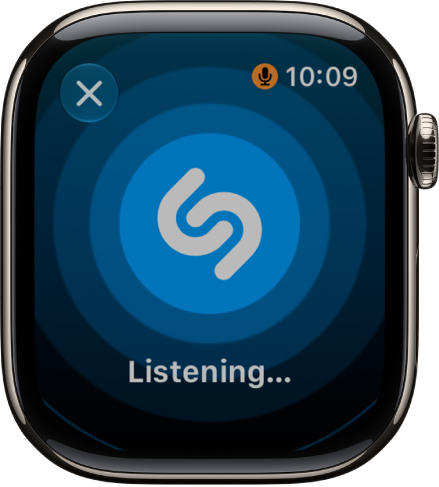
If the song is identified by Shazam, the title and artist are displayed.
-
Do any of the following:
- See the song in Apple Music: Tap Apple Music.
- Add it to your library or a playlist: Tap More and then tap Add to Apple Music Library or Add to Playlist.
- See details about the song: Scroll down to see the album, release date, and genre.
Quick tip: You can customize the Action button on Apple Watch Ultra models to start Shazam.
Use Shazam in the Smart Stack
Before you begin, make sure you’ve turned on Music Detection in Settings. Go to the Settings app, tap Smart Stack, then turn on Music Detection. You can also tap Enable Music Detection when it appears in the Smart Stack.
-
From the watch face, turn the Digital Crown upward or swipe up from the bottom of the screen.
When music is detected, the Music Recognition widget appears in the Smart Stack.
-
Tap Shazam. If the song is identified, the title and artist are displayed.
On Apple Watch Series 12 and Apple Watch Ultra 4, the widget recognizes music automatically and shows the title and artist even faster, without having to tap. (Automatic recognition requires the Always On processor.)
- Tap the Add button to save the song to your Shazam history.
See songs identified previously
- Open the Music Recognition app on your Apple Watch.
- Scroll down to see the history.
See also