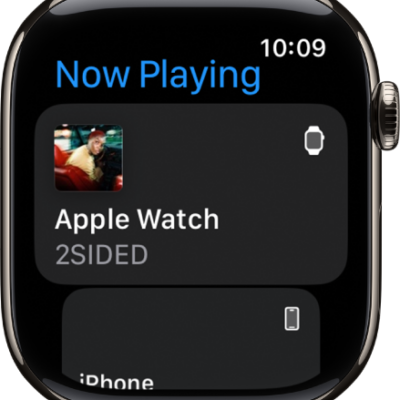
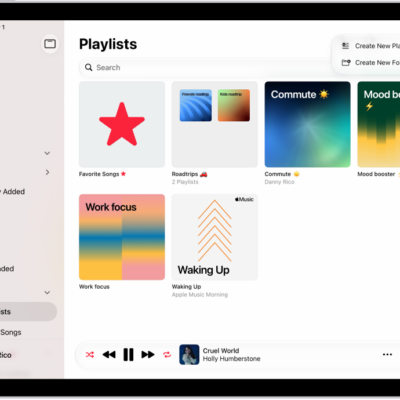
If you’re running out of room to store music on your Apple Watch, you may want to remove the music that was automatically added to your watch or music that you no longer listen to.
You can remove music using the Apple Watch app on your iPhone, and Apple Music subscribers can remove it directly on Apple Watch.
Note: To check how much music your Apple Watch stores, go to the Settings app on your Apple Watch, and from there, go to General > Storage. Or, on your iPhone, go to the Apple Watch app, tap My Watch, and go to General > Storage.
Remove music using your iPhone
- Open the Apple Watch app on your iPhone.
-
Tap My Watch, tap Apps, tap Music, and then do any of the following:
- For music you’ve added: Tap Edit and tap the Delete button next to the items you want to remove, then tap Done.
-
For music that was automatically added: Turn off Recent Music or other music automatically added to your Apple Watch.
Note: Music you’ve recently played won’t be automatically added to Apple Watch until you turn on Recent Music again.
Music you remove from your Apple Watch stays on your iPhone.
Remove music using your Apple Watch
Apple Music subscribers can remove music directly on Apple Watch, no matter whether it was added automatically or you chose to add it.
- Open the Music app on your Apple Watch.
- From the Home screen, tap the Back button and tap Library. Then tap Playlists or Albums.
-
Tap a playlist or album, tap the More Options button and tap Remove. Then tap Remove Download or Delete from Library.
The music is removed from your Apple Watch and from all other devices that use the same Apple Account.
Note: It’s also possible to delete individual songs from your library. To do that, swipe left on a song, tap the More Options button, and tap Delete from Library, then tap Delete Song. That removes the song from your Apple Watch, any playlists it’s in, and all other devices that use the same Apple Account.
See also