









With the Memoji app, you can design your own personalized Memoji—choose skin color and freckles, hairstyle and color, facial features, headwear, glasses, and more. You can create multiple Memoji for different moods.
You can also edit or duplicate a Memoji, and even create a Memoji watch face, which is added to your watch face collection. If you’ve already made one, you can add a new Memoji from the top of the app.
Here’s how to use Memoji on Apple Watch.
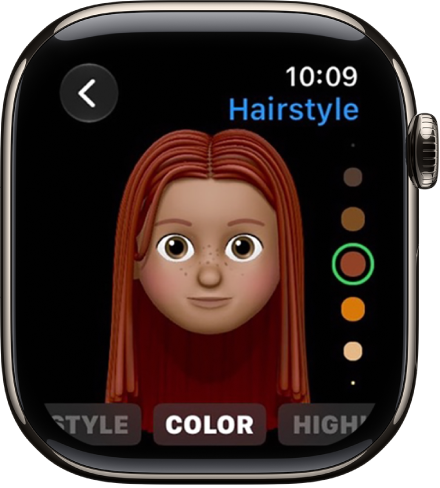
Create Memoji
- Start the Memoji app on your Apple Watch.
-
If you’re using the Memoji app for the first time, tap Get Started.
If you’ve already made a Memoji, scroll to the top, then tap the Add Memoji button to add a new one.
- Tap each feature and scroll the Digital Crown to choose the options you want for your Memoji. As you add features such as hairstyle and eyewear, your character comes to life.
- Tap the Checkmark button to add the Memoji to your collection.
Edit Memoji and more
- Start the Memoji app on your Apple Watch.
-
Tap a Memoji, then choose an option:
- Edit a Memoji: Tap features such as eyes and brows. Turn the Digital Crown to choose a variation.
-
Create a Memoji watch face: Scroll down and then tap Create Watch Face.
Return to the watch face and swipe left to see your new Memoji watch face. The watch face is also added to the watch face collection in the Apple Watch app on iPhone.
- Duplicate a Memoji: Scroll down, then tap Duplicate.
- Delete a Memoji: Scroll down and then tap Delete.
See also
- Use the Contacts app on Apple Watch
- Send stickers, GIF images, audio clips, Digital Touch effects, and more
Tag: Memoji