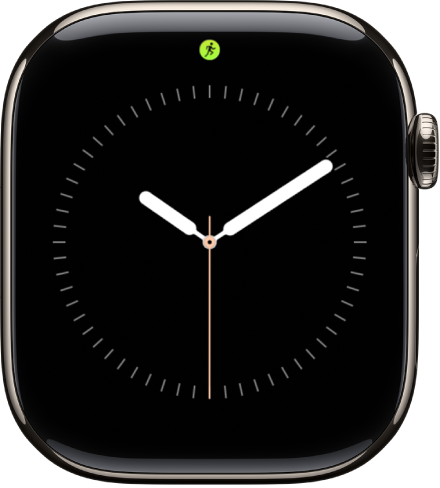
The Smart Stack suggests helpful information or actions that you can take depending on your context—like the time of day, your location, or recent activity. The Smart Stack also shows Live Activities for real-time updates on workouts, timers, and more.
When the Smart Stack has an immediately useful suggestion, Apple Watch gently taps your wrist with a hint. You can open the hint right away, or mute it for 24 hours.
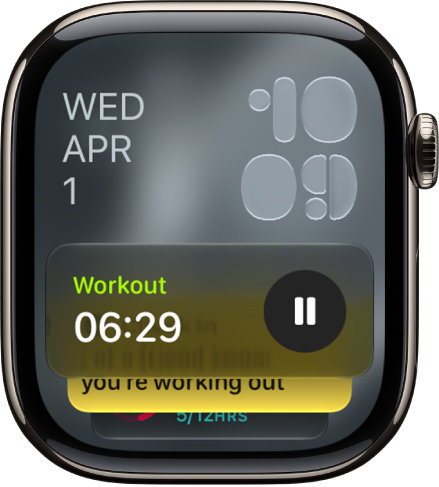
Use tap gestures to access widgets in the Smart Stack
- From the watch face, open the Smart Stack with the double tap gesture.
- Scroll through the widgets with the double tap gesture.
- Open a widget with the single tap gesture.
- Select a button in the widget—such as play or pause music—with the single tap gesture.
- To close the Smart Stack and return to the watch face, perform a wrist flick.
Open the Smart Stack
- From the watch face, turn the Digital Crown upward or swipe up from the bottom of the screen.
-
Scroll to the widget you want to use. Tap it to open the associated app.
Tip: To access Music, Workouts, or Messages, scroll to the bottom of the Smart Stack.
Use Smart Stack hints
Using on-device data and trends from your daily routine, Apple Watch gently taps your wrist with a hint when the Smart Stack has a suggestion that’s immediately useful for you. A small icon appears at the bottom of the watch face.
When a hint appears, do one of the following:
-
Open the hint: Tap the Smart Stack hint at the bottom of the watch face to open the Smart Stack.
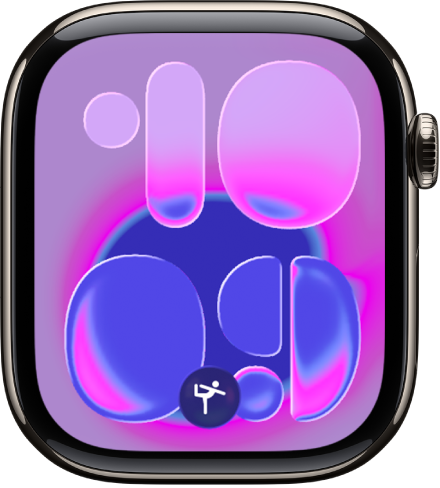
- Mute the hint for 24 hours: Swipe down on the Smart Stack hint.
Note: For suggestions like workouts, Apple Watch needs some time to learn your routine.
Customize the Smart Stack
The widgets in the Smart Stack are yours to add, remove, and rearrange. Some apps offer more than one widget, and you can customize some widgets to see what’s most important for you, like choosing a frequently used home accessory in the Home widget.
- Open the Smart Stack.
- Scroll to the bottom and tap Edit. Do any of the following:
- Add a widget: Tap the Add Widget button, then choose a widget. With certain widgets, you can tap the Expand button for customization options.
- Remove a widget: Tap the Delete button.
- Pin widgets: Tap the Pin button on the right side of each widget you want to stay in a fixed position.
- Reorder pinned widgets: Touch and hold a widget you want to move and drag it to a new position.
- When you’re finished, tap the Done button.
See also
- Use tap gestures on Apple Watch
- Perform a wrist flick to mute and dismiss notifications
- View Live Activities on Apple Watch