









You can use StandBy to turn your iPhone into a bedside clock, a photo frame, a display for viewing widgets or Live Activities in full screen, and more.
It starts when iPhone is charging and lying on its side, without moving. You need StandBy turned on in Settings first, and you can set display preferences for when StandBy is on.
Here’s how to use StandBy to view information at a distance while iPhone is charging.
Start StandBy
- Open the Settings app on your iPhone.
- Tap Standby and make sure StandBy is turned on.
- Connect iPhone to a charger and set it down on its side, keeping it stationary.
- Press the side button.
- Swipe left or right to switch between widgets, photos, and clocks. Swipe up or down to scroll between options for each of these views.
When StandBy has Night Mode turned on, the screen adapts to low ambient light at night and shows items with a red tint, so it’s not intrusive while you’re sleeping.
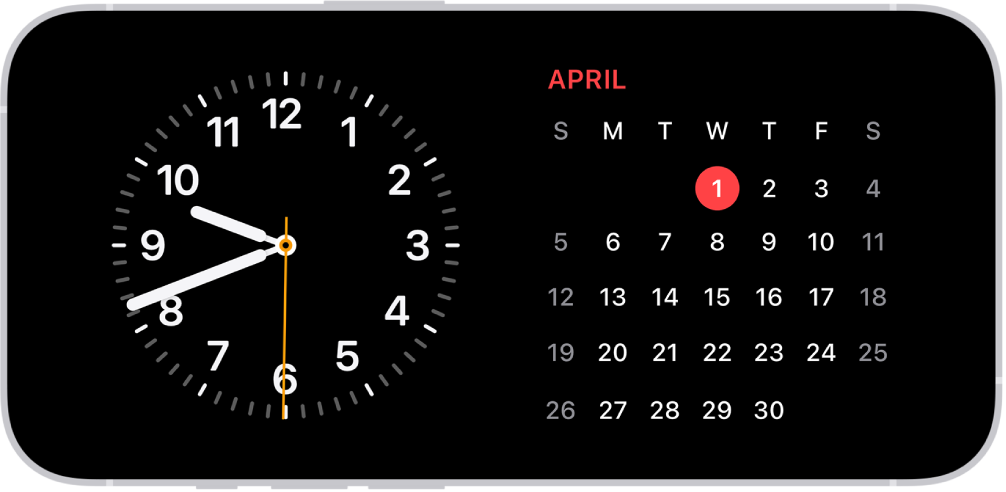
With the Always-On display (on supported models), StandBy stays on to show useful information. For all other iPhone models, it’s easy to activate StandBy any time by either tapping the screen, gently nudging the table your iPhone is on, or using Siri.
Siri: Activate Siri, then tell Siri to turn StandBy on or off.
StandBy remembers your preferred view, like a clock, photos, or widgets, for each location where you charge iPhone with MagSafe. That means it can show family photos in the kitchen and an alarm clock at your bedside, for example.
Set display preferences for when StandBy is on
While StandBy is on, you decide how long your iPhone display stays on.
- Open the Settings app on your iPhone.
- Tap StandBy, then tap Display.
- Choose one of the following:
- Automatically: The display turns off when iPhone isn’t in use and the room is dark.
- After 20 Seconds: The display turns off after 20 seconds.
- Never: The display stays on as long as StandBy is on.