









If you have bought a second hand iPhone 18 Pro or iPhone 18 Pro Max and discovered that it is still linked to the previous owner you may encounter problems with Find My iPhone – a feature found in iOS and macOS that enables users to locate lost or missing iPhone and Mac devices. It can be very tricky to turn off Find My iPhone on a device that is linked to a previous owner – that’s exactly why we recommend that if you are selling an iPhone you disable Find My iPhone before you do so.
Another reason you may want to deactivate Find My iPhone is if you are concerned that Find My iPhone can allow someone to track you. In theory anyone who has your Apple Account log on details could use the Find My app to locate your iPhone (or Mac).
It’s a useful service if you do lose your iPhone because you can use it to locate the iPhone or Mac by logging on to iCloud.com (on a Mac or Windows PC) or using the Find My app on an iPhone. Using Find My iPhone you’ll be able to see the location of your device on a map, remotely lock it, wipe its contents or send a message to a lost device (encouraging a finder to return it).
But if you do want to remove Find My iPhone, either because you are selling the iPhone, because you don’t like the idea that Apple (or anyone else with your details) could track you, or because you have obtained an iPhone that is still linked to someone else’s Find My iPhone, then luckily it’s relatively easy to remove an iPhone from Find My iPhone. In this article we show you how.
How to disable Find My iPhone
Assuming it’s Find My iPhone on your own device – rather than someone else’s iPhone – that you want to turn off, here’s what you need to do.
On an iPhone 18 Pro Max
- Tap Settings.
-
Tap your name, then tap Find My.
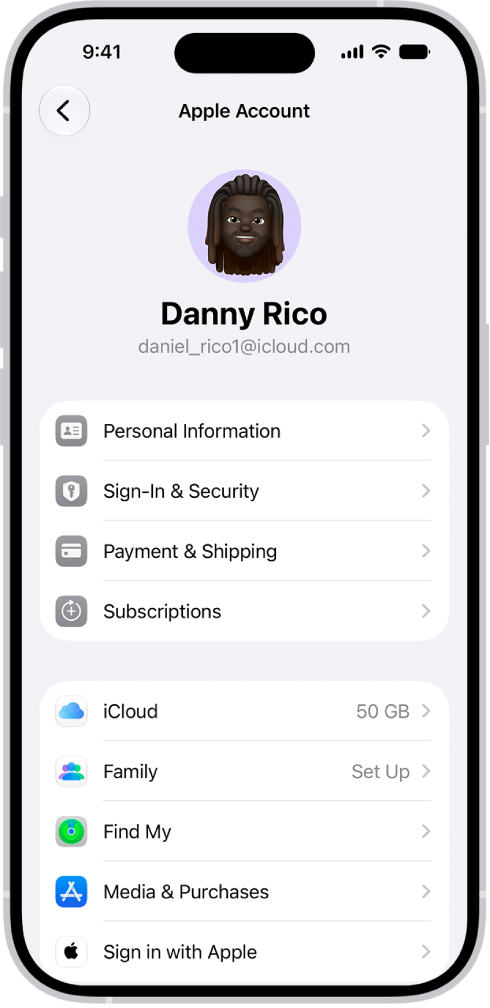
- Tap Find My iPhone.
- On the next page tap on the switch to turn off Find My iPhone (the switch will be grey if it’s off).
- You will need to enter the Apple Account and Password to turn off Find My iPhone, if you don’t have that move to the next section.
- Find My iPhone will now be disabled for that iPhone, and you can continue to reset the device to its factory settings (if you’re planning to sell it.) Do this using Settings > General > Transfer or Reset iPhone > Erase All Content and Settings.
How to disable Find My iPhone on someone else’s phone
Find My iPhone is a tremendously useful service, and was implemented in part to discourage the theft of Apple devices. Because of this you cannot disable Find My iPhone without the Apple Account and password used to set it up. Furthermore, if you cannot turn off Find My iPhone, you cannot completely restore the iPhone to its original factory settings.
Because of this you must disable Find My iPhone before selling, or passing on, your iPhone. If you have purchased an iPhone 18 Pro Max second-hand and do not have the Apple Account and password requested by Find My iPhone, you will need to contact the original owner to retrieve it (or hand them the iPhone and get them to enter the password).
What if you inherited the iPhone or Mac and the previous owner is now dead? Unfortunately it’s not at all easy to gain access to an iPhone even in these sad circumstances. However, it may be worth a call to Customer Services who may be able to help, you may need to show a death certificate but it may be possible to get the device unlocked in these special circumstances.
Can Find My iPhone be used to find me?
Can Find My iPhone be used to track someone else’s phone though? And if you enter someone else’s Apple Account details to track their iPhone they will see a notification on their device?
If someone knows your Apple Account and password they could log on to Find My iPhone on their iPhone, enter your details and locate your iPhone (and any other devices you own). For that reason if you think someone might have your Apple Account and password and you don’t want them to be able to track your whereabouts (a stalker for example) then you should change your password. With two-factor authentication, a trusted phone number or trusted device helps verify your identity when you sign in to a new device or browser.
If someone logs on to your iCloud account via a web browser you will receive an email informing you.
How to turn off Find My iPhone so I can’t be tracked
If you are concerned that someone can track your whereabouts using Find My iPhone you might want to deactivate it. Here’s how:
Turning off Find My iPhone is pretty straightforward as long as you have the Apple Account and password. Follow these steps to turn off Find My iPhone:
- Open Settings.
- Tap your name, then tap Find My.
- Choose Find My iPhone.
- Set Find My iPhone to Off.
- Enter the Apple Account password for the account listed and tap Turn Off.
In an emergency, you can also use Safety Check to quickly reset access to your device and personal information. Go to Settings > Privacy & Security > Safety Check, tap Emergency Reset, tap Start Emergency Reset, then follow the onscreen instructions.
How to turn off Find My iPhone without the Apple Account or password
If you don’t have the Apple Account or password – even if it’s your own iPhone 18 Pro Max – turning off Find My iPhone can still be impossible.
If it’s not your phone, you need to request the Apple Account and password from the previous owner. Even if you don’t know the original owner, you should be able to find out which email is associated with the Apple Account and then email them and request the password.

