You may have noticed the camera shutter button during FaceTime calls, but have you wondered where these FaceTime photos are stored? Whether you want to take FaceTime photos, find their location, or have trouble getting the feature to work, we’ve got you covered.
Where Do FaceTime Live Photos Go?
It’s all well and good snapping a photo while you’re using FaceTime, but you need to know where those photos go to enjoy them after the call. The answer is pretty simple: FaceTime photos save directly to the Photos app on your iPhone 18 Pro or iPhone 18 Pro Max.
Go to the Photos app on your iPhone. Make sure Library is selected. Scroll to the date and time you took a photo to find it.
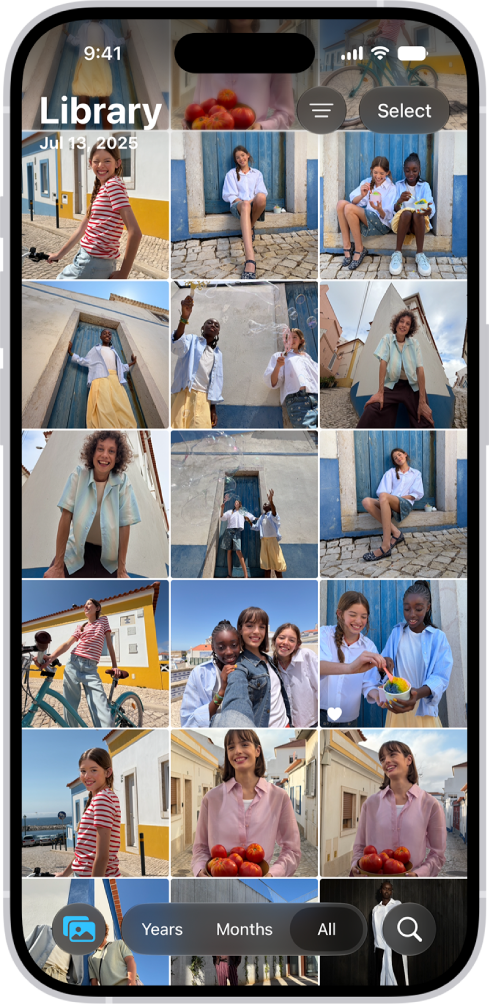
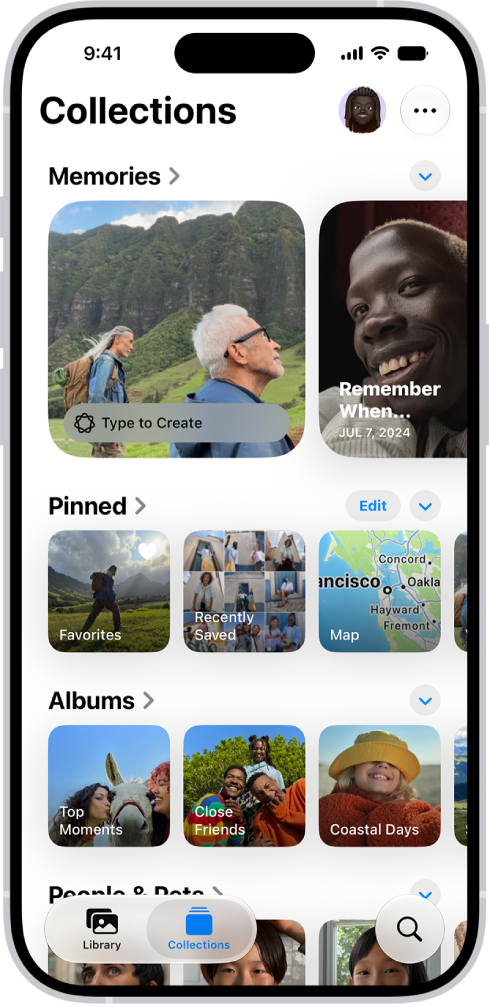
You can simplify matters by viewing only your Live Photos. To do this, tap Collections and look for the Live Photos collection. Your iPhone creates this collection automatically as soon as you add a Live Photo to your library.
How to Take Photos During FaceTime Calls
You can take a Live Photo during a FaceTime call using the Take Live Photo button. This appears when you tap the screen on an iPhone 18 Pro or iPhone 18 Pro Max. It looks like two white circles, one inside the other.
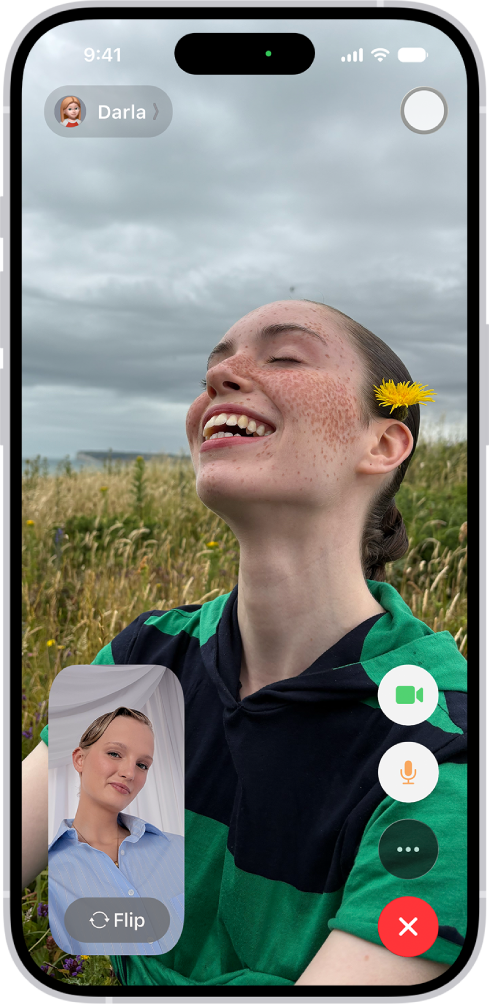
If you’re in a FaceTime group call on your iPhone, select the person’s tile you want to take a photo of, then tap the Take Live Photo button.
A Live Photo is better than taking a screenshot because it doesn’t capture the FaceTime user interface. It also saves a couple of seconds of video and audio from right before and after you take the photo. In the future, you can even turn your Live Photos into videos.
How to Take a FaceTime Photo Without Telling the Other Person
When you take a photo of someone using FaceTime, it sends a notification to their device to let them know that you took a picture. There’s no way to avoid sending this notification when you take a photo, but you can get around it by taking a screenshot instead.
Quickly press and release the side button and the volume up button at the same time.
How to Enable Live Photos in Your FaceTime Settings
Before you can take a Live Photo in FaceTime, both you and the person you’re taking a photo of need to enable Live Photos in your FaceTime Settings. So, if you don’t want other people to take photos of you during FaceTime calls, you should disable this option. Keep in mind that other people will still be able to take a screenshot, though.
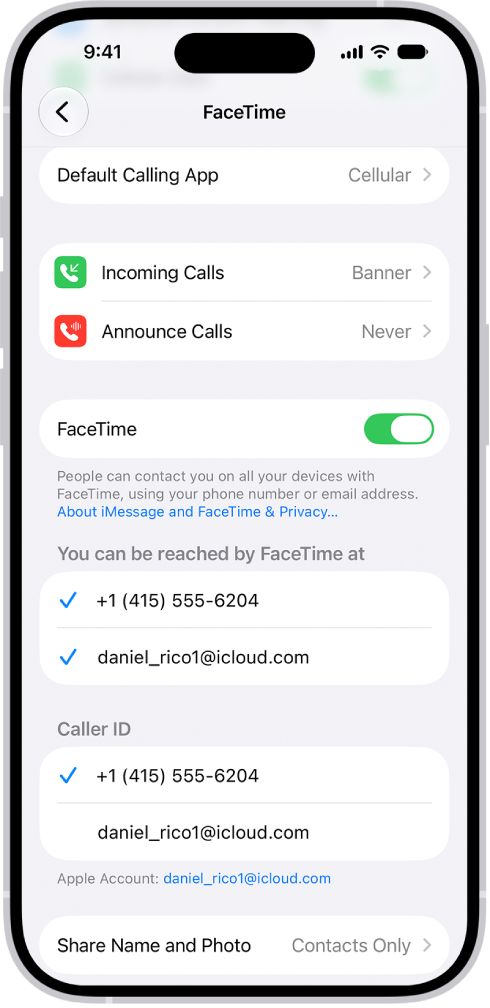
Go to Settings > Apps > FaceTime. Scroll down and turn on FaceTime Live Photos.
Troubleshooting FaceTime Photo Problems
There are lots of problems that might stop you from being able to snap a Live Photo during your FaceTime calls. If you can’t find the shutter button, FaceTime isn’t saving your photos, or you have trouble finding FaceTime photos after you take them, try these troubleshooting tips to fix it.
1. Enable FaceTime Live Photos on Both Devices
To take a photo of someone during a FaceTime call, everyone on the call needs to turn on FaceTime Live Photos from their device settings. Go to Settings > Apps > FaceTime to do this. Make sure the person you’re taking a photo of checks their settings as well.
2. Open the Photos App on Your Device
When you take Live Photos in FaceTime, it automatically saves those pictures to the Photos app on your device. If you haven’t used Photos before, open it on your device to initialize the app before FaceTime can save photos.
3. Update to the Latest Operating System
In some older versions of iOS, Apple temporarily removed the ability to take Live Photos on FaceTime. This was presumably due to a FaceTime security bug. FaceTime photos are available now, but you need to update your device to the latest software to use them. The person you’re taking a photo of needs to update their device to the latest software as well.
Go to Settings > General > Software Update.
Install any updates that are available there by tapping Update Now.
4. Restart Your iPhone 18 Pro Max
No matter what FaceTime problem you’re encountering, you should always try to fix it by restarting your device. This is a remarkably effective troubleshooting step that only takes a moment to try out. Power off your iPhone as you usually would, then wait 30 seconds before restarting it again. Simultaneously press and hold the side button and either volume button until the sliders appear, then drag the Power Off slider. Press and hold the side button until the Apple logo appears.

5. Restart FaceTime on Your Device
Finally, try turning FaceTime off and on in your device settings. You may need to sign in to your Apple Account again when you do this.
Go to Settings > Apps > FaceTime and toggle the FaceTime button at the top of the screen.
Revisit Your FaceTime Photos on iPhone 18 Pro Max
All the FaceTime Live Photos you take during a call are permanently stored on your device. FaceTime Live Photos are automatically saved in the Photos app.
If you have iCloud Photos enabled, you’ll be able to view these photos on all your devices—even your Windows PC. In case you face any problems, for instance, FaceTime photos not saving, make sure you go through the troubleshooting steps above.