









GeeksModo Story Archive - October 2026
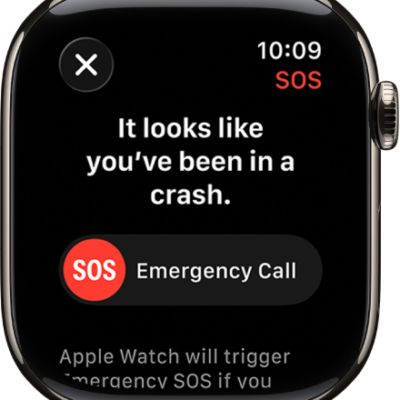
How to manage Crash Detection on Apple Watch
You can manage Crash Detection on Apple Watch so it can call emergency services and notify your emergency contacts after a severe car crash.
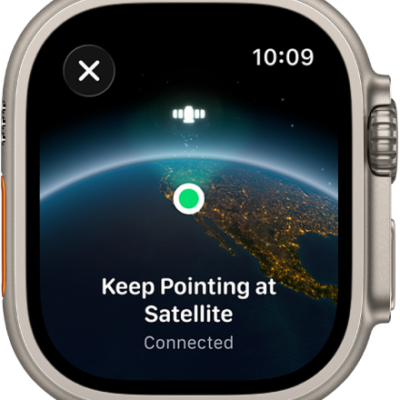
How to use satellite features on Apple Watch Ultra
You can use satellite features on Apple Watch Ultra to text emergency services, message friends, and share your location off the grid.
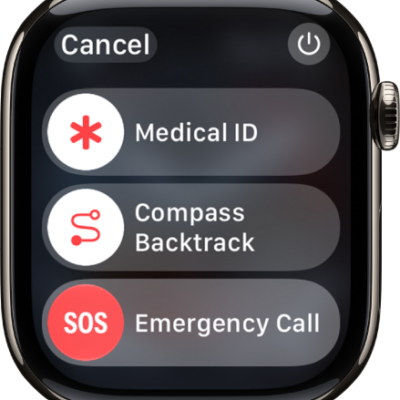
How to contact emergency services with Apple Watch
You can contact emergency services with Apple Watch, share your Medical ID, alert emergency contacts, and update your emergency address.
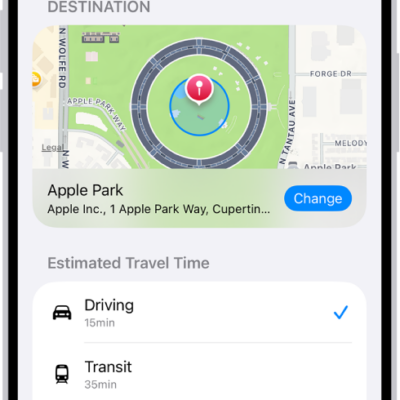
How to use Check In on Apple Watch to let friends know you’ve arrived
You can use Check In on Apple Watch to let friends know you've arrived, after a workout or a timer, and choose what details they see.
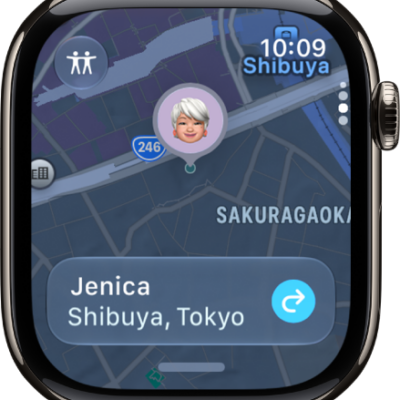
How to locate people in Find My on Apple Watch
You can locate people in Find My on Apple Watch, get directions to friends, send location alerts, and see a list of all your friends.
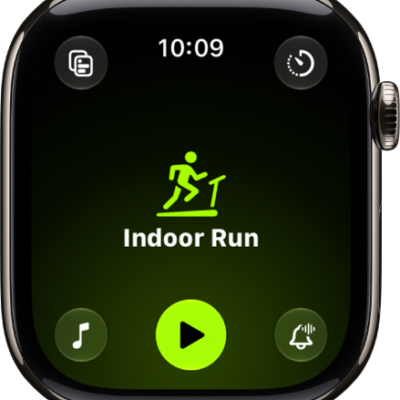
How to start a workout on Apple Watch
You can start a workout on Apple Watch, from HIIT and Outdoor Run to strength training, and pause, mark segments, and check your progress.
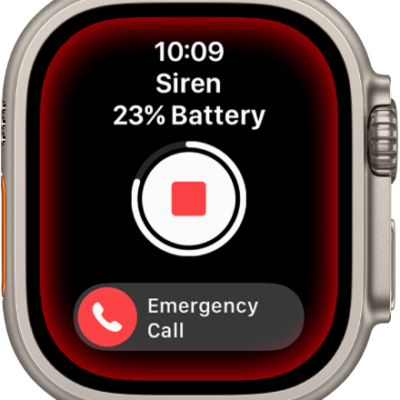
How to activate the siren on Apple Watch Ultra
You can activate the siren on Apple Watch Ultra with the Action button, side button, Siren app, or Siri to attract help in an emergency.
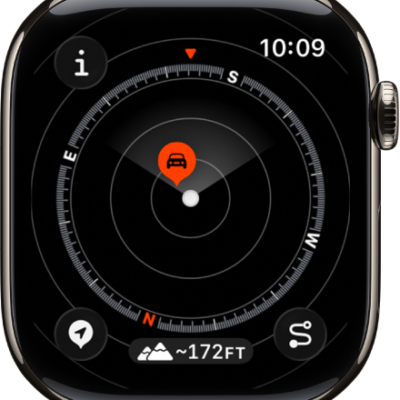
How to view and add waypoints in Compass on Apple Watch
You can view and add waypoints in Compass on Apple Watch, see automatic cellular and emergency call waypoints, and create your own.
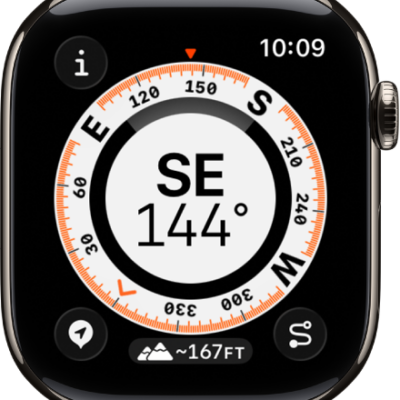
How to use the Compass app on Apple Watch
You can use the Compass app on Apple Watch to see your bearing, elevation, and coordinates, set a target elevation alert, and use true north.
How to use Backtrack to retrace your steps on Apple Watch
You can use Backtrack on Apple Watch to record your route in the Compass app and retrace your steps if you get lost.