









GeeksModo Story Archive - October 2026
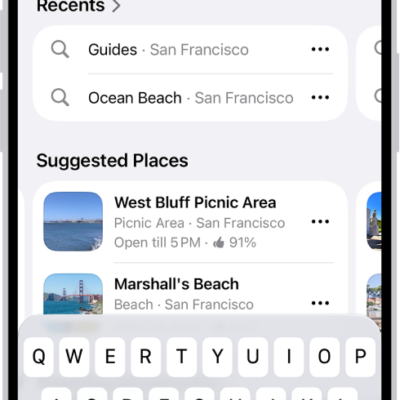
How to find nearby attractions, restaurants, and services in Maps on iPhone
You can find nearby attractions, restaurants, and services in Maps on iPhone by category, search, or Local Lists in select U.S. cities.
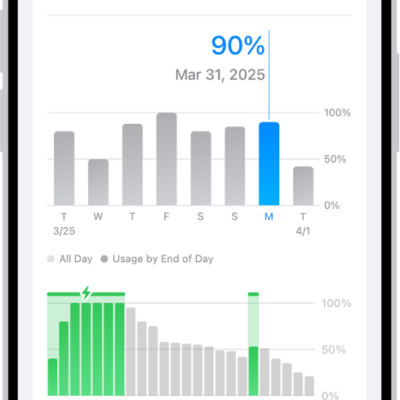
How to save battery life with Power Modes on iPhone
You can save battery life on iPhone with Adaptive Power, which adjusts performance automatically, or with Low Power Mode.

How to zoom in on the iPhone screen
You can zoom in on the iPhone screen with Full Screen Zoom or Window Zoom, in any app, and use Zoom together with VoiceOver.

How to use Apple Intelligence to express yourself creatively on iPhone
You can edit photos with Clean Up, create images with Image Playground, and make your own Genmoji with Apple Intelligence on iPhone.
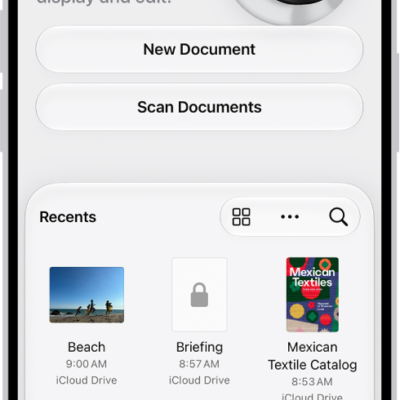
How to save, rename, or move PDFs and images in Preview on iPhone
You can save, rename, duplicate, copy, or move a PDF or image in the Preview app on iPhone.
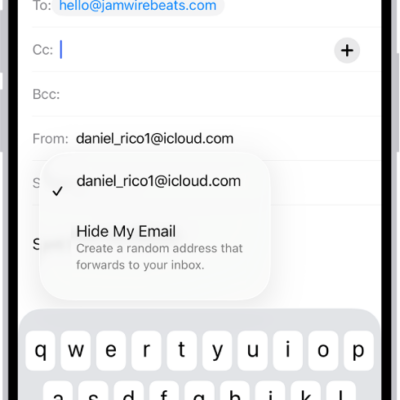
How to use Hide My Email in Mail on iPhone
You can use Hide My Email in Mail on iPhone to send and reply to email without sharing your real address with iCloud+.
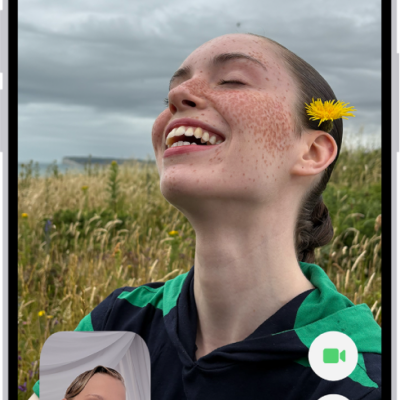
How to leave a FaceTime call or switch to Messages on iPhone
You can leave a FaceTime call on iPhone at any time, or switch the conversation to a Messages thread with everyone on the call.
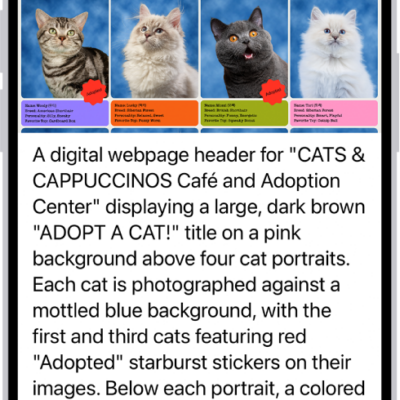
How to hear what’s on your screen and around you with VoiceOver on iPhone
You can get live descriptions of your surroundings and ask questions about images and items on the screen with VoiceOver Recognition on iPhone.
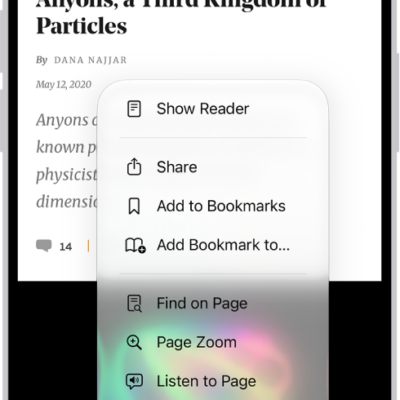
How to block pop-ups in Safari on iPhone
You can block pop-up windows in Safari on iPhone by turning on Block Pop-ups in the Safari section of the Settings app.
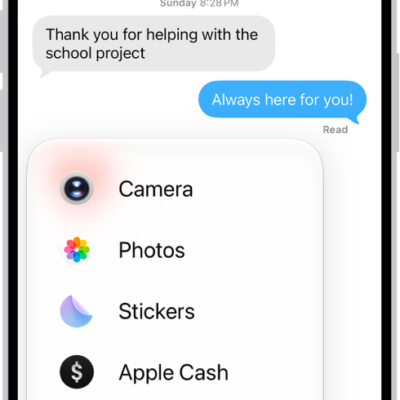
How to take and edit photos or videos in Messages on iPhone
You can take and edit photos and videos in Messages on iPhone, add effects and markup, and send smaller previews for speed.