When you subscribe to iCloud+, Hide My Email lets you send and receive email messages that forward to your real email account, to keep your real email address private.
You can also generate unique email addresses on demand in the Mail app, reply to an email using Hide My Email, and manage the addresses it generates. When you write a message, it’s in the From field.
Here’s how to use Hide My Email in Mail on iPhone.
Send an email with Hide My Email
- Start the Mail app on your iPhone.
- Tap the Compose button.
-
Add a recipient and subject for your message.
Note: You can only send a message using Hide My Email to one recipient at a time.
-
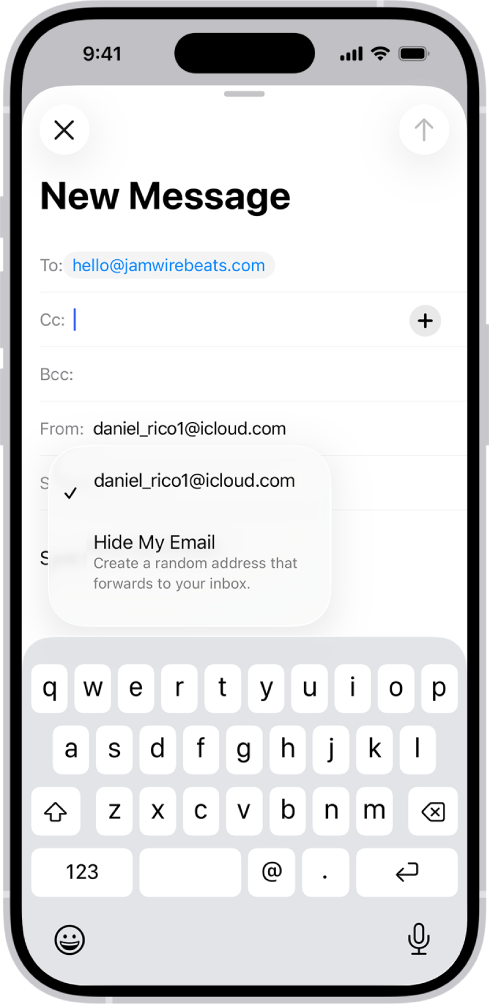
Tap the From field, tap it again, and tap Hide My Email.
A new, unique email address appears in the From field.
Tip: When the recipient replies to a message you sent with Hide My Email, their reply forwards to your real email address.
Reply to an email using Hide My Email
When an email message reaches one of your unique, random addresses, you can reply from that same address.
That way, you can continue the conversation and keep your real email address private.
To reply, do the following: Go to the Mail app on your iPhone.
-
Tap the message, tap the Reply button, and tap Reply.
Type your response.
You can tap the From field to view the email address the recipient sees.
Manage the addresses generated by Hide My Email
You can create random addresses with Hide My Email, then deactivate, reactivate, and manage them.