You can download attachments that are sent to you in email messages or easily search for messages with attachments in your mailboxes.
An image can go straight to the Photos app, and other attachments can be saved in the Files app or opened with another app. You can even use AutoFill to quickly fill out forms you receive in Mail.
Here’s how to download email attachments in Mail on iPhone.
Download an attachment sent to you
- Open the Mail app on your iPhone.
-
In a message, touch and hold the attachment and then do one of the following: Save it in the Photos app: Choose Save Image.
- Save it in the Files app: Choose Save to Files.
- Open it with another app: Tap Share, then choose the app.
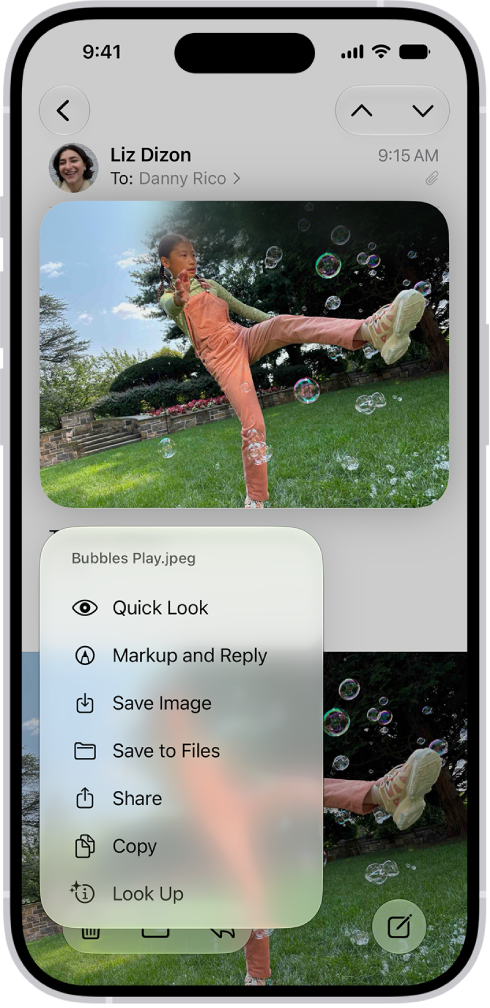
Tip: You can identify and learn more about objects in photos you receive.
- Touch and hold the photo and then choose Look Up.
Quickly fill out forms you receive in Mail
Using AutoFill, you can quickly fill out forms you receive in the Mail app, then send each one back to the original sender without leaving Mail.
- Open the Mail app on your iPhone.
- In the message, tap the attachment to open the document.
- Tap the AutoFill button and then tap Form Filling.
-
Tap a blank field to enter text using the onscreen keyboard.
To fill out another line, tap it, then enter text.
- Tap the Done button and then tap Reply to [name].
Find emails with attachments
Having trouble finding an attachment someone sent you? Filter your email messages to show only those with attachments.
-
Open the Mail app on your iPhone.
In a mailbox, tap the Toggle Filtering button to turn on filtering.
-
Tap Filtered by and then turn on Only Mail with Attachments.
Tip: You can also show emails messages with attachments from all accounts in one mailbox.
-
To set up the attachment mailbox, tap the Mailboxes button, tap Edit, and then select Attachments.
The attachments mailbox appears in the mailboxes list with your other mailboxes.