









GeeksModo Story Archive - October 2026
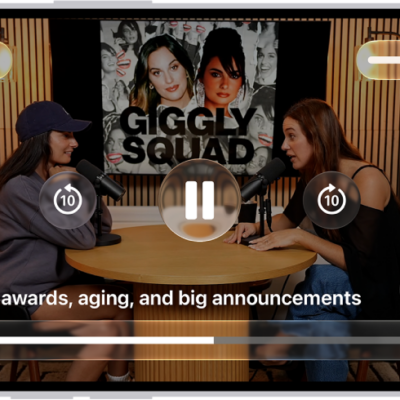
How to play podcasts on iPhone
You can play video and audio podcasts on iPhone, change the speed, set a sleep timer, jump by chapter, and open episode links.
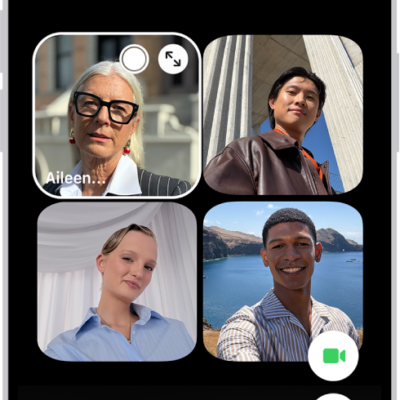
How to use SharePlay to watch, listen, and play together in FaceTime on iPhone
You can watch shows and movies, listen to music, and play games in sync with friends on a call with SharePlay in FaceTime on iPhone.

How to set up your Game Center profile in the Apple Games app on iPhone
You can set up and edit your Game Center profile in the Apple Games app on iPhone and manage who can connect with you.
How to play with friends in the Apple Games app on iPhone
You can challenge friends, compete on leaderboards, and play together during FaceTime calls in the Apple Games app on iPhone.
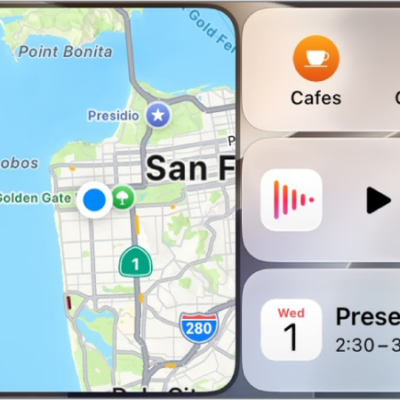
Getting started with CarPlay on iPhone
You can connect iPhone to CarPlay to use directions, phone calls, music, Calendar, and more from your vehicle's display.

How to make and answer calls with AirPods Max
You can make and answer calls with AirPods Max, mute or unmute yourself, decline an incoming call, and answer a second call with the Digital Crown.

How to make and answer calls with AirPods 1 or AirPods 2
You can make and answer calls with AirPods 1 or AirPods 2, end calls, and answer a second phone call using Siri or the controls on your AirPods.
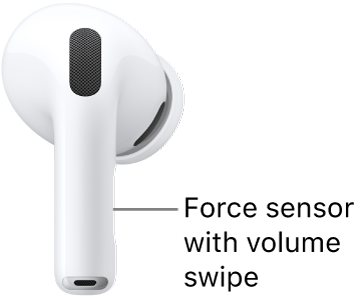
How to adjust the volume of sound effects for AirPods
You can adjust the volume of sound effects for AirPods, like the sounds you hear when you put them in your ears or receive low battery alerts.
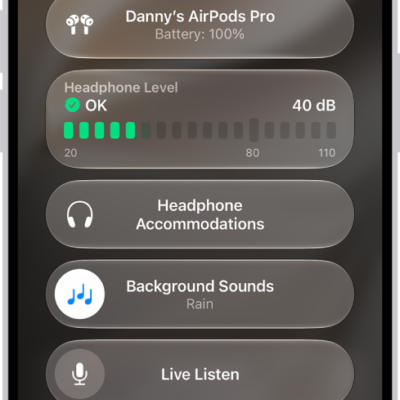
How to play background sounds on AirPods
You can play background sounds on AirPods, like ocean or rain, to mask unwanted noise, and set the sound, volume, and a timer.
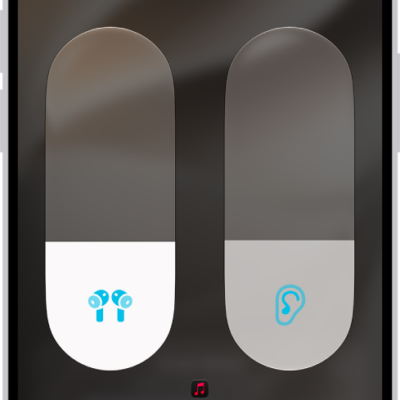
How to customize Transparency mode for AirPods
You can customize Transparency mode for AirPods Pro, reduce ambient noise, adjust Own Voice Amplification, and use Conversation Boost.