









GeeksModo Story Archive - October 2026
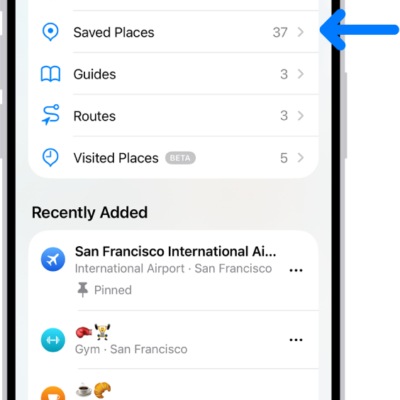
How to add places and notes to your Places in Maps on iPhone
You can save and pin places in Maps on iPhone, add personal notes that only you can see, and remove places from your Places.
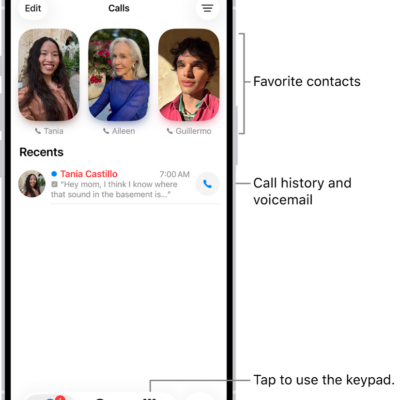
How to route and automatically answer calls on iPhone
You can send call audio on iPhone to the speaker, a Bluetooth headset, or a hearing device, and have iPhone answer calls automatically.
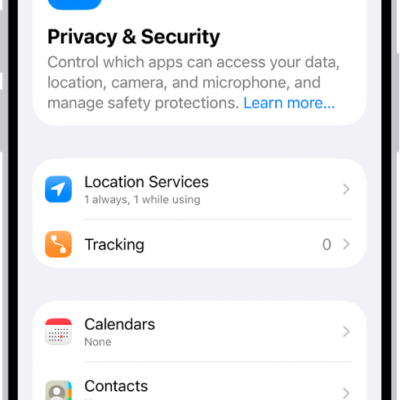
How to control access to your contacts on iPhone
You can control access to your contacts on iPhone, giving an app all of them or only the ones you choose, and change it later.
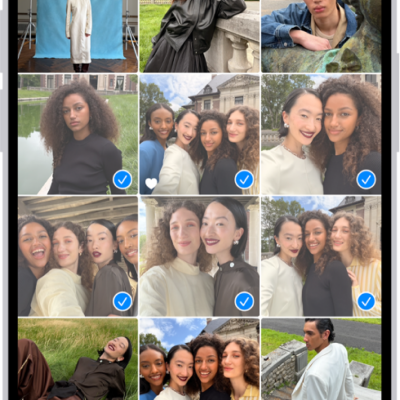
How to add, delete, and find photos and videos in albums on iPhone
You can add photos and videos to albums in Photos on iPhone, remove them from an album, and search inside an album to find something fast.
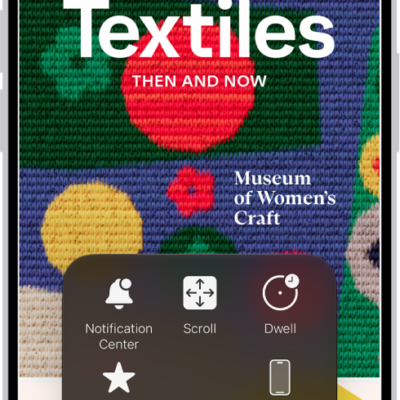
iPhone mobility accessibility features: Eye Tracking, Voice Control, and more
You can use accessibility features for mobility on iPhone, like Eye Tracking, Voice Control, Switch Control, external keyboards, and touch settings.
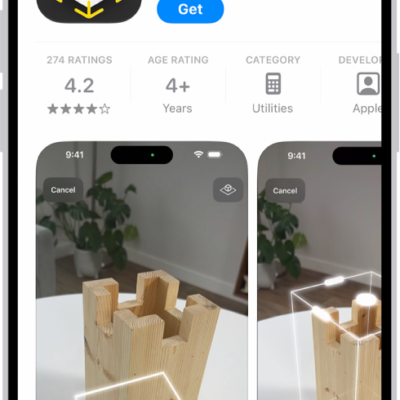
How to change settings and restrictions in the App Store on iPhone
You can change App Store settings on iPhone, like automatic updates and Offload Unused Apps, and set content restrictions and block in-app purchases.
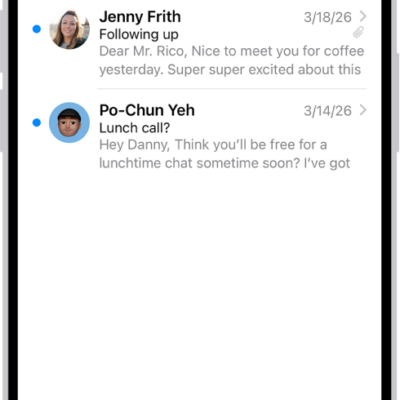
How to filter emails in Mail on iPhone
You can filter emails in Mail on iPhone by criteria you choose, pick which accounts notify you during a Focus, and see priority emails first.
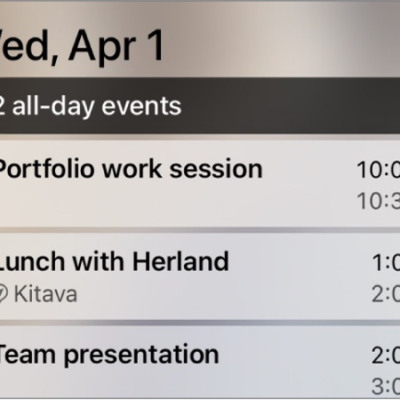
How to view Live Activities in CarPlay
You can view Live Activities on CarPlay Dashboard, like Maps directions and live sports updates, and adjust them for each app.

How to use a Stocks widget on your iPhone
You can add a Stocks widget to your iPhone Home Screen to check stocks at a glance, in the size and display you choose.
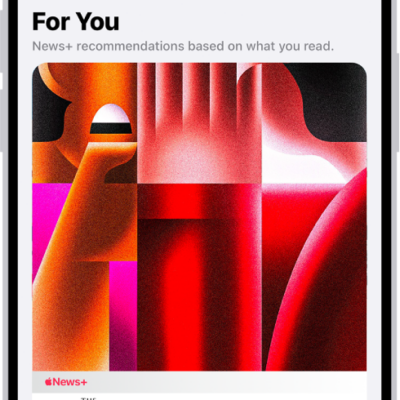
How to browse and read Apple News+ stories and issues on iPhone
You can follow publications and browse and read current and back issues of Apple News+ stories and magazines on iPhone.