








Got a tip for us?

GeeksModo Story Archive - October 2026
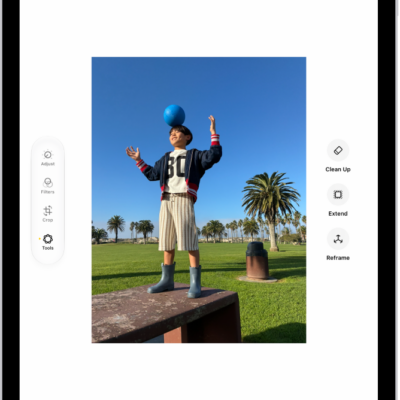
The Clean Up, Extend, and Reframe buttons next to a photo being edited in the Photos app.

How to clean up, extend, and reframe photos on iPad

You can clean up, extend, and reframe photos on iPad with Apple Intelligence, removing distractions and extending the background.
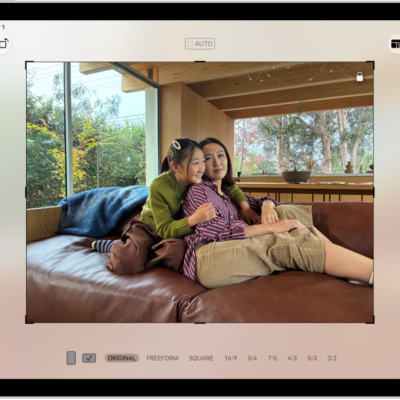
The Edit screen in the Photos app with a photo in the center. On the left side of the screen are the Adjust, Filters, and Crop buttons; the Crop button is selected. On the right side of the screen are the crop enhancement options and a slider to adjust the level of the effect.

How to crop, rotate, flip, or straighten photos and videos on iPad

You can crop, rotate, flip, or straighten photos and videos on iPad in the Photos app, and change the aspect ratio.
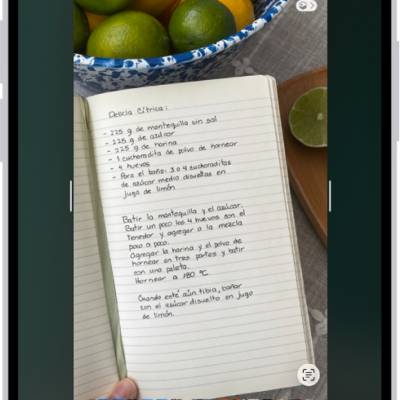
The screenshot screen, with buttons along the top (from left to right) for Close Window, Markup, Share, and Done. Along the bottom (from left to right) are buttons for Ask, Translate, and Search.

How to change the screen capture settings on iPad

You can change the screen capture settings on iPad, preview screenshots as thumbnails, and use Visual Look Up in screenshots.
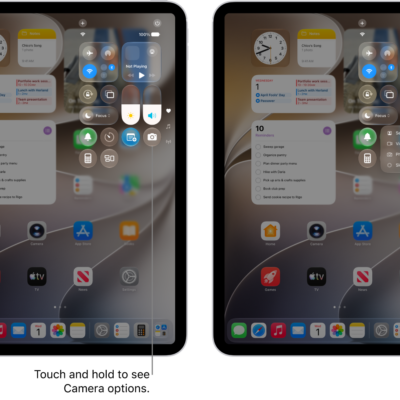
The iPad Control Center. Controls for Airplane Mode, cellular data, Wi-Fi, and Bluetooth are in the top-left group in Control Center for Wi-Fi + Cellular iPad models. The Camera control is at the bottom right of Control Center. The screen on the right shows the quick menu of options that appear when you touch and hold the Camera control.

How to take a screen recording on iPad

You can take a screen recording on iPad to capture what's happening on your screen as a video, with audio from the microphone.
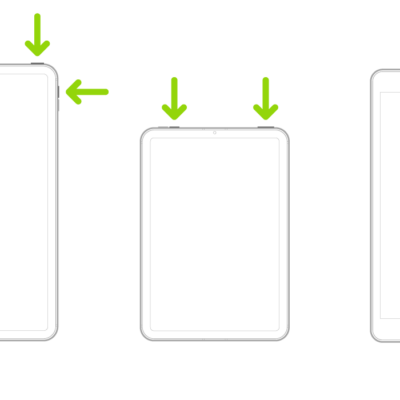
Three iPad models. Two iPad models have a top button; one iPad model has volume buttons on the side, and the other has volume buttons at the top. Arrows point to the top buttons and volume buttons. The third iPad has a Home button, and an arrow points to the Home button and the top button.

How to take a screenshot on iPad

You can take a screenshot on iPad to capture your screen, grab a full page, or save a specific portion, then crop or annotate it.
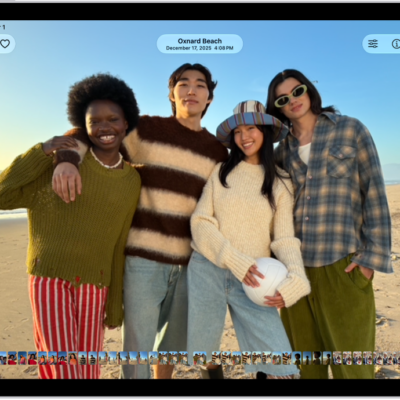
A photo is open in the Photos app and fills the center of the screen.

How to view photos and videos on iPad

You can view photos and videos on iPad in the Photos app, play videos, and view photos with a 3D effect on supported models.
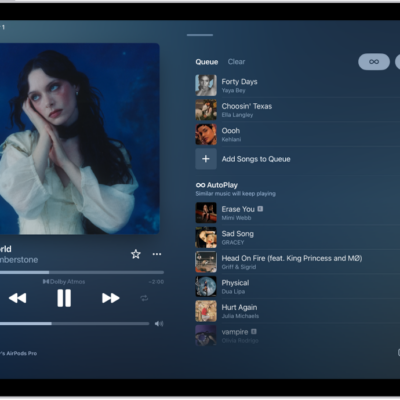
The Now Playing screen showing the queue with AutoPlay and AutoMix turned on. Similar songs appear below the songs in the album.

How to transition songs in Music on iPad

You can transition songs in Music on iPad with AutoMix or Crossfade, and choose the length of a crossfade in Settings.
The Now Playing screen showing the queue with AutoPlay and AutoMix turned on. Similar songs appear below the songs in the album.

How to queue up your music on iPad

You can queue up your music on iPad, add songs to play next or at the end, reorder the queue, and use AutoPlay.
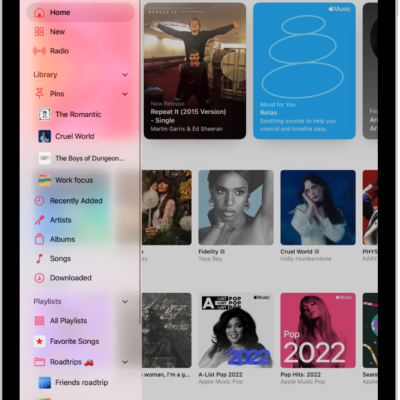
The Music app open on iPad showing the sidebar on the left and albums on the right. The MiniPlayer is at the bottom.

How to play music on iPad

You can play music on iPad from your library, stream recommended songs, and control playback from the Lock Screen.
The Now Playing screen showing the queue with AutoPlay and AutoMix turned on. Similar songs appear below the songs in the album.

How to shuffle or repeat songs in Music on iPad

You can shuffle or repeat songs in Music on iPad, from your whole library to a single song, from the Now Playing screen.