









GeeksModo Story Archive - October 2026
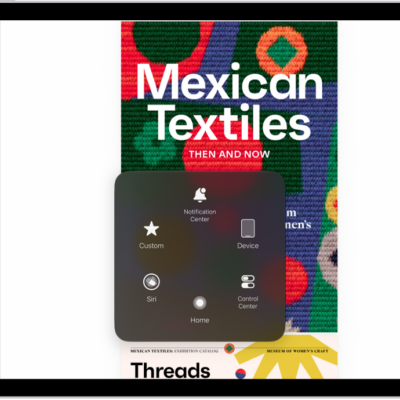
How to control iPad with the movement of your head
You can control iPad with the movement of your head using Head Tracking, perform actions by dwelling, and set Head Tracking options.
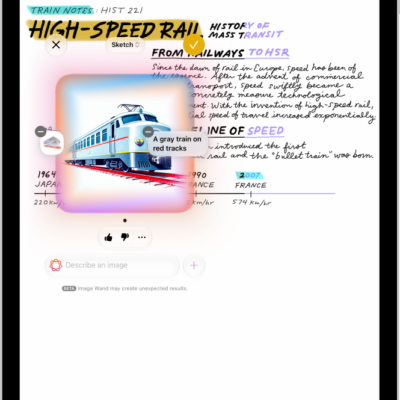
How to use Image Wand with Apple Intelligence on iPad
You can use Image Wand with Apple Intelligence on iPad to create images in Notes from rough sketches or surrounding content.

How to create original images with Image Playground on iPad
You can create original images with Image Playground on iPad using Apple Intelligence, from text descriptions, photos, and people.
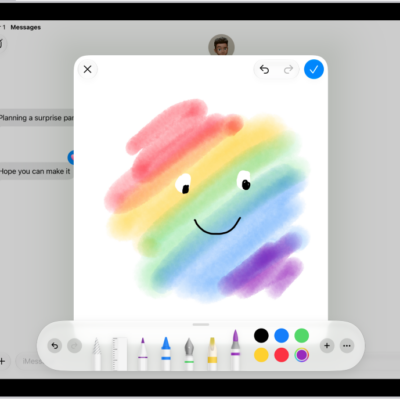
How to draw and create images in Messages on iPad
You can draw and create images in Messages on iPad, send drawings and Digital Touch effects, and create images with Image Playground.

How to control iPad with an external keyboard
You can control iPad with an external keyboard using Full Keyboard Access and keyboard shortcuts, and customize its commands.
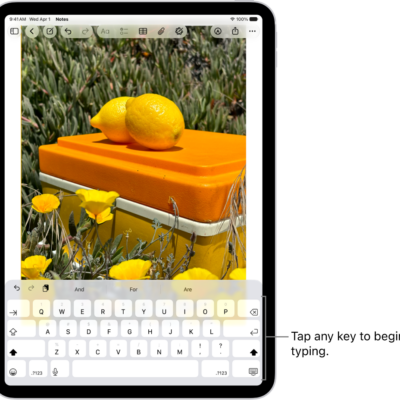
How to adjust the onscreen and external keyboard settings for accessibility on iPad
You can adjust the onscreen and external keyboard settings for accessibility on iPad, show only uppercase keys, and change key responses.
iPad mobility accessibility features: Eye Tracking, Voice Control, and more
You can use accessibility features for mobility on iPad to control it with your eyes, voice, assistive devices, or an external keyboard.
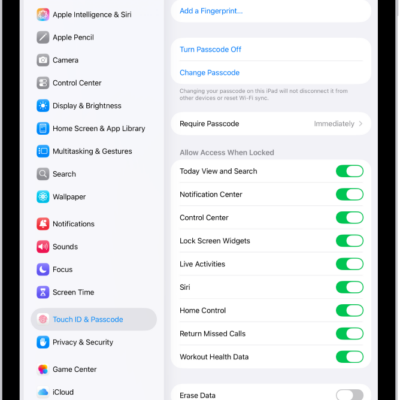
How to change Face ID and attention settings on iPad
You can change Face ID and attention settings on iPad, set up Face ID with Accessibility Options, and turn off attention checks.
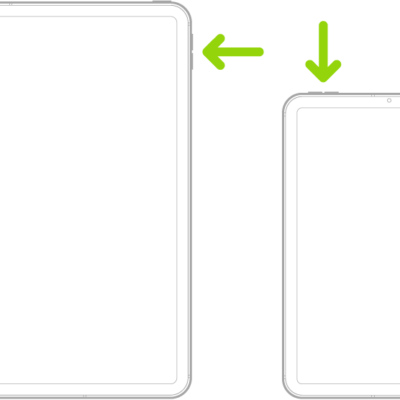
How to adjust settings for the top or Home button
You can adjust settings for the top or Home button on iPad, including click speed, Press and Hold to Speak, and Rest Finger to Open.

How to route and automatically answer calls on iPad
You can route and automatically answer calls on iPad, sending call audio to the speaker, a headset, or a hearing device.