









GeeksModo Story Archive - October 2026
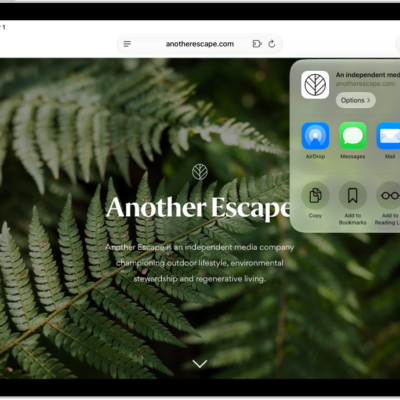
How to bookmark a website as a favorite in Safari on iPad
You can bookmark a website as a favorite in Safari on iPad, edit or reorder favorites, and show the Favorites bar.
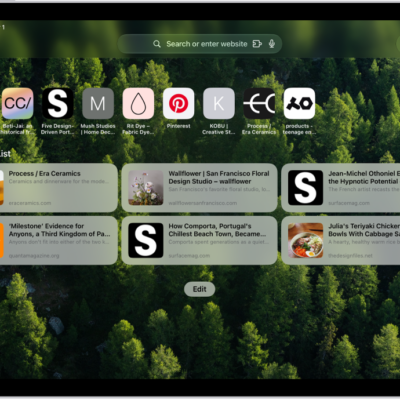
How to get started with Safari on iPad
You can get started with Safari on iPad to browse the web, bookmark websites, browse privately, and clear your cookies.
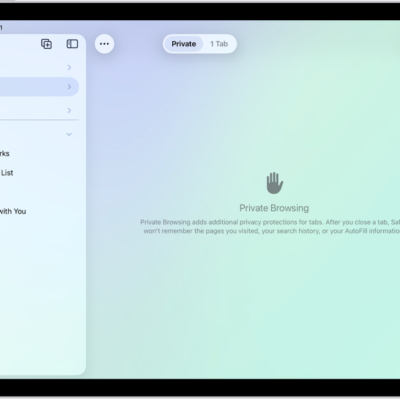
How to browse the web privately in Safari on iPad
You can browse the web privately in Safari on iPad with Private Browsing, view the Privacy Report, and use iCloud Private Relay.

How to use VoiceOver on iPad with a pointer device
You can use VoiceOver on iPad with a pointer device, setting the pointer to ignore, follow, or move the VoiceOver cursor.
How to hear audio descriptions for video content on iPad
You can hear audio descriptions for video content on iPad, a narration of the visual content, by turning on Audio Descriptions.
How to hear iPad speak the screen, selected text, and typing feedback
You can hear iPad speak the screen, selected text, and typing feedback, use Accessibility Reader, and change how spoken content sounds.
iPad vision accessibility features: VoiceOver, Zoom, and more
You can use accessibility features for vision on iPad to hear what's on the screen, make text larger, and get descriptions of your surroundings.
How to turn on and practice VoiceOver on iPad
You can turn on and practice VoiceOver on iPad, a gesture-based screen reader that lets you use iPad even if you can't see the screen.
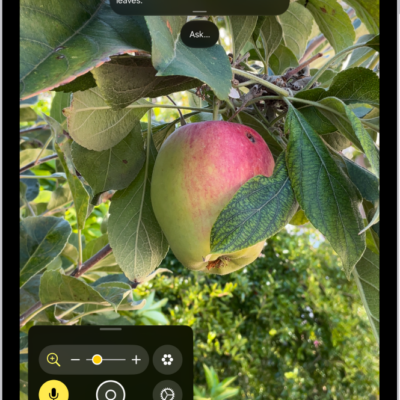
How to magnify or get information about things around you with Magnifier on iPad
You can magnify or get information about things around you with Magnifier on iPad, and ask questions with Ask Magnifier.
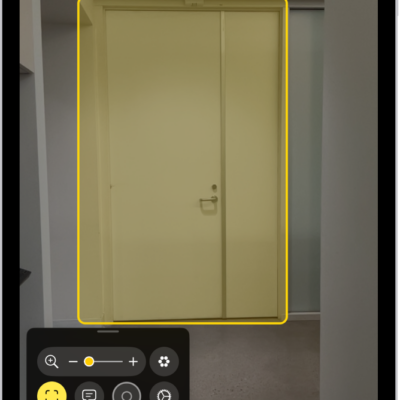
How to detect doors, people, and furniture around you using Magnifier on iPad
You can detect doors, people, and furniture around you using Magnifier on iPad, and customize how detection works.