








Got a tip for us?

GeeksModo Story Archive - October 2026
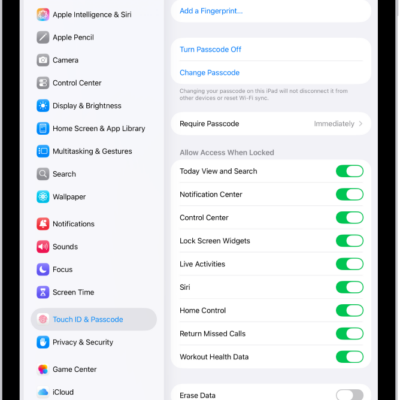
Face ID & Passcode settings, with options for allowing access to specific features when iPad is locked.

How to turn on Lock Screen features on iPad

You can turn on Lock Screen features on iPad, like Control Center, widgets, and media playback controls, for easy access when locked.
Face ID & Passcode settings, with options for allowing access to specific features when iPad is locked.

How to lock or hide an app on iPad

You can lock or hide an app on iPad so it needs Face ID, Touch ID, or your passcode to open, and find hidden apps.
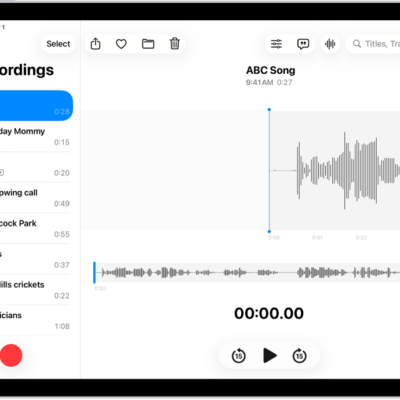
A recording made in Voice Memos. The list of recordings is on the left, with a selected recording at the top. On the right, the waveform has a playhead, which you can drag to go to a specific place in the recording. Above the waveform are the Share, Favorite, Move, Delete, Playback Options, Transcription, and Edit buttons. Below the timeline are the Playback controls.

How to work with layered recordings on iPad

You can work with layered recordings on iPad, mixing or separating the vocal and instrumental layers you created on iPhone.
A recording made in Voice Memos. The list of recordings is on the left, with a selected recording at the top. On the right, the waveform has a playhead, which you can drag to go to a specific place in the recording. Above the waveform are the Share, Favorite, Move, Delete, Playback Options, Transcription, and Edit buttons. Below the timeline are the Playback controls.

How to get started with Voice Memos on iPad

You can get started with Voice Memos on iPad to record lectures and ideas, fine-tune recordings, and view audio transcripts.
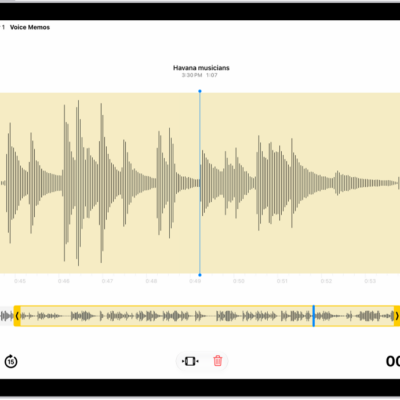
A recording is being edited, with the yellow trim handles enclosing a portion of the audio waveform at the bottom of the screen. To the left of the Playback controls are the Trim button (for deleting the part of the recording outside the handles) and the Delete button (for deleting the part of the recording outside the handles).

How to edit or delete a recording in Voice Memos on iPad

You can edit or delete a recording in Voice Memos on iPad, trim or replace parts, and recover a deleted recording.

A photo is open in the Photos app library. At the top of the screen, the Info button displays an icon indicating that Visual Look Up information is available. The button is selected and the Visual Look Up results appear on the screen.

How to identify objects in your photos and videos on iPad

You can identify objects in your photos and videos on iPad with Visual Look Up, from landmarks and plants to pets and food.
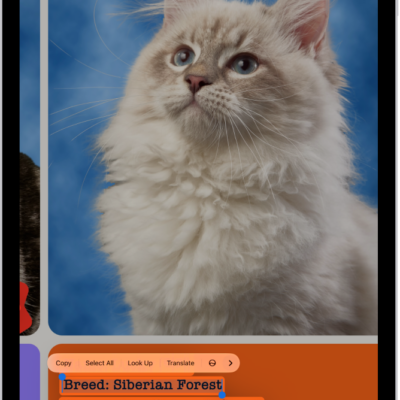
A photo of a recipe in Spanish is shown. Within the photo, text is highlighted. Near the bottom, from left to right, are buttons for Translate, converting grams, converting Celsius, and the Detect Text button.

How to interact with content in a photo or video on iPad

You can interact with content in a photo or video on iPad with Live Text, and copy, translate, or act on text you find.
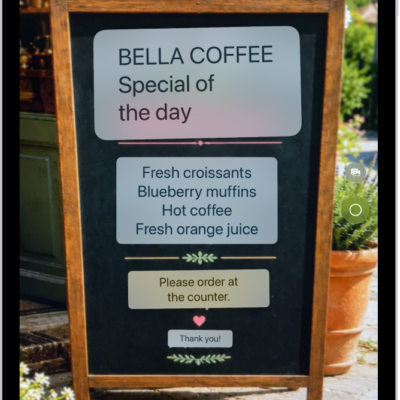
The Camera screen showing a menu at a restaurant with text translated from Spanish to English.

How to use Live Text with your iPad camera

You can use Live Text with your iPad camera to copy, share, look up, and translate text that appears in the camera frame.
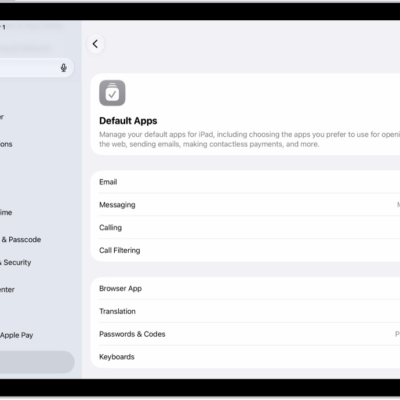
The screen for changing your default apps for sending email, browsing the web, and more.

How to change the default apps on iPad

You can change the default apps on iPad for email, messaging, calling, browsing, passwords, and keyboards to third-party apps.
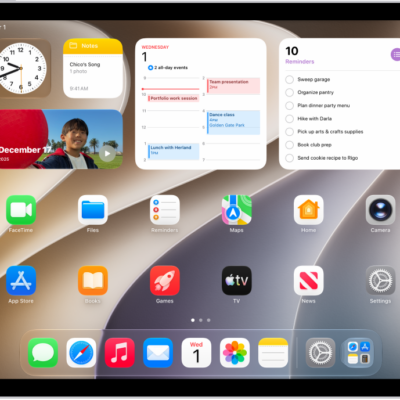
A screenshot showing an example of an iPad Home Screen.

How to search with Spotlight on iPad

You can search with Spotlight on iPad for apps, contacts, content in apps, and webpages, and choose which apps appear in Search.