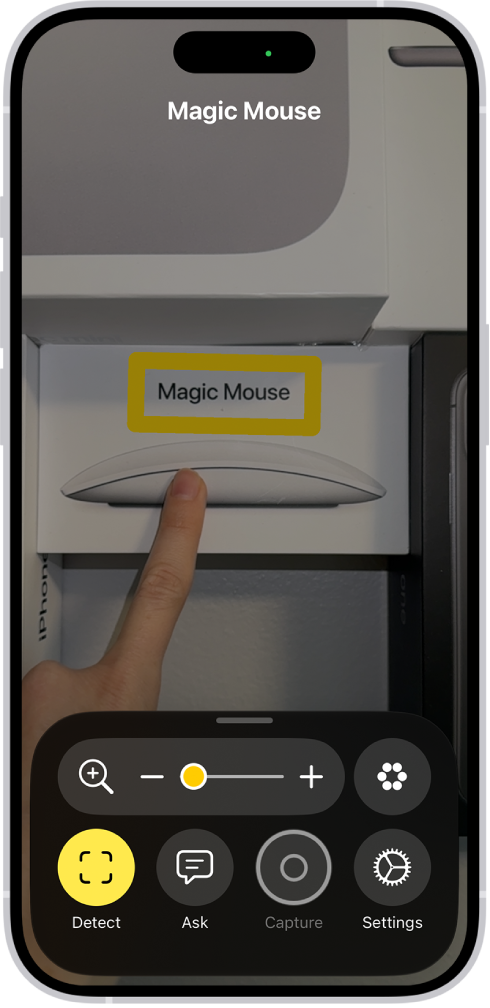
If you’re blind or have low vision, you can use the Magnifier app to aim your iPhone camera at nearby text and have it spoken out loud. You can even point your finger at the specific text you want spoken.
It all happens in Detection Mode, which you can add to the Magnifier app on your iPhone if you don’t see its button. Text Detection and Point & Speak aren’t available in all languages, though.
Important: Detection Mode should not be relied on in high-risk or emergency situations, in circumstances where you may be harmed or injured, or for navigation.
Detect text in the camera frame and have it read out loud
The Magnifier app can detect text in the field of view of your iPhone camera, then have it read out loud.
- Start the Magnifier app on your iPhone.
-
Tap the Detection Mode button to start Detection Mode.
If you don’t see the Detection Mode button, you can add it.
- Touch and hold the Detection Mode button and then make sure Text is selected.
-
Position iPhone so the rear camera can detect text around you.
If you don’t hear speech feedback, make sure Silent mode isn’t on.
-
To temporarily pause detection, double-tap the screen with two fingers.
Double-tap again with two fingers to resume detection.
- To stop Detection Mode, tap the Detection Mode button.
Point your finger at text to have it spoken
When you point your finger at text near you, the Magnifier app can have your iPhone speak it out loud.
It’s especially useful for interacting with objects that have text labels, like dials, buttons, or keypads on ATMs or household appliances, or a digital screen at a grocery store self-checkout.
- Start the Magnifier app on your iPhone.
-
Tap the Detection Mode button to start Detection Mode.
If you don’t see the Detection Mode button, you can add it.
- Touch and hold the Detection Mode button. Make sure Point & Speak is selected.
-
Position iPhone so the rear camera can detect the text and then point your finger to identify which text to read.
If you don’t hear sound or speech feedback, make sure Silent mode isn’t on.
-
To temporarily pause detection, double-tap the screen with two fingers.
Double-tap again with two fingers to resume detection.
- To stop Detection Mode, tap the Detection Mode button.
Customize settings for Text Detection or Point & Speak
- Start the Magnifier app on your iPhone.
-
Tap the Settings button and then tap Detect.
To detect text in other languages, turn on Detect Languages.
-
Tap Text or Point & Speak and then customize any of the following: Detection Feedback: Turn on any combination of Labels and Speech.
For Point & Speak, you can also turn on Sound and Haptic feedback.
Location: For Point & Speak, tap Under (to read text under your fingertip) or Above (to read text directly above your finger).
Automatic Flashlight: When your environment is too dark to detect text, have Magnifier turn the flashlight on for 10 seconds.
Border and Color: For Point & Speak, outline the text you’re pointing to in a color of your choice.
-
To return to the live Magnifier lens, tap the Back button, tap it again, and then tap the Done button.
Text Detection and Point & Speak work with VoiceOver.