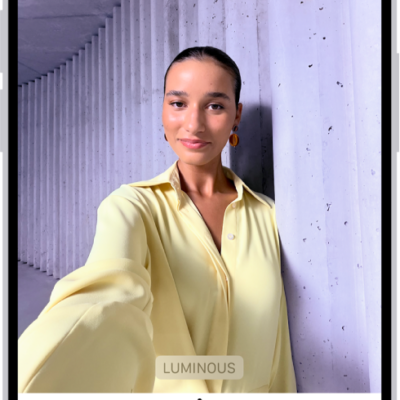
During a call in the FaceTime app, you can turn Portrait mode or your camera on or off, switch between cameras, or show both front and rear cameras on supported models.
Portrait mode blurs the background on its own and keeps the focus on you. You can also switch to the rear camera. And with Dual Capture, you can share both cameras.
Here’s how to use camera controls during a FaceTime call on iPhone.
Blur the background with Portrait mode
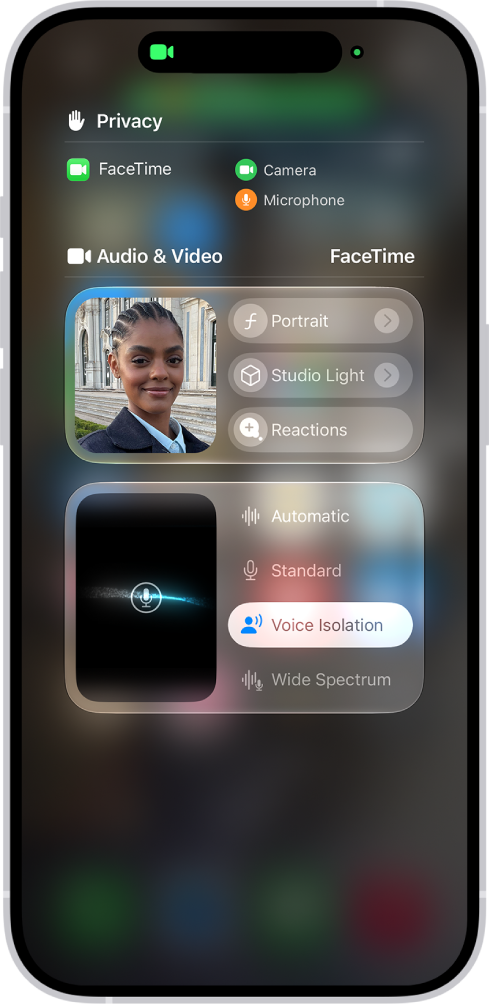
Portrait mode works the same way during a FaceTime call as it does in Camera, automatically blurring the background and putting the visual focus on you.
- During a call in the FaceTime app on your iPhone, tap your tile.
- Tap Portrait.
To turn Portrait mode off, tap the button again.
You can also turn on Portrait mode in Control Center. Open Control Center, then tap FaceTime Controls.
Switch to the rear camera
- During a call in the FaceTime app on your iPhone, tap your tile.
- Tap the Flip to Back Camera button.
To switch back to the front-facing camera, tap the Flip to Front Camera button again.
Note: With the rear camera on, tapping 1x adjusts the image, and the label updates to show the current zoom (from 0.5x to 6x). Pinching your fingers in or out adjusts the zoom too.
Share both cameras with Dual Capture
Dual Capture, available on iPhone 17 or later with iOS 27 or later, lets you share both cameras. The person you’re talking with sees your face in a small window within the rear camera view.
Note: The other participant needs iOS 27, iPadOS 27, macOS 27, or later.
- During a one-on-one call in the FaceTime app on your iPhone, tap your tile.
-
Tap the Flip to Back Camera button.
By default, both the front and back camera show.
-
To share only the rear camera, tap the Hide Front Camera button
The front camera stays hidden while the back camera remains showing. This setting persists on future calls until you tap the Show Front Camera button again.
Turn off your camera
- During a call in the FaceTime app on your iPhone, tap the screen to show the controls.
- Tap the Camera Switch button. Tap it again to turn the camera back on.