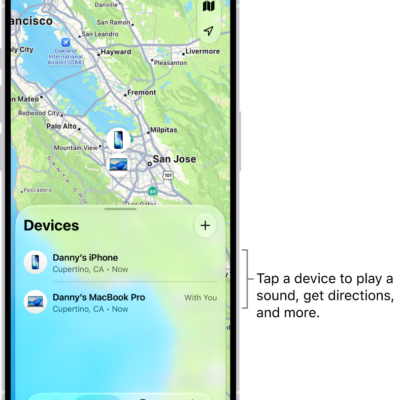
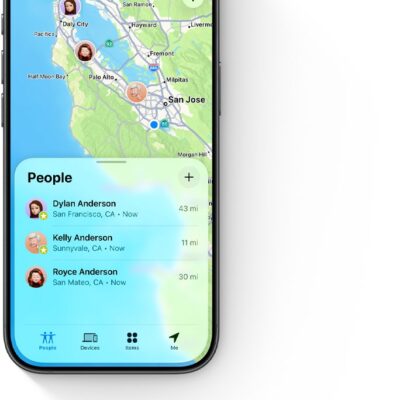
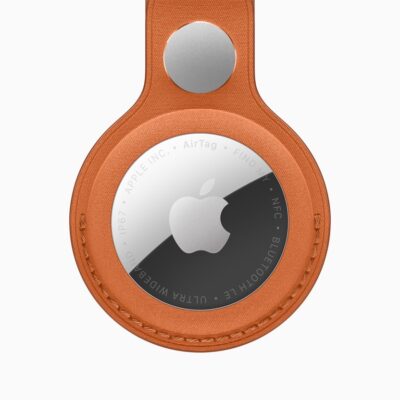
If you want to share an item that’s paired with an AirTag, or a third-party item that works with Find My, you can share it in Find My so the borrower can see it on a map and find it. If it’s nearby, Find My can play a sound, and if you’re using a supported iPhone, you can find its precise location.
People you’re sharing items with don’t receive tracking notifications when the items are moving with them. And you can stop sharing an AirTag whenever you want.
You can share an AirTag or other item with as many as five borrowers besides you, for a total of six users per item. Just make sure you meet the following requirements:
- Two-factor authentication must be turned on for your Apple Account.
- The person you share with must have an Apple Account and be signed in to it. They must also use iCloud.
- You can’t share with a child account.
- The owner and borrowers must have iCloud Keychain turned on.
- The owner and borrowers must be using iOS 17, iPadOS 17, macOS 14, or later.
Note: You share an AirTag and a third-party item the same way.
Share an AirTag
- Open the Find My app on your iPhone.
- Tap Items and tap the name of the AirTag or item you want to share. Tap the More button.
- Tap Add Person below Share AirTag (or Share This Item).
-
Enter the Apple Account information of the person you want to add.
To add more people, tap the Add button.
-
Tap the name of the person you want to share with. Tap their Apple Account.
Repeat steps 3 and 4 for each person you want to add.
- When you’re finished adding borrowers, tap the Done button.
A list of everyone you invited shows up on the item’s main screen, along with the status of each invitation.
When someone accepts an invitation, the shared AirTag shows up in Find My below Items, and the recipient gets a notification that an item is being shared with them. If they decline the invitation instead, their name is removed from the list and you won’t see it anymore.
Ask the owner of an AirTag to share it in Find My
If the owner of an AirTag shares it with you but doesn’t do so in Find My, you’ll receive an unknown AirTag notification and tracking notifications. To stop receiving tracking notifications for the AirTag, ask the owner to share it with you in Find My.
Note: Asking an owner to share an AirTag only works if you’re both in the same Family Sharing group.
- In the tracking notification you receive, tap Ask Owner to Share AirTag.
- Tap Ask Owner.
- If the owner wants to add you as a borrower, you receive an invitation to share the AirTag.
Accept or decline an invitation to share
If you’re invited to share an AirTag, you receive a notification.
To see the invitation in Find My, tap Items , then do one of the following:
-
Accept the invitation: Tap Add.
The AirTag appears in your Items list, below [Sharer]’s Items. You stop receiving tracking notifications for as long as you borrow the AirTag.
- Decline the invitation: Tap Don’t Add.
Stop sharing an AirTag
Owners of an AirTag who no longer want to share it can stop sharing in Find My.
- Open the Find My app on your iPhone.
- Tap Items, tap the name of the item you’re sharing, and tap the More button.
- Tap the name of the person you’re sharing it with.
- Tap Stop Sharing, then tap Stop Sharing again.
The person you were sharing with no longer sees the AirTag’s location, but may still get tracking notifications when the AirTag is moving with them.