After you take a photo or video, use the tools in the Photos app to edit it on your iPhone. You can adjust the light and color, add a filter, and more, and when you use iCloud Photos, any edits you make are saved across all your devices.
Enhance can automatically improve light and color, and if you took a photo with iPhone 16 or later, you can change its Photographic Style.
Edit the light or color of a photo or video
To make your photos and videos look their best, adjust light and color settings.
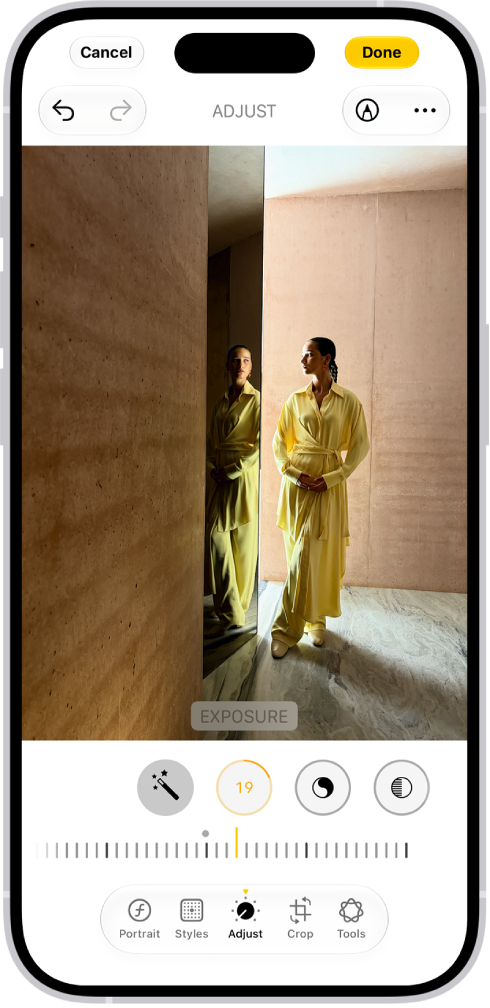
- Start the Photos app on your iPhone.
- Tap a photo or video to open it, then tap the Edit button.
- Tap Adjust.
- Swipe left under the photo to view the settings you can adjust—for example, Exposure, Brilliance, or Highlights.
-
Tap a setting and drag the slider to make precise adjustments.
The outline around each button indicates the level of change for that setting. Tap the button to compare the edited version to the original.
- Tap Done to save your edits, or if you don’t like your changes, tap Cancel, and then tap Discard Changes.
Quick tip: To automatically enhance the light and color, tap the Enhance button.
Edit the Photographic Style of a photo
On models that support Photographic Styles, you can apply a new style to photos in your library or edit the Photographic Style.
Note: Editing Photographic Styles in the Photos app only works if Camera captures photos with High Efficiency image capture. To turn on High Efficiency first, go to Settings app , tap Camera, tap Formats, and then tap High Efficiency.
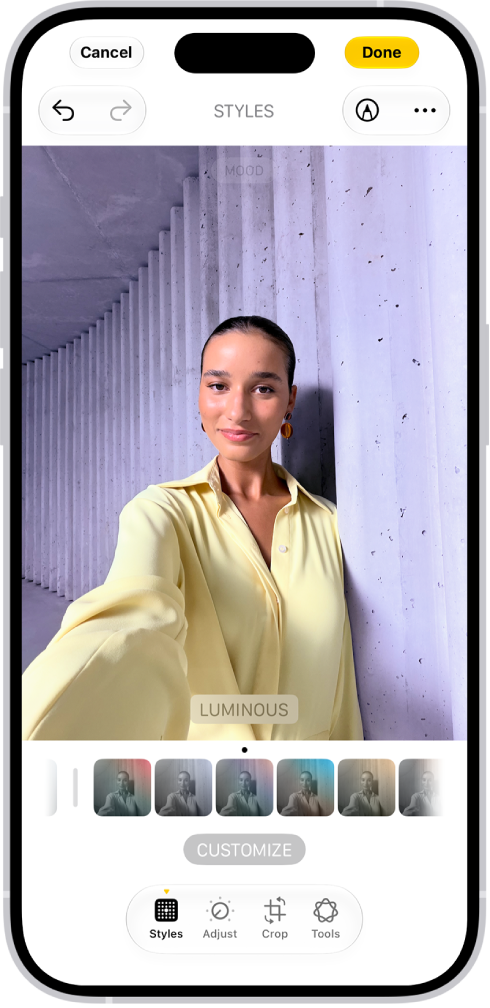
- Start the Photos app on your iPhone.
- Open a photo taken with a Photographic Style and tap the Edit button.
-
Tap Styles and then do any of the following:
- Choose a new style: Swipe left or right on the style choices below the image.
- Adjust the tone, color, and intensity: Tap Customize. Then drag your finger on the Styles Chooser to adjust the tone and color. On iPhone 18 Pro models, tap Palette first. Drag your finger left or right on the slider below to adjust the intensity level. When you’re done making adjustments, tap the image.
- Change the texture: Tap Texture and choose a texture such as Soft Skin, Glow, or Film. Drag the slider to adjust the intensity, or choose Standard to apply no texture. Tap Grain to add film grain to any texture. (Available on models that support Photographic Styles 2 and Photographic Styles 3 and captured on iPhone 18 Pro or iPhone 18 Pro Max).
Note: As you make adjustments, the values for tone, color, and intensity are shown at the top of the screen. Tap the Reset button to reset these values.
- Tap the Done button.
Apply filter effects to a photo or video
To change the tint of a photo or video, apply filter effects.
Note: On iPhone 16 models or later, Photographic Styles take the place of filters for giving your photos a customized look. If you haven’t turned on Photographic Styles, though, filter effects are still available on these models.
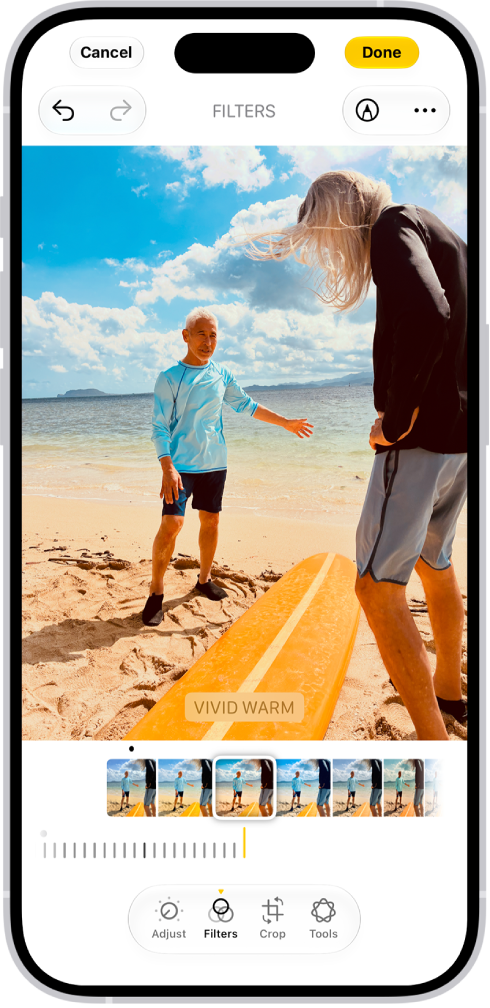
- Start the Photos app on your iPhone.
- Open a photo or video, then tap the Edit button.
-
Tap the Filters button to apply filter effects such as Vivid or Dramatic.
To remove a filter that was applied when you took the photo, tap Original.
-
Tap a filter. Then drag the slider to adjust the effect.
To compare the edited photo to the original, tap the photo.
- Tap Done to save your edits, or if you don’t like your changes, tap Cancel, and then tap Discard Changes.
Copy and paste edits to multiple photos
Once you’ve edited one photo or video, you can copy those edits and paste them onto another photo, or onto a batch of photos all at the same time.
- Start the Photos app on your iPhone.
- Open the photo or video that contains the edits you want to copy.
- Tap the More button, then tap Copy Edits.
- Review and turn off any edits you don’t want to copy. Tap Copy.
- Tap the Back button to return to your library.
- Tap Select and tap the thumbnails of the photos you want to paste the edits onto, or open a single photo or video.
- Tap the More button and then tap Paste Edits.
Note: To make the edited photos look even more similar, Photos automatically adjusts their white balance and exposure for a better match.
Add stickers, text, and more
- Start the Photos app on your iPhone.
- Tap a photo to open it.
- Tap the Edit button, then tap the Markup button.
- Tap the Add Annotations button to add stickers, captions, text, shapes, or even your signature.
- Tap the Done button to save your edits.
Set the background color of Edit mode
The background of Edit mode matches your iPhone’s light or dark appearance by default. You can change its color, though. If you prefer to edit photos against a dark background, for example, set it to always appear dark.
- Start the Photos app on your iPhone.
- Tap a photo or video to open it, then tap the Edit button.
- Tap the More button, tap Appearance, and then do one of the following:
- Match Edit mode to the light or dark appearance of your iPhone: Tap System.
- Make Edit mode always appear dark: Tap Dark.
- Make Edit mode always appear light: Tap Light.
Use Apple Intelligence editing tools
Apple Intelligence gives you the Clean Up, Extend, and Reframe tools to edit your photos.
Note: Apple Intelligence on iOS 27 or later is available on an Apple Intelligence-enabled iPhone 15 Pro, iPhone 15 Pro Max, or iPhone 16 model or later. Apple Intelligence is not available in all languages or regions. Usage limits may apply.*
*Apple Intelligence is available with Siri and device language set to Chinese (Simplified), Chinese (Traditional), Danish, Dutch, English, French, German, Italian, Japanese, Korean, Norwegian, Portuguese, Spanish, Swedish, Turkish, or Vietnamese. Some features may not be available in all regions or languages. Some devices may not be available in all regions. Siri AI is available in beta in iOS 27, iPadOS 27, macOS 27, watchOS 27, and visionOS 27 and requires an Apple Intelligence–enabled device set to a supported language. Available in English to start. Siri AI will not be initially available in the EU on iOS, iPadOS, and watchOS. Certain Apple Intelligence features that rely on server-side models are subject to daily usage limits, including but not limited to Siri AI, Intelligent Photo Editing Tools, Image Playground, and AFM 3 Cloud models in Shortcuts. Daily limits may vary by feature, request complexity, system demand, system policies, and other factors. Expanded access to such features will be available for a fee in the future. Use of these features is subject to the Apple Intelligence Terms and Conditions.