Your iPhone needs a SIM to connect to a cellular network. A physical SIM is a small card you insert into your device, and an eSIM is a digital SIM built into your device, with no card required. Not all options are available on all models or in all countries and regions, and on iPhone 14 and later, some models only use eSIM.
Contact your carrier to get a SIM and set up cellular service. You can also convert a physical SIM to an eSIM, and lock your SIM card.
Set up an eSIM
Supported iPhone models can store an eSIM from your carrier digitally. If your carrier supports eSIM Carrier Activation or eSIM Quick Transfer, you can activate your eSIM during setup by turning on your iPhone and following the instructions.
Quick tip: Your carrier can tell you whether to expect a notification or a QR code, or another method entirely. So if you’re not sure which method to use, contact them.
If you already completed setup, do the following:
- Make sure your iPhone is connected to an available Wi-Fi or cellular network. In some countries and regions, iPhone models that are eSIM only can activate without a Wi-Fi network.
-
Add an eSIM using one of the following methods:
- eSIM Carrier Activation: Some carriers can assign a new eSIM directly to your iPhone. When you receive the Finish Setting Up Cellular notification, tap it. Or go to the Settings app, tap Cellular, and tap Set Up Cellular or Add eSIM.
-
eSIM Quick Transfer: Some carriers support transferring a phone number from your previous iPhone to your new iPhone without needing to contact them. On your new iPhone, go to the Settings app, tap Cellular, tap Set Up Cellular or Add eSIM, and then tap Transfer From Nearby iPhone or choose a phone number. On your previous iPhone, follow the instructions to confirm the transfer.
Note: After your phone number is transferred to your new iPhone, it stops working on your previous iPhone.
- Scan a QR code provided by your carrier: Go to the Settings app, tap Cellular, tap Set Up Cellular or Add eSIM, and then tap Use QR Code. (You may need to tap Other Options first.) Position iPhone so the QR code appears in the frame, or enter the details manually. You may be asked to enter a confirmation code provided by your carrier.
- Transfer from a different smartphone: If your previous phone isn’t an Apple iPhone, contact your carrier to transfer the phone number.
- Activate service through a participating carrier’s app: Go to the App Store, download the carrier’s app. Then use the app to activate cellular service.
- Visit your carrier’s store: In some countries and regions, you may need to activate your eSIM at the carrier store for an in-person ID check. Contact your carrier to find out.
- Travel eSIM: A travel eSIM can maintain coverage and may help you avoid international roaming rates. Make sure you have cellular service or a Wi-Fi connection and then go to the Settings app, tap Cellular, tap Add eSIM, then tap View Travel Options.
- To verify the eSIM is activated, open the Settings app and tap Cellular. Make sure the new line (below eSIMs) is turned on.
Install a physical SIM
A nano-SIM card can come from a carrier, or you can move the one from your previous iPhone.
Note: Physical SIM isn’t supported on all models.
-
Insert a paper clip or SIM eject tool into the small hole of the SIM tray. Then push in toward iPhone to eject the tray.
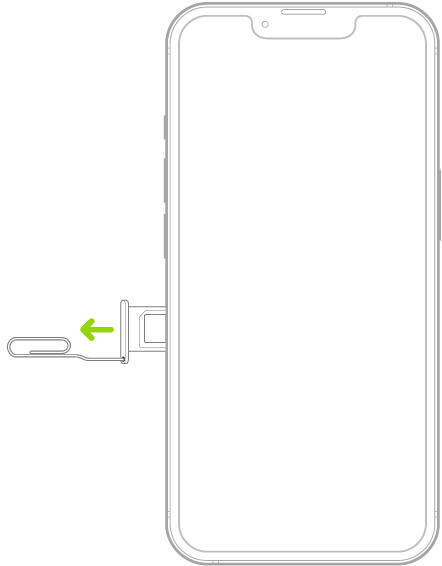
Note: The shape and orientation of the SIM tray depend on the iPhone model and your country or region.
- Remove the tray from iPhone.
-
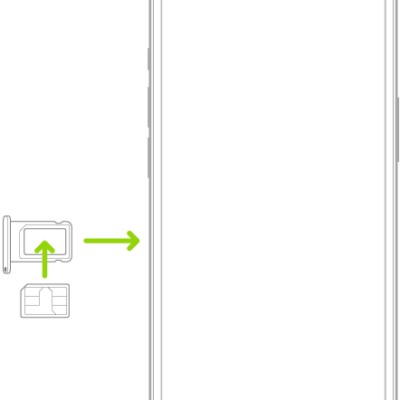
Place the SIM in the tray. The angled corner determines the correct orientation.
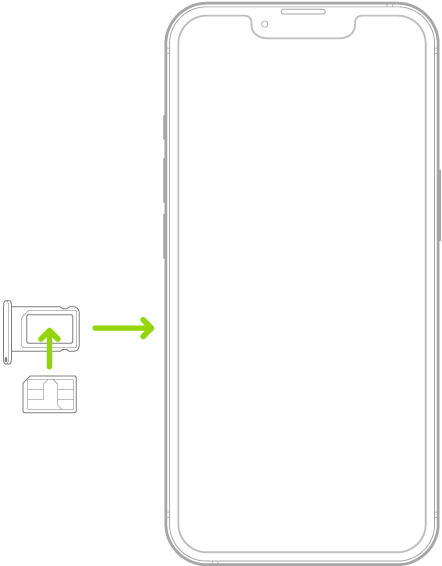
- Insert the tray back into iPhone.
- If you previously set up a PIN on the SIM, carefully enter the PIN when prompted.
WARNING: Never try to guess a SIM PIN. An incorrect guess can permanently lock your SIM, and you won’t be able to make phone calls or use cellular data through your carrier until you get a new SIM.
Convert a physical SIM to an eSIM
Does your carrier support it? Then, on a supported iPhone model, you can convert a physical SIM to an eSIM.
Note: Your physical SIM stops working after you convert it to an eSIM.
- Start the Settings app on your iPhone.
- Tap Cellular and tap Set Up Cellular or Add eSIM.
- Choose the phone number with a physical SIM.
- Tap Convert to eSIM, then follow the onscreen instructions.
Lock your SIM card
To prevent others from using a SIM card your device uses for phone calls or cellular data, lock it with a personal identification number (PIN). The card then locks automatically every time you restart your device or remove the SIM card. You’ll have to enter your PIN.
Important: The availability of cellular capabilities depends on the wireless network, your iPhone model, and your location.
Consider applicable data, voice, and roaming charges when managing your cellular plans, especially when you travel with iPhone.
Some carriers let you unlock iPhone for use with another carrier (additional fees may apply). Contact your carrier for authorization and setup information.