Got a tip for us?

cellular

Connect your iPad to the internet by using an available Wi-Fi network. Wi-Fi + Cellular models can also connect using a cellular data network when Wi-Fi isn’t available, though those steps don’t apply to a Wi-Fi only model.

You can also join a hidden network or a Personal Hotspot, and when iPad is on Wi-Fi, a blue checkmark appears next to the network name. On models that support 5G, iPad may even use 5G instead of Wi-Fi.

iPad connects in this order: the most recently used Wi-Fi network, then a Wi-Fi network you choose from the list, then your carrier’s cellular data network (Wi-Fi + Cellular models). On models that support 5G, iPad may use 5G cellular data instead of Wi-Fi. To switch back to Wi-Fi, tap the Info button next to the network name, then tap Use Wi-Fi for Internet.
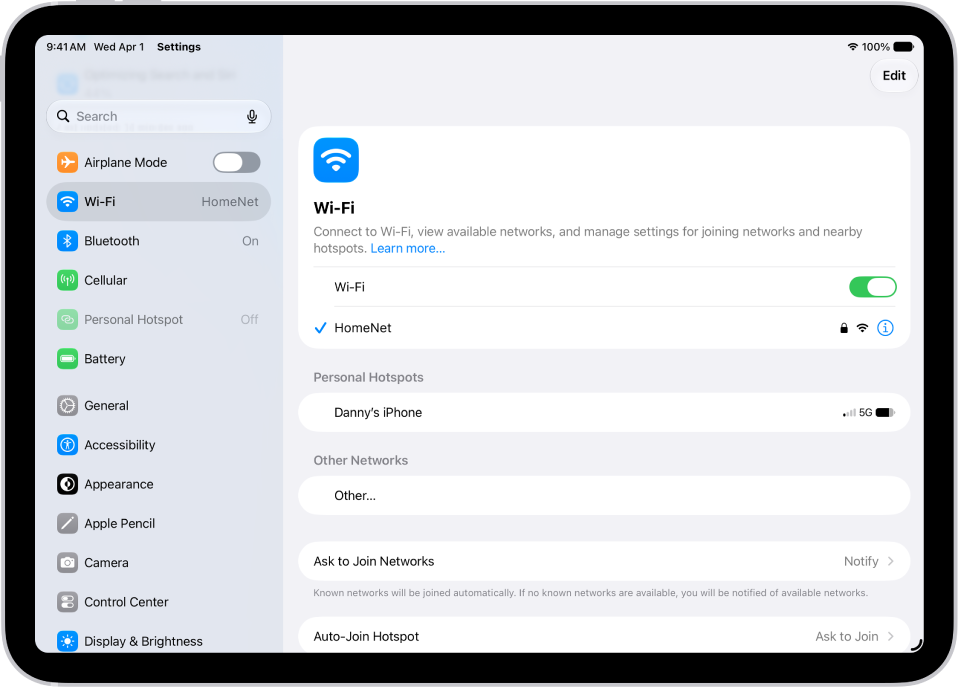
The Settings screen showing available Wi-Fi networks.

Connect to a Wi-Fi network

  1. Start the Settings app on your iPad.
  2. Tap Wi-Fi and turn on Wi-Fi.

    iPad automatically joins known networks.

  3. To join a new network, do one of the following:

    • Join an available network: Tap the name of the network. If asked, enter the password.
    • Join a hidden network: Tap Other. Then enter the name of the network, security type, and password.

When iPad is connected to Wi-Fi, you’ll see a blue checkmark next to the network name and the Wi-Fi icon at the top of the screen.

If you want to change settings for a network you’ve joined, share its password, or change how iPad joins networks, check out our guide, Manage Wi-Fi settings.

Join a Personal Hotspot

You can use the cellular connection of an iPhone or iPad with cellular service that’s sharing a Personal Hotspot.

  1. Start the Settings app on your iPad.
  2. Tap Wi-Fi. Choose the name of the device sharing the Personal Hotspot.
  3. If asked, enter the password. On the device sharing the Personal Hotspot, the password is shown in the Settings app, tap Cellular Data and then tap Personal Hotspot.

You can choose whether iPad joins Personal Hotspots on its own when no Wi-Fi network is available. See our article, Set whether iPad joins Personal Hotspots automatically.

Connect to a cellular network if Wi-Fi isn’t available

On Wi-Fi + Cellular models, iPad automatically connects to your carrier’s cellular data network if a Wi-Fi network isn’t available. If iPad doesn’t connect, check the following:

  1. Verify that your SIM is activated and unlocked. See Set up cellular service.
  2. Start the Settings app on your iPad.
  3. Tap Cellular Data and then verify that Cellular Data is turned on.

Use Connectivity Assist on iPad

With Connectivity Assist on, Wi-Fi + Cellular models of iPad use cellular data along with Wi-Fi to keep your internet connection dependable if Wi-Fi is weak, busy, or not connected to the internet. Turn Connectivity Assist off, and iPad sticks to Wi-Fi only when it’s connected to Wi-Fi networks, even if the connection is weak or busy.

Note: Connectivity Assist is on if you previously had Wi-Fi Assist turned on.

  1. Start the Settings app on your iPad.
  2. Tap Wi-Fi.
  3. Turn Connectivity Assist on or off.

iPad shows the amount of cellular data Connectivity Assist has used. To start a new count, tap Reset Data Usage.

Note: Connectivity Assist only taps into cellular data when it’s needed to keep your connection reliable. It stays off when you’re roaming internationally, when iPad is in cellular Low Power Mode or Low Data Mode, and with some apps that stream audio and video. To check your overall cellular data usage, go to the Settings app and tap Cellular Data.

See also
You can turn on cellular data service, turn cellular service on or off, manage roaming and network options, and control which apps and services use cellular data. With some carriers, you can also change your data plan.

With cellular data off, email, web browsing, notifications, and other data services use Wi-Fi only. You can see how much data each app has used, too, and your wireless service provider can help with cellular network services and billing.

Note: Wi-Fi + Cellular models only support cellular data, not cellular phone service. For making and receiving phone calls on iPad, you can use Wi-Fi Calling and an iPhone.

Add an additional cellular plan to your iPad

If you already have a cellular plan set up and want to add another:

  1. Start the Settings app on your iPad.
  2. Tap Cellular Data, tap Add a New Plan, and follow the onscreen instructions.

Haven’t set up a plan yet? Read our guide, Set up cellular service on iPad (Wi-Fi + Cellular models).

Turn cellular data on or off

When you turn off cellular data, all data services, email, web browsing, and notifications included, run over Wi-Fi only. With cellular data on, carrier charges may apply.

  1. Start the Settings app on your iPad.
  2. Tap Cellular Data and turn Cellular Data on or off.

Manage roaming and network options

When you’re traveling internationally, or want to manage how iPad uses your carrier’s network, you’re able to adjust roaming and network settings.

  1. Start the Settings app on your iPad.
  2. Tap Cellular Data, then tap Cellular Data Options.
  3. Do any of the following:
    • Reduce cellular usage: Turn on Low Data Mode, or tap Data Mode and choose Low Data Mode (depending on your iPad model). This mode pauses automatic updates and background tasks when iPad isn’t connected to Wi-Fi.
    • Avoid roaming charges: Turn off Data Roaming. When you’re in a region not covered by your carrier’s network, Data Roaming permits internet access over a cellular data network. When you’re traveling, turn off Data Roaming to avoid roaming charges.

Depending on your iPad model, carrier, and region, the following option may be available:

  • Turn LTE on or off: Turning on LTE loads data faster.

You can do the following on models that support 5G:

  • Enable Smart Data mode to optimize battery life: Tap Voice & Data, then choose 5G Auto. In this mode, your iPad automatically switches to LTE when 5G speeds don’t provide noticeably better performance.
  • Use higher-quality video and FaceTime HD on 5G networks: Tap Data Mode, then choose Allow More Data on 5G.

View or change your cellular data

Along with seeing how much data each app has used, you can turn off cellular data for individual apps and manage your account.

  1. Start the Settings app on your iPad.
  2. Tap Cellular Data, then do any of the following:
    • Turn cellular data on or off for an app or service: Scroll down to the list of apps and services. Turn an app or service on or off. When cellular data is off for an app, iPad uses only Wi-Fi for that service.
    • See how much data each app is using: Scroll down to your list of apps. The amount of cellular data used appears below each app.
    • Reset usage statistics: Scroll to the bottom, then tap Reset Statistics.
    • Manage your cellular account: Tap Manage [account name] or Carrier Services.

For the most accurate cellular data usage in a current period, contact your carrier.

See also

If you have a Wi-Fi + Cellular model, you can sign up for a cellular data plan, which keeps you connected to the internet when you’re away from a Wi-Fi network. On models that support eSIM, you can activate cellular service right from your iPad.

You may also be able to use a local carrier’s cellular service when you travel abroad. And you can add another cellular plan, or scan a QR code from your carrier.

The cellular connection requires a SIM and a wireless data plan from a carrier. iPad supports the following types of SIM:

  • eSIM (on supported models; not available from all carriers or in all countries and regions)
  • Physical SIM (on supported models; not available from all carriers or in all countries and regions)

Some iPad models can connect to 5G networks.

Set up eSIM

If your iPad model supports eSIM, you can activate the cellular service from your iPad. When you travel abroad with iPad, you may also be able to get cellular service from a local carrier in the country or region you’re visiting.

Note: eSIM isn’t available in all countries and regions, and not all carriers are supported.

  1. Start the Settings app on your iPad.
  2. Tap Cellular Data, then do one of the following:
    • Set up the first cellular plan on your iPad: Select a carrier and then follow the onscreen instructions.
    • Add another cellular plan: Tap Add a New Plan.
    • Scan a QR code provided by a carrier: Tap Other. Then position iPad so that the QR code provided by your carrier appears in the frame, or enter the details manually. You may be asked to enter a confirmation code provided by your carrier.
  3. To change or check the status of your plan, open the Settings app and tap Cellular Data.

Alternatively, you can activate your cellular plan through your carrier’s app (if supported). Go to the App Store, download your carrier’s app, then use the app to purchase a cellular plan.

You can store more than one eSIM on your iPad, but you can use only one eSIM at a time. To switch to another eSIM, go to the Settings app, tap Cellular Data, then tap the plan you want to use (below SIMs).

Install a physical SIM

On models that support physical SIM, you’ll get a nano-SIM card from a carrier.

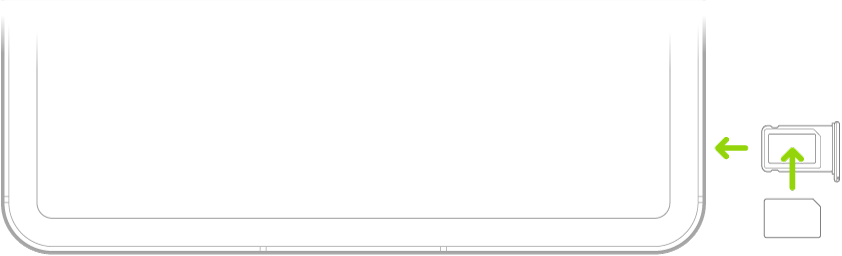
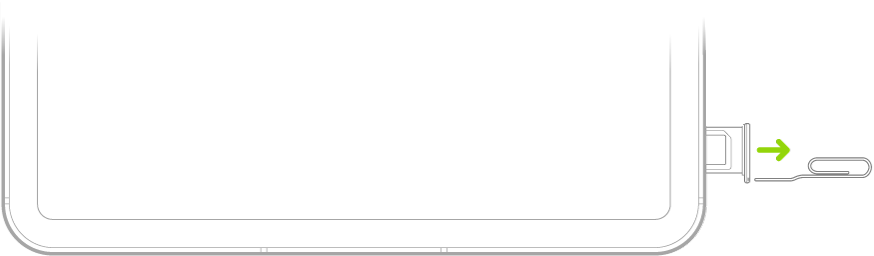
  1. Insert a paper clip or SIM eject tool (not included) into the small hole of the SIM tray. Push in toward iPad to eject the tray.

    A paper clip or SIM eject tool is inserted into the small hole of the SIM tray on the left side of iPad to eject and remove the tray.

    Note: The shape and orientation of the SIM tray depend on the iPad model and your country or region.

  2. Remove the tray from iPad.
  3. Place the SIM in the tray. The angled corner determines the correct orientation.

    A paper clip or SIM eject tool is inserted into the small hole of the SIM tray on the left side of iPad to eject and remove the tray.

  4. Insert the tray back into iPad.
  5. If you previously set up a PIN on the SIM, carefully enter the PIN when prompted.

    WARNING: Never try to guess a SIM PIN. An incorrect guess can permanently lock your SIM, and you won’t be able to use cellular data through your carrier until you get a new SIM.

Lock your SIM card

To prevent others from using the SIM card your device uses for cellular data, lock the card with a personal identification number, or PIN. After that, your card locks automatically every time you restart your device or remove the SIM card, and you’ll have to enter your PIN.

Important: When using cellular services through GSM networks, you need an eSIM or third-party SIM. When using cellular services through CDMA networks, you need a third-party SIM. Your iPad is subject to your wireless service provider’s policies, which may include restrictions on switching service providers and roaming, even after the conclusion of any required minimum service contract. Contact your wireless service provider for more details. The availability of cellular capabilities depends on the wireless network, your iPad model, and your location.

See also

If you have an iPhone with Dual SIM and multiple cellular plans, you can also set up multiple lines on your Apple Watch with cellular. Choose the line your watch uses when connected to cellular networks.

You can add multiple lines, but your watch connects to only one line at a time. When it’s connected to your iPhone, you can receive calls from both lines, and your watch shows a badge for the line.

Note: Each iPhone cellular plan must be provided by a carrier that supports Apple Watch with cellular.

Set up multiple carrier plans

During the initial setup of your Apple Watch, you can add one plan, then set up a second plan later in the Apple Watch app.

  1. Start the Apple Watch app on your iPhone.
  2. Tap My Watch and then tap Cellular.
  3. Tap Set Up Cellular or Add a New Plan and then follow the steps to choose the plan you want to add to your Apple Watch.

Your Apple Watch takes multiple lines. It can connect to only one at a time.

Switch between plans

  1. Start the Settings app on your Apple Watch.
  2. Tap Cellular and then choose the plan you want your watch to use.

You can also go to the Apple Watch app on your iPhone, tap My Watch, then tap Cellular. Your plan should automatically switch. If it doesn’t switch, tap the plan you want to use.

How Apple Watch receives calls when using multiple cellular plans

  • When Apple Watch is connected to your iPhone: You can receive calls from both lines. Your watch shows a badge that tells you which cellular line you received a notification from—H for Home, and W for Work, for example. If you respond to a call, your watch automatically responds from the line that received the call.
  • When Apple Watch is connected to cellular and your iPhone isn’t nearby: You receive calls from the line you’ve chosen in the Apple Watch app. If you respond to a call, your watch automatically calls back from the line you’ve chosen in the Apple Watch app.

    Note: If the line you’ve chosen in the Apple Watch app isn’t available when you try to return a call, your watch asks if you want to respond from another available line that you’ve added.

How Apple Watch receives messages when using multiple plans

  • When Apple Watch is connected to your iPhone: You can get messages from both plans. If you respond to a message, your watch automatically responds from the line that received the message.
  • When your Apple Watch is connected to cellular and away from your iPhone: You can get SMS messages from your active plan. If you respond to an SMS message, your Apple Watch automatically texts back from the line that received the message.
  • When your Apple Watch is connected to cellular or Wi-Fi and your iPhone is turned off: You can send and receive iMessage texts as long as your Apple Watch has an active data connection to a Wi-Fi or cellular network.

See also

On an Apple Watch with cellular, you can set up cellular service with the same carrier used by your iPhone. The cellular connection allows you to make calls, reply to messages, stream music and podcasts, receive notifications, and more—even when Apple Watch isn’t connected to your iPhone or Wi-Fi.

If your Apple Watch has an active cellular plan, it automatically uses the best available network connection: your iPhone when it’s nearby, a Wi-Fi network that you’ve connected to previously on your iPhone, or a cellular network. You can also turn cellular off to save battery power.

Note: Cellular service for Apple Watch isn’t available in all areas or with all carriers.

Add Apple Watch to your cellular plan

You can activate cellular service during the initial setup of your Apple Watch. To activate service later, do the following:

  1. Start the Apple Watch app on your iPhone.
  2. Tap My Watch and then tap Cellular.
  3. Follow the onscreen instructions to learn more about your carrier service plan and activate cellular service.

Transfer an existing cellular plan to a new Apple Watch

You can transfer your existing service from one Apple Watch with cellular to another.

  1. While wearing your old Apple Watch, open the Apple Watch app on your iPhone.
  2. Tap My Watch, tap Cellular, and tap the Info button next to your cellular plan.
  3. Tap Remove [name of carrier] Plan. Then confirm your choice.

    You may need to contact your carrier to remove this Apple Watch from your cellular plan.

  4. Remove the old watch and then put on your new Apple Watch with cellular.
  5. In the Apple Watch app, choose your new watch and tap Cellular.
  6. Follow the onscreen instructions.

Turn cellular off or on

To save battery power, for example, you can turn cellular off.

  1. Press the side button to open Control Center.
  2. Tap the Cellular button to turn cellular off or on.

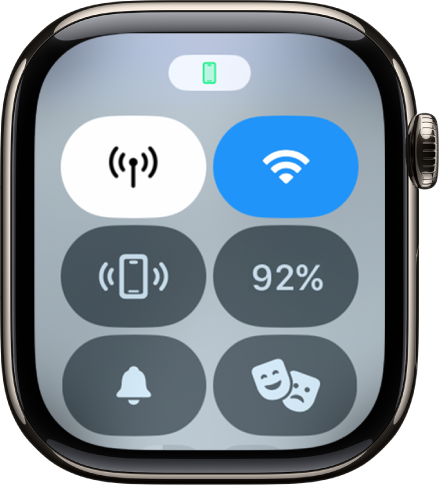
    • When your iPhone is nearby and connected to Apple Watch, the Cellular button is white.

      Control Center with the Cellular button at the top left.

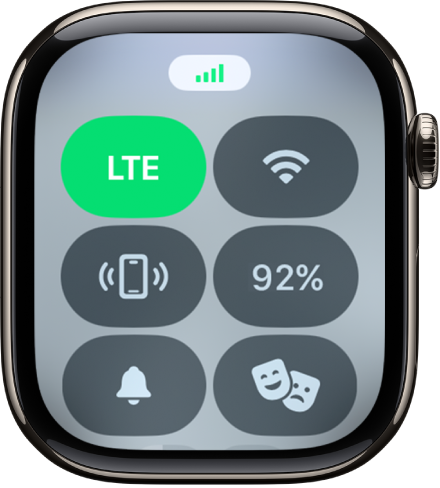
    • When your iPhone isn’t nearby, Apple Watch uses its available cellular connection. The Cellular button is green and indicates the carrier’s network such as LTE or 5G (depending on your carrier and Apple Watch model).

      Control Center with the Cellular button at the top left.

Note: Using cellular for extended periods takes more battery power. Some apps also may not update without a connection to your iPhone.

Check cellular signal strength

While connected to a cellular network, do any of the following:

Check cellular data usage

  1. Start the Settings app on your Apple Watch.
  2. Tap Cellular and then scroll down to see the amount of data you’ve used during the current period.

See also

Your iPhone needs a SIM to connect to a cellular network. A physical SIM is a small card you insert into your device, and an eSIM is a digital SIM built into your device, with no card required. Not all options are available on all models or in all countries and regions, and on iPhone 14 and later, some models only use eSIM.

Contact your carrier to get a SIM and set up cellular service. You can also convert a physical SIM to an eSIM, and lock your SIM card.

Set up an eSIM

Supported iPhone models can store an eSIM from your carrier digitally. If your carrier supports eSIM Carrier Activation or eSIM Quick Transfer, you can activate your eSIM during setup by turning on your iPhone and following the instructions.

Quick tip: Your carrier can tell you whether to expect a notification or a QR code, or another method entirely. So if you’re not sure which method to use, contact them.

If you already completed setup, do the following:

  1. Make sure your iPhone is connected to an available Wi-Fi or cellular network. In some countries and regions, iPhone models that are eSIM only can activate without a Wi-Fi network.
  2. Add an eSIM using one of the following methods:

    • eSIM Carrier Activation: Some carriers can assign a new eSIM directly to your iPhone. When you receive the Finish Setting Up Cellular notification, tap it. Or go to the Settings app, tap Cellular, and tap Set Up Cellular or Add eSIM.
    • eSIM Quick Transfer: Some carriers support transferring a phone number from your previous iPhone to your new iPhone without needing to contact them. On your new iPhone, go to the Settings app, tap Cellular, tap Set Up Cellular or Add eSIM, and then tap Transfer From Nearby iPhone or choose a phone number. On your previous iPhone, follow the instructions to confirm the transfer.

      Note: After your phone number is transferred to your new iPhone, it stops working on your previous iPhone.

    • Scan a QR code provided by your carrier: Go to the Settings app, tap Cellular, tap Set Up Cellular or Add eSIM, and then tap Use QR Code. (You may need to tap Other Options first.) Position iPhone so the QR code appears in the frame, or enter the details manually. You may be asked to enter a confirmation code provided by your carrier.
    • Transfer from a different smartphone: If your previous phone isn’t an Apple iPhone, contact your carrier to transfer the phone number.
    • Activate service through a participating carrier’s app: Go to the App Store, download the carrier’s app. Then use the app to activate cellular service.
    • Visit your carrier’s store: In some countries and regions, you may need to activate your eSIM at the carrier store for an in-person ID check. Contact your carrier to find out.
    • Travel eSIM: A travel eSIM can maintain coverage and may help you avoid international roaming rates. Make sure you have cellular service or a Wi-Fi connection and then go to the Settings app, tap Cellular, tap Add eSIM, then tap View Travel Options.
  3. To verify the eSIM is activated, open the Settings app and tap Cellular. Make sure the new line (below eSIMs) is turned on.

Install a physical SIM

A nano-SIM card can come from a carrier, or you can move the one from your previous iPhone.

Note: Physical SIM isn’t supported on all models.

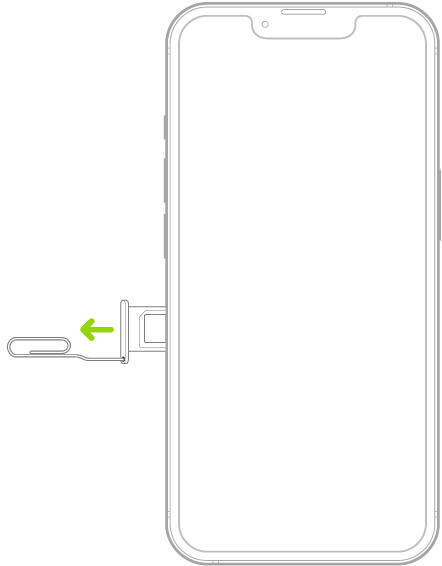
  1. Insert a paper clip or SIM eject tool into the small hole of the SIM tray. Then push in toward iPhone to eject the tray.

    A paper clip or SIM eject tool is inserted into the small hole of the tray on the left side of iPhone to eject and remove the tray.

    Note: The shape and orientation of the SIM tray depend on the iPhone model and your country or region.

  2. Remove the tray from iPhone.
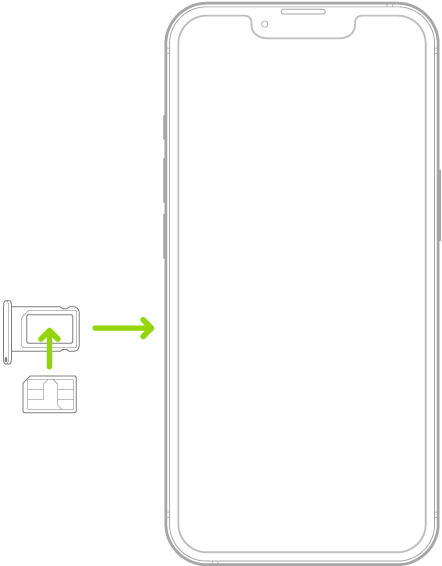
  3. Place the SIM in the tray. The angled corner determines the correct orientation.

    A SIM being inserted into the tray on iPhone; the angled corner is in the upper left.

  4. Insert the tray back into iPhone.
  5. If you previously set up a PIN on the SIM, carefully enter the PIN when prompted.

WARNING: Never try to guess a SIM PIN. An incorrect guess can permanently lock your SIM, and you won’t be able to make phone calls or use cellular data through your carrier until you get a new SIM.

Convert a physical SIM to an eSIM

Does your carrier support it? Then, on a supported iPhone model, you can convert a physical SIM to an eSIM.

Note: Your physical SIM stops working after you convert it to an eSIM.

  1. Start the Settings app on your iPhone.
  2. Tap Cellular and tap Set Up Cellular or Add eSIM.
  3. Choose the phone number with a physical SIM.
  4. Tap Convert to eSIM, then follow the onscreen instructions.

Lock your SIM card

To prevent others from using a SIM card your device uses for phone calls or cellular data, lock it with a personal identification number (PIN). The card then locks automatically every time you restart your device or remove the SIM card. You’ll have to enter your PIN.

Important: The availability of cellular capabilities depends on the wireless network, your iPhone model, and your location.

Consider applicable data, voice, and roaming charges when managing your cellular plans, especially when you travel with iPhone.

Some carriers let you unlock iPhone for use with another carrier (additional fees may apply). Contact your carrier for authorization and setup information.

With Dual SIM, you can use one number for business and another for personal calls, add a local data plan when you travel, or have separate voice and data plans. It’s flexible. To use two different carriers, though, your iPhone must be unlocked.

Here are some of the many ways to put Dual SIM to use:

  • Use one number for business and another number for personal calls.
  • Add a local data plan when you travel to another country or region.
  • Have separate voice and data plans.

Note: To use two different carriers, your iPhone must be unlocked.

You can set up Dual SIM with either of these combinations:

  • One physical SIM and one eSIM; supported on iPhone SE (2nd generation), iPhone XR, iPhone XS, iPhone 11, iPhone 12, iPhone 13, and iPhone 14, and later
  • Two eSIMs; supported on iPhone SE (3rd generation), iPhone 13, and later

Note: Physical SIM isn’t supported on all models. eSIM isn’t available in all countries or regions.

Set up Dual SIM

  1. Open the Settings app on your iPhone.
  2. Tap Cellular. Then make sure you have at least two lines (below SIMs).
  3. Turn on two lines—tap a line and then tap Turn On this Line.

    You can also change settings such as Cellular Plan Label, Wi-Fi Calling (if available from your carrier), Calls on Other Devices, or SIM PIN. The label appears in Phone, Messages, and Contacts.

  4. Choose the default line for cellular data—tap Cellular Data and tap a line. To use either line depending on coverage and availability, turn on Allow Cellular Data Switching.

    You may incur roaming charges if Data Roaming is on and you’re outside the country or region covered by the carrier’s network.

  5. Choose the default line for voice calls—tap Default Voice Line, then tap a line.

When using Dual SIM, note the following:

  • Wi-Fi Calling must be turned on for a line to enable that line to receive calls while the other line is in use for a call. If you receive a call on one line while the other is in use for a call, and no Wi-Fi connection is available, iPhone uses the cellular data of the line that is in use for the call to receive the other line’s call. Charges may apply. The line that is in use for the call must be permitted for data use in your Cellular Data settings (either as the default line, or as the non-default line with Allow Cellular Data Switching turned on) to receive the other line’s call.
  • If you don’t turn on Wi-Fi Calling for a line, any incoming phone calls on that line (including calls from emergency services) go directly to voicemail (if available from your carrier) when the other line is in use; you won’t receive missed call notifications. If you set up conditional call forwarding (if available from your carrier) from one line to another when a line is busy or not in service, the calls don’t go to voicemail; contact your carrier for setup information.
  • If you make a phone call from another device, such as your Mac, by relaying it through your iPhone with Dual SIM, the call is made using your default voice line.
  • If you start an SMS/MMS Messages conversation using one line, you can’t switch the conversation to your other line; you need to delete the conversation and start a new conversation using the other line. Also, you may incur additional charges if you send SMS/MMS attachments on the line that’s not selected for cellular data.
  • Instant Hotspot and Personal Hotspot use the line selected for cellular data.

You can turn cellular data on or off, manage roaming and network options, and control which apps and services use cellular data.

With cellular data off, email, web browsing, notifications, and other data services use Wi-Fi only. If you’re traveling internationally, you can adjust roaming and network settings. You can also see how much data each app has used, and turn off cellular data for individual apps.

Here’s how to view or change cellular data settings on iPhone.

Note: For help with cellular network services, voicemail, and billing, contact your wireless service provider.

Turn cellular data on or off

With cellular data turned off, every data service, including email, web browsing, and notifications, sticks to Wi-Fi. Leave cellular data on, and carrier charges may apply. Features and services that transfer data, like Siri and Messages, could add charges to your data plan, for example.

  1. Open the Settings app on your iPhone.
  2. Tap Cellular and turn Cellular Data on or off.

Manage roaming and network options

You can adjust roaming and network settings when you’re traveling internationally or want more control over how iPhone uses your carrier’s network.

  1. Open the Settings app on your iPhone.
  2. Tap Cellular and tap Cellular Data Options.
  3. Do any of the following:
    • Avoid roaming charges: Turn off Data Roaming. When you’re in a region not covered by your carrier’s network, Data Roaming permits internet access over a cellular data network. When you’re traveling, turn off Data Roaming to avoid roaming charges. To stay connected while traveling, contact your carrier about international plans, or add a travel eSIM.
    • Reduce cellular usage: Tap Data Mode, then choose Low Data Mode. This mode pauses automatic updates and background tasks when iPhone isn’t connected to Wi-Fi.

Depending on your iPhone model, carrier, and region, the following options may be available:

  • Turn Voice Roaming on or off: (CDMA) Turn Voice Roaming off to avoid charges from using other carrier’s networks. When your carrier’s network isn’t available, iPhone won’t have cellular (data or voice) service.
  • Enable or disable 4G/LTE: Using 4G or LTE loads internet data faster in some cases but may decrease battery performance. There may be options for turning off 4G/LTE or for selecting Voice & Data (VoLTE) or Data Only.

With a 5G data plan on iPhone 12 models and later, you can do the following:

  • Enable Smart Data mode to optimize battery life: Tap Voice & Data, then choose 5G Auto. In this mode, your iPhone automatically switches to LTE when 5G speeds don’t provide noticeably better performance.
  • Use higher-quality video and FaceTime HD on 5G networks: Tap Data Mode, then choose Allow More Data on 5G.
  • Turn off 5G: Tap Voice & Data, then choose LTE.

View and manage cellular data usage

For each app, you can see how much data it has used, and turn off cellular data for individual apps if you’d like.

  1. Open the Settings app on your iPhone.
  2. Tap Cellular, then do any of the following.
    • Turn cellular data on or off for an app or service: Scroll down to the list of apps and services and turn an app or service on or off. When cellular data is off for an app, iPhone uses only Wi-Fi for that service.
    • See how much data each app is using: Scroll down to your list of apps and tap Show All. The amount of cellular data used appears below each app. If you’re using Dual SIM, you can see how much data you’ve used with your selected cellular data number.
    • See data used by system services: Scroll down to System Services (above the list of apps). Cellular data can’t be turned on or off for individual system services.
    • Reset usage statistics: Scroll to the bottom, then tap Reset Statistics.

Note: Your carrier can give you the most accurate cellular data usage from a current period.

If the top of your iPhone shows “SOS” or “SOS Only” where it normally shows your cell service reception, there are a few issues that could be going on. For one, you might not have coverage at your current location. Either your carrier doesn’t offer cell service at your coordinates, or you’re blocked by a structure that the signal can’t penetrate.

If neither of those is the culprit, there are several troubleshooting steps you can try to fix “SOS Only” on iOS 26. So, let’s take a look.

Note: If you see SOS or “SOS only” in the status bar, you can still make emergency calls through other carrier networks. This feature is available in Australia, Canada, and the United States.

1. Try to Reconnect to Cellular Network

If your cellular network is available, you might be able to reconnect to it by following these steps:

Go to Settings. Turn Airplane Mode switch on. Wait about 15 seconds, then turn Airplane mode back off. It may have just needed a quick reset, but if there is still no luck, move on to our next solution.

2. Enable Data Roaming

You may need to turn Data Roaming on, especially if you’re traveling internationally. This allows your iPhone to connect to another network in a different country without having to sign up for a new service. Beware that turning this on can come with additional fees on your phone bill.

To enable Data Roaming on your iPhone, go to Settings ⇒ Cellular ⇒ Cellular Data Options. Then, toggle on the Data Roaming switch.

3. Switch to LTE

Your iPhone may have trouble picking up a specific type of cellular data, especially 5G. While 5G coverage has rapidly expanded over the past several years, LTE still blankets a larger portion of the United States. If your iPhone is set to receive 5G in a location where it’s unavailable, you may need to disable 5G on your device and fall back on another option.

Go to Settings ⇒ Cellular ⇒ Cellular Data Options like before, but this time tap Voice & Data. If 5G On or 5G Auto is selected, choose LTE and see if that gets rid of the SOS Only error.

4. Restart Your iPhone

Of course, we have to mention the good old reboot technique. If you haven’t yet tried turning your iPhone off and on again, let’s go ahead and test it out. You’d be surprised how many little annoyances a quick restart can resolve.

5. Update your iPhone

Update your iPhone to the latest version of iOS 26.

6. Check for Carrier Settings Update

Sometimes, carriers roll out over-the-air updates that can solve problems with connectivity. If you can connect to Wi-Fi, you can check if carrier settings update for your iPhone is available by going to Settings ⇒ General ⇒ About.

If your device needs a carrier settings update, you’ll get a pop-up on this screen. If you don’t see one, you’re up-to-date already.

7. Reset Network Settings

Resetting your iPhone network settings to factory defaults can fix all sorts of Wi-Fi and cellular-related problems on your iPhone. This “forgets” all your Wi-Fi networks, so you’ll have to reconnect to them and re-enter your Wi-Fi passwords. The SOS Only notification may disappear after your iPhone reboots.

To Reset Network Settings, open Settings ⇒ General ⇒ Transfer or Reset iPhone ⇒ Reset ⇒ Reset Network Settings. Enter your iPhone passcode, then tap on Reset Network Settings when the confirmation pop-up appears near the bottom of your iPhone’s display.

8. Contact Your Carrier

When all else fails, you should contact your carrier to see what’s going on. Since having SOS Only status on your iPhone greatly limits the features you can use, you wouldn’t want to have it for long.

There may be an issue with your cell service that’s worth getting to the bottom of. So, visit your carrier’s website and search for a contact or support page to get a customer support phone number.

Getting to the Bottom of “SOS Only” on iOS 26

It’s frustrating when you don’t have cell service on your iPhone. So, we hope one of these solutions aids in getting your service up and running again.

If “SOS Only” is appearing on your iPhone frequently, and you know lack of coverage isn’t the problem, you may want to contact your carrier anyway, even if you managed to fix the issue temporarily.

See also: iPhone Cellular Data Not Working on iOS 26? How to fix it