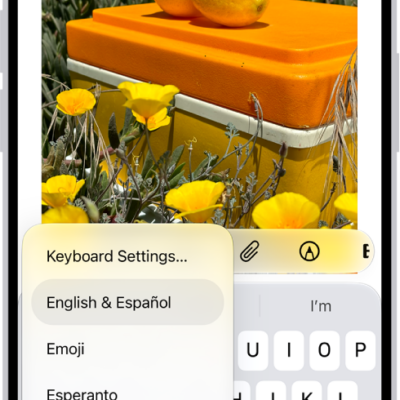
As you type, you can use the iPhone keyboard to enter emoji, Memoji, and stickers to express yourself in messages and documents. As you enter text, suggested emoji appear above the keyboard, and you can replace typed text with a suggested emoji.
While entering text in supported apps, you can also make a new sticker from images in your photo library, or create a Memoji. Use a Live Photo, and the sticker even moves.
Add an emoji, Memoji, or sticker
-
Tap a text field. Then tap the Emoji button or the Next Keyboard key to switch to the emoji keyboard.
- Swipe left or right to browse emoji, Memoji, and stickers, or do one of the following:
- Jump to a category: Tap a symbol below the emoji keyboard.
- See Emoji, Memoji, and stickers you recently used: Tap the Recent Stickers button below the keyboard below the emoji keyboard.
- Swipe left or right to browse emoji, Memoji, and stickers, or do one of the following:
-
Tap an image to add it to your text field.
To see variations of an emoji—such as different skin tones—touch and hold the emoji, then drag your finger and release it on the variation you like.
- Tap ABC to return to the regular keyboard.
Quick tip: Suggested emoji appear above the keyboard as you enter text. Just tap one to replace your typed text with that emoji.
Make a sticker
Supported apps let you make a new sticker from images in your photo library while you’re entering text.
- Tap a text field. Then tap the Emoji button or the Next Keyboard key to switch to the emoji keyboard.
-
Tap the Stickers button. Then tap the Add Stickers button.
To search your photo library, enter a term in the search field at the top of screen, or tap a category such as People or Animals.
Tip: To create a Live Sticker that moves, use a Live Photo.
- Tap the photo you want to use. Tap Add Sticker.
Your sticker collection gets the new sticker automatically.
Make or edit Memoji
In supported apps, you can create a Memoji as you enter text, plus edit, delete, or duplicate one that you already created.
- Tap a text field. Then tap the Emoji button or the Next Keyboard key to switch to the emoji keyboard.
- Tap the Memoji button. Tap the Add button to make your first Memoji or tap the More button to edit, delete, duplicate, or make additional Memoji.
- Follow the onscreen instructions to make your Memoji. Then tap the Done button.
Your new Memoji is automatically added to your Memoji collection.