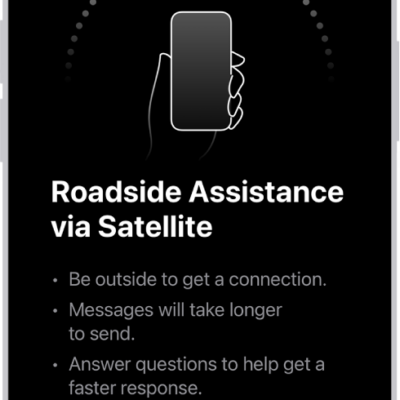
iPhone displays the SOS via satellite icon when you’re outside cellular and Wi-Fi coverage, and Emergency SOS via satellite may still be available.
You can connect to Emergency SOS via satellite on your iPhone, and try the demo before going to a remote location.
Here’s how to use Emergency SOS via satellite on your iPhone.
Important: If an Emergency SOS via satellite session has been made and you don’t need emergency services, don’t end the session. Wait until a responder answers, then explain that you don’t need help.
Note: iPhone satellite features are available on supported models. Emergency SOS via satellite isn’t available in all countries or regions.
Connect to Emergency SOS via satellite on your iPhone
-
Try calling 911 or emergency services even if your normal cellular carrier network isn’t available.
If your carrier’s cellular network is unavailable, iPhone displays the SOS only icon and attempts to route any emergency calls through other networks, if available.
-
If the call doesn’t go through, tap Emergency Text via Satellite to text emergency services.
You can also go to the Messages app and text 911 or SOS, then tap Emergency Services.
- Tap Report Emergency and follow the onscreen instructions.
Important: To help you connect to a satellite, make sure to hold your phone naturally in your hand—you don’t need to raise your arm or hold your phone up, but make sure your phone has a clear line of sight to the sky. If you’re under heavy foliage or surrounded by other obstructions, you might not be able to connect to a satellite.
Once you’re connected, your iPhone starts a text conversation and shares important information, including your Medical ID and, if you set them up, emergency contact details. It also sends your location (including elevation), your answers to the emergency questionnaire, and your iPhone’s battery level. You can also share what you send to emergency services with your emergency contacts.
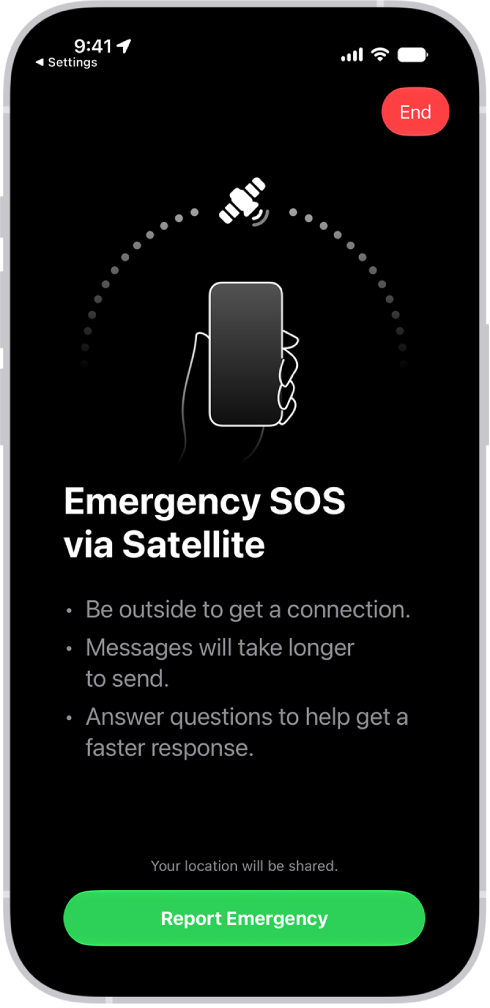
Try the demo before going to a remote location
Planning a trip to a remote location? Before you go, you can try the Emergency SOS demo, create your Medical ID, and add emergency contacts.
- Open Settings and then tap Emergency SOS on your iPhone.
- Scroll down and tap Try Demo.
Note: The Emergency SOS demo doesn’t start a call to emergency services.