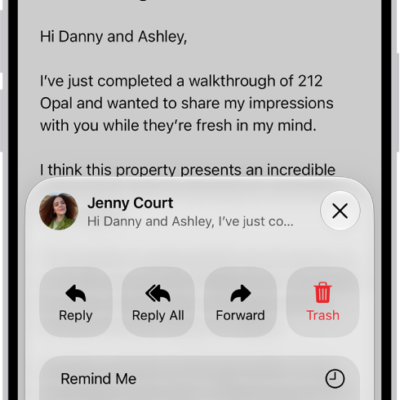
The Mail app automatically sorts your email messages into categories to help you find and manage messages more quickly (not available in all countries or regions). You can change a sender’s category or turn off categories.
Messages from a Transactions, Updates, or Promotions sender are grouped in a digest view, so you can take action on all of them at once. When one includes time-sensitive information, it also shows up in the Primary message list.
- Primary: Find personal messages and time-sensitive information.
- Transactions: Keep track of your confirmations, receipts, and shipping notices.
- Updates: Catch up on news, newsletters, and social updates.
- Promotions: Browse your coupon and sales emails.
Note: If a Transactions, Updates, or Promotions message has time-sensitive information, you’ll also see it in the Primary message list.
View all messages from a Transactions, Updates, or Promotions sender
When you tap a Transactions, Updates, or Promotions message, a digest view of messages from that sender opens.
Open a Transactions message, for example, and you’ll see all of the other Transactions messages from that sender when you scroll up or down.
Note: Open the digest view, and you can take action on all messages from a sender at once.
- Open the Mail app on your iPhone.
-
Tap a Transactions, Updates, or Promotions message.
All of your messages in that category from the same sender appear in a list.
-
To view all of your messages from a sender, tap the Action Menu button at the top of the sender’s message list. Choose Show All Messages.
Note: Primary messages are not grouped by sender.
- To view only one Transactions, Updates, or Promotions message when scrolling, go back to your inbox, tap the More button, and deselect Group by Sender.
Change the category of a sender
To put messages from a sender into the category of your choosing, categorize them manually.
-
Open the Mail app on your iPhone.
Do any of the following: Recategorize Primary messages from a sender: Tap a Primary message, tap the More Actions button, then choose Categorize Sender.
Recategorize Transactions, Updates, or Promotions messages from a sender: Tap a Transactions , Updates , or Promotions message.
- Tap the More button at the top of the message list. Choose Categorize Sender.
-
Choose a category and tap Continue.
All current and future messages from the sender will appear in the category you choose.
Turn off categories
Quick tip: You can quickly view all emails in an inbox.
- Swipe left on the categories at the top of the inbox to open All Mail.
- Open the Mail app on your iPhone.
- In an inbox, tap the More button at the top of the screen and choose List View.