You can add tables to a Freeform board to organize content, lay out sections of your board, and more. After you add a table, you can customize it however you like.
You can change the table style, add a last column or row, specify a number of rows and columns, resize the entire table or one row or column, and keep the same proportions as you resize. Here’s how to add tables to a Freeform board on iPhone.
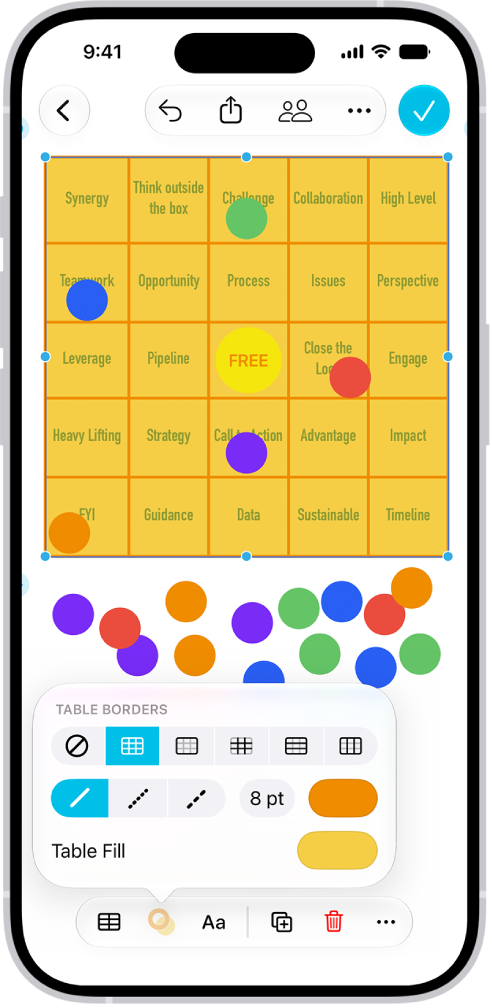
Create a table
- Start the Freeform app on your iPhone.
- Open a board, or tap the New Board button to start a new one.
- Tap the Media button and tap Add Table.
- With the table selected, do any of the following:
- Change the table style: Tap the Table Style button in the formatting tools and then use the controls to make changes.
- Add a last column or row: Tap the Add Column button or Add Row button in the top-right or bottom-left corner.
- Insert or delete a column or row within the table: Select a cell, column, or row, tap the More button in the formatting tools, and choose an option, such as Add Column After.
- Specify a number of rows and columns: Tap the Table Layout button in the formatting tools. Adjust the numbers.
- Resize the entire table: Drag a blue dot. Corner dots resize both rows and columns proportionally.
- Resize one row or column: Drag a cell border.
- Tip: To always keep the same proportions for a table as you resize it, tap the More button in the formatting tools. Then tap Constrain Proportions.
- Move the table: Drag the Table Mover handle in the top-left corner of the table.
Select a cell, column, row, or table
- Start the Freeform app on your iPhone.
- In a board with a table, tap to select the table and then do one of the following:
- Select a cell: Tap the cell once.
- Select a column: Tap to select a cell. Tap the Column Reference tag at the top of the table.
- Select a row: Tap to select a cell. Then tap the Row Reference tag on the left side of the table.
When a row, column, or cell is selected, tap the Table Mover handle in the top-left corner of the table to select the whole table.
Add and format table text
- Start the Freeform app on your iPhone.
- In a board with a table, double-tap a cell. Enter text.
- To change font, style, size, color, and alignment, select the table, a row, a column, or a cell. Then tap the Modify Text button in the formatting tools.
Quick tip: To give another cell the same look, you can also copy and paste the same style and formatting.
Attach an item to a table cell
Attach items like images, scans, or links to your table cells, and they’ll move along with the table.
- Start the Freeform app on your iPhone.
- Open a board with a table and other items.
- Do any of the following:
- Drag an item from your board to a cell until a highlight appears.
- Copy and paste an item in a cell. It’s centered in the cell.
To make cells automatically expand to fit anchored objects, tap the Table Mover handle to select the table, tap the Table Layout button in the formatting tools, then turn on Autogrow Cells.