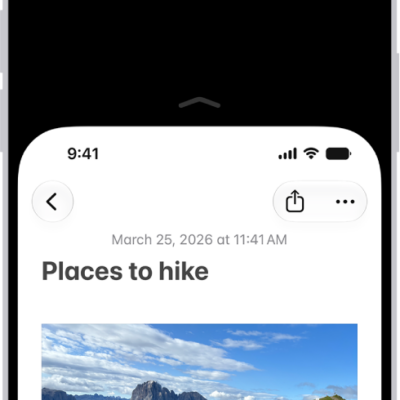
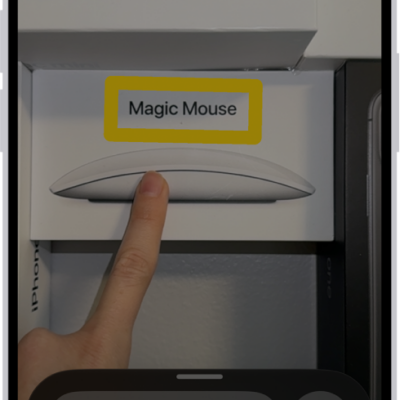
It’s possible to share your Accessibility settings with another iPhone or iPad for a while. Say you’re borrowing a friend’s iPhone or using a public iPad: You can use your settings on that device, then remove them when you’re done. Here are some settings you can share with another device:
- Zoom
- Hover Text and Hover Typing
- Display & Text
- VoiceOver
- Touch Accommodations
- Read & Speak
- Full Keyboard Access
- Live Speech
- Music Haptics
- Audio & Visual
- Side Button
Note: During the sharing session, the other device only gets your Accessibility settings.
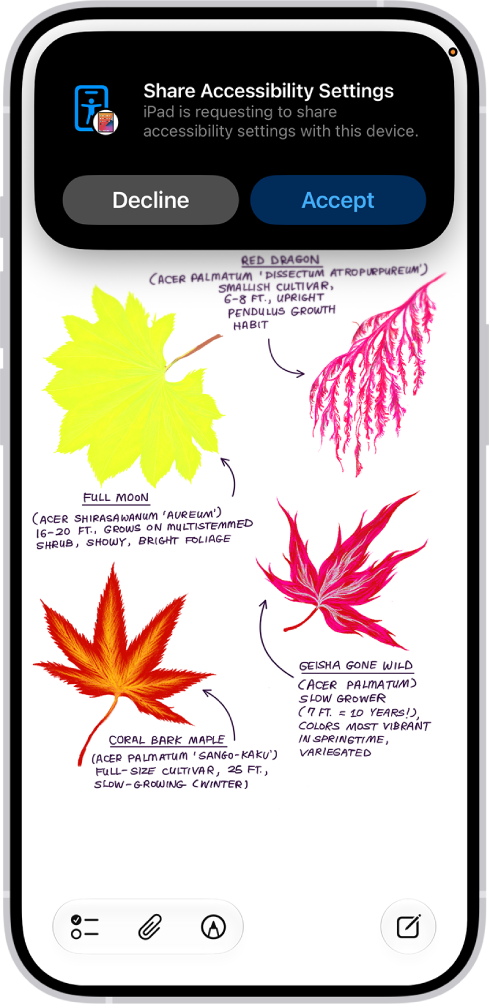
Share your Accessibility settings with another device
- Open the Settings app on your iPhone.
- Tap Accessibility, then tap Share Accessibility Settings. (You may need to scroll down.)
- Tap Share Accessibility Settings, then tap Continue.
- Make sure both devices have Bluetooth and Wi-Fi turned on and then do one of the following:
- Select a device: Tap a device in your contacts or a device signed in to your iCloud account.
- Bring your iPhone to another iPhone: Hold the top of your iPhone near the top of another iPhone.
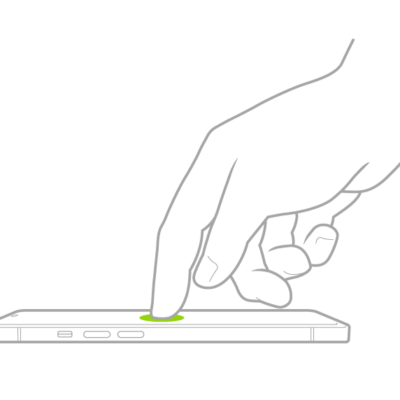
- Bring your iPhone to an iPad: Tap Search People Nearby and tap and hold the screen on the other device with three fingers to create a six-digit code. Enter the code on your device and select the name of the device.
Note: To hear the six-digit code spoken aloud, continue to tap and hold the screen on the other device with three fingers.
- Do either of the following on the other device to accept your request to share your accessibility settings:
- Tap Accept.
- Tap and hold the screen on the other device with three fingers.
- Start using the other device with your Accessibility settings.
- When you’re finished using the device, do any of the following:
- iPhone models with a Dynamic Island: Tap the Accessibility button at the top of the screen and then tap Stop Sharing.
- iPhone models without a Dynamic Island: Tap the Share Accessibility Settings button in the Status Bar. Then tap Stop Sharing.
- All iOS models:
- Lock your device and let it go to sleep.
- Triple-click the side or home button.
Note: If you move more than 30 feet away from the device that has your Accessibility settings, the session ends automatically.
If you add Share Accessibility settings to your Control Center, you can start sharing directly from there.
Sync your Share Accessibility Settings to iCloud
Using different Accessibility settings on different devices? Sync your preferences to iCloud, and they’ll be available when you share Accessibility settings between devices. Say you sync your iPhone settings, then later share from your iPad to another iPhone: Your iPhone accessibility preferences can be used.
- Open the Settings app on your iPhone.
- Tap Accessibility, then tap Share Accessibility Settings. (You may need to scroll down.)
- Turn Sync to iCloud on or off.