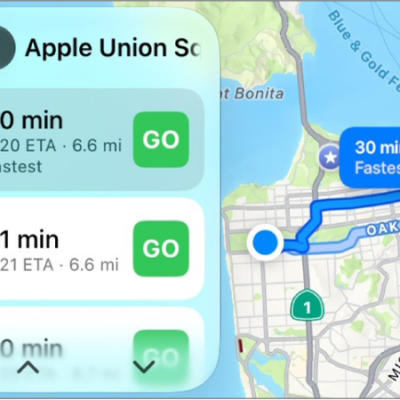
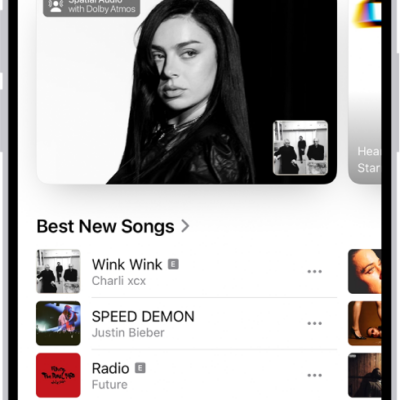
With Voice Control, you can use your voice to navigate CarPlay and apps, and interact with what’s on the CarPlay touchscreen. While it’s listening, the Voice Control icon appears in the sidebar, and you can pause or resume Voice Control and use it in Maps and Music.
Note: Voice Control is available only in supported languages. CarPlay is available only in supported countries and regions.
Turn Voice Control on or off
- In CarPlay, open Settings and then tap Accessibility.
- Turn Voice Control on or off.
When Voice Control is on, the Voice Control icon appears in the sidebar to show that Voice Control is listening for commands.
Start using commands
To use Voice Control in CarPlay, just say a command.
Voice Control: Say, for example, “Open Maps,” “Pan left,” or “Go back.”
Pause about half a second between commands when you say multiple commands in quick succession.
Pause or resume Voice Control
If you don’t want the words you say interpreted as commands, pause Voice Control. Once you’re ready for Voice Control to listen for commands again, resume it.
Voice Control: Say “Stop listening” or “Start listening.”
Commands for navigation and interaction
| Command | Description |
|---|---|
| “Open [app]” | Open an app. |
| “Go Home” | Return to the Home Screen. |
| “Go back” | Return to the previous screen (in apps with a Back button). |
| “Tap [item]” | Tap an item on the touchscreen. In some apps, if you’re not sure what to call an unlabeled item, you can refer to it based on its position relative to other items. For example, if you see a row of icons with no text labels, you can try saying “Tap first” or “Tap second” to tap the first or second icon in the row, respectively. |
| “Single tap” | Tap the touchscreen. This can be useful in an app like Maps where some items are hidden after a period of inactivity. Tapping the screen causes hidden items to reappear. |
| “Double-tap” | Double-tap the touchscreen. This can be used in an app like Maps to zoom in on the map. |
| “Double-tap [item]” | Double-tap an item on the touchscreen. |
| “Swipe left” or “Swipe right” | Swipe between pages in CarPlay Home or CarPlay Dashboard. |
| “Swipe up” or “Swipe down” | Navigate up or down in a list. |
| “Pan left,” “Pan right,” “Pan up,” or “Pan down” | In an app like Maps, move around the map. |
| “Open Siri” | Activate Siri (instead of pressing the voice command button on the steering wheel). |
Use Voice Control in Maps
If you use Voice Control in the Maps app in CarPlay and don’t know what to call a button, you can use the button names in the table below.
If a button has a text label, use the text shown as the name of the button. For example, to tap a button labeled Go, just say “Tap Go.”
| Button | Name |
|---|---|
| Zoom In | |
 |
Zoom Out |
 |
Pan |
 |
Tracking |
 |
Overview or Route Overview |
 |
Expand or Up |
 |
Collapse or Down |
| Close or Dismiss | |
 |
Report |
 |
All Guidance or Speaker |
 |
Alerts Only |
 |
No Guidance or Mute |
 |
Siri or Dictation |
 |
Keyboard |
Use Voice Control in Music
If you use Voice Control in the Music app in CarPlay and don’t know what to call a button, you can use the button names in the table below.
If a button has a text label, use the text shown as the name of the button. For example, to tap a button labeled Cancel, just say “Tap Cancel.”
| Button | Name |
|---|---|
 |
Play |
 |
Pause |
 |
Fast Forward |
 |
Rewind |
| Shuffle | |
 |
Repeat |
 |
Autoplay |
 |
Favorite |
 |
More |
 |
Go back |
 |
List |