Spatial Audio in the FaceTime app makes it sound like your friends are in the room with you. Their voices are spread out and sound like they’re coming from the direction in which each person is positioned on the screen.
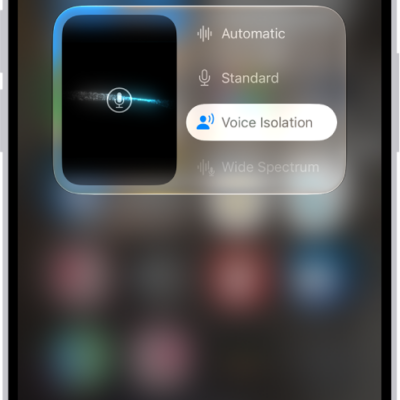
You can adjust other audio settings during a FaceTime call. Voice Isolation prioritizes your voice and blocks out the ambient noise, while Wide Spectrum lets your voice and all the sounds around you be heard. And if your mic is muted, you’re notified when you start speaking.
Note: You can also use Spatial Audio with AirPods 3, AirPods Pro (all models), and AirPods Max.
Filter out background sounds
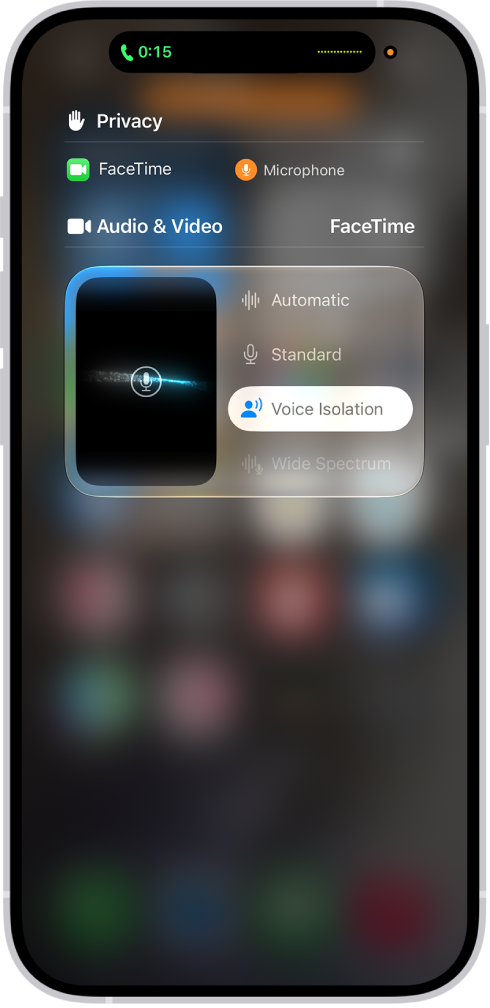
For your voice to be heard clearly in a FaceTime call with other sounds filtered out, turn on Voice Isolation. It prioritizes your voice and blocks out the ambient noise.
- During a call in the FaceTime app on your iPhone, open Control Center.
- Tap FaceTime and select Voice Isolation.
Include the sounds around you
Turn on Wide Spectrum when you want all the sounds around you, along with your voice, to be heard in a FaceTime call.
- During a call in the FaceTime app on your iPhone, open Control Center.
- Tap Mic Mode, then select Wide Spectrum.
Adjust audio automatically
- During a call in the FaceTime app on your iPhone, open Control Center.
- Tap FaceTime, then select Automatic.
Mute the mic
- During a call in the FaceTime app on your iPhone, tap the screen to show the FaceTime controls (if they aren’t visible).
- Tap the Microphone Switch button to turn off the sound.
Tap the Microphone Switch button to turn the mic back on.
When your sound is turned off, your mic detects whether you’re speaking, and you’re notified that your mic is muted and that you can tap the Microphone Switch button to unmute it.