In the Mail app, you can annotate email attachments to give feedback on a draft, decorate a photo, and more. You can draw and write on a photo, video, or PDF attachment, then save or send it back.
Markup’s drawing tools let you draw with just your finger. When you’re finished, you can reply to the sender, start a new message, or discard your edited attachment, and you can save the annotated attachment to your files.
- Open the Mail app on your iPhone.
-
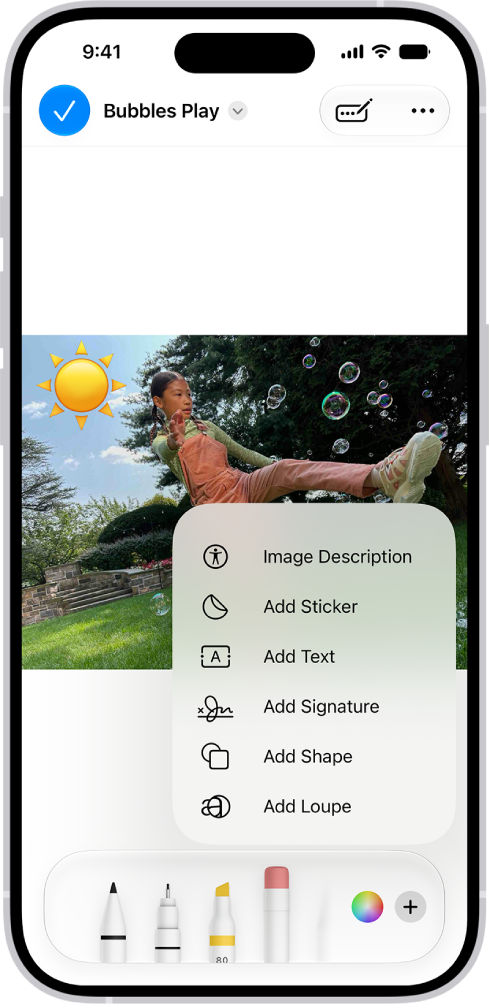
In the message, tap the attachment. Tap the Markup button.
Using the drawing tools, draw with your finger.
When you’re finished, tap the Done button, then choose to reply to the attachment sender, start a new message, save the annotated attachment to your files, or discard your edited attachment.
Tag: Mail