To send and receive email using the Mail app, you first need to add your email accounts. When you first open Mail, you’re asked to set up an account, and at any time, you can add additional email accounts or remove email accounts you no longer need.
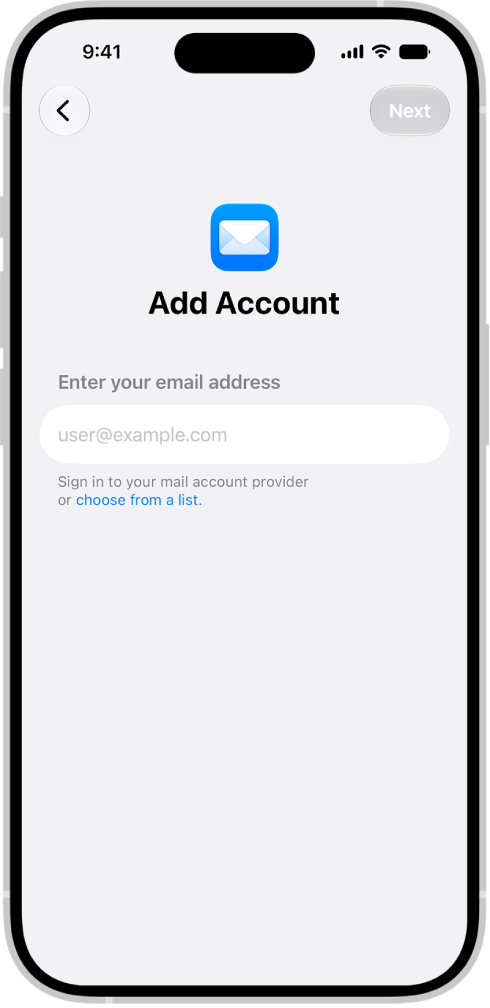
Add an email account
Adding one or more email accounts to the Mail app puts all your email in one place, and you can easily send email from any of your accounts.
- Open the Settings app on your iPhone.
- Tap Apps and then tap Mail.
- Tap Mail Accounts, then tap Add Account.
-
Enter your email address, tap Next, and enter your email account information.
Note: If you set up multiple accounts, you can choose which account you want to send from when composing your email message.
Set a fetch schedule for your email account
You can set a schedule to check for new emails if an account you add doesn’t support Push notifications.
- Open the Settings app on your iPhone.
- Tap Apps and then tap Mail.
-
Tap Mail Accounts and then tap Fetch New Data.
Under Fetch, choose a schedule.
Automatically is the default selection, which means new data is downloaded when your iPhone is charging and connected to Wi-Fi.
To fetch more often outside of these conditions, choose a timed schedule.
Temporarily stop using an email account
To stop sending and receiving email from an account on your iPhone for a while, turn it off in Settings. It’s easy to turn back on at any time.
- Open the Settings app on your iPhone.
- Tap Apps and then tap Mail.
-
Tap Mail Accounts, tap the email account you want to turn off.
Do one of the following: Turn off an iCloud email account: Turn off “Use on this iPhone.” Turn off another email account: Turn off Mail.
Tip: You can use Focus filters to receive notifications only from specific email accounts during times that you choose.
For example, you can silence notifications from your work email account on the weekends or when you are on vacation.
Delete an email account
When you remove an email account, it’s gone from the Mail app and from all the apps on your iPhone that use it.
Note: Don’t worry — this just removes the email account from your iPhone. It doesn’t cancel it.
You’ll need to visit your email account provider to close the account completely.
- Open the Settings app on your iPhone.
- Tap Apps and then tap Mail.
- Tap Mail Accounts, tap the email account you want to remove.
-
Tap Sign Out or Delete Account.
Note: If you change your mind later, you can add the email account back to your iPhone.
Add the Mail app back to your Home Screen
Can’t see the Mail app on your Home Screen? It’s in the App Library, and you can add it back from there.
- On the Home Screen, swipe left until you see the App Library.
- Enter “Mail” in the search field.
- Touch and hold the Mail app icon. Tap Add to Home Screen.