In the Mail app, you can reply to or forward emails yourself, or use Apple Intelligence to draft quick, personalized responses.
You can reply to just the sender or reply to everyone, quote some text when you reply, and forward an email. You can also follow up on emails and set up an automatic reply in Mail. Smart Reply can help, too.
Here’s how to reply to and forward emails in Mail on iPhone.
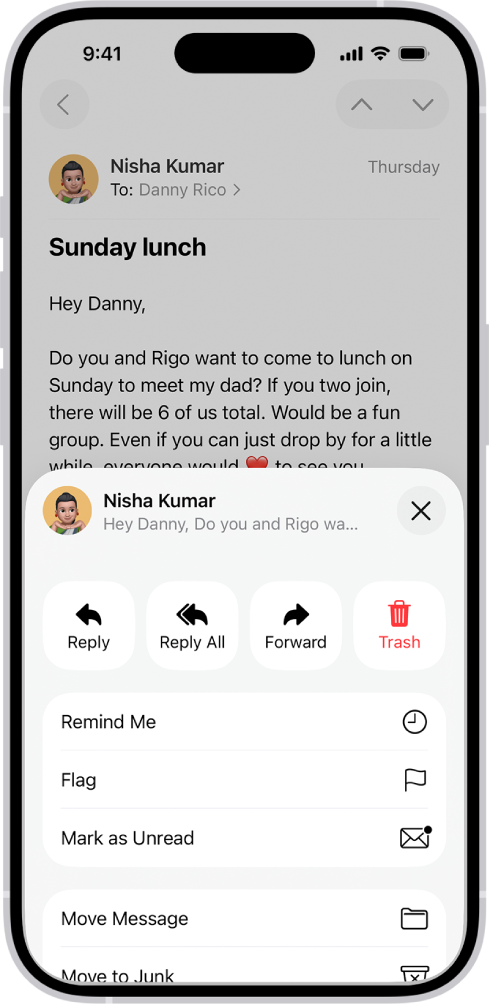
Reply to an email
- Open the Mail app on your iPhone.
-
Tap the message, tap the Reply button, and do one of the following: Reply to just the sender: Tap Reply.
- Reply to the sender and the other recipients: Tap Reply All.
Type your response, then tap the Send button to send.
Quote some text when you reply to an email
To make clear what you’re responding to, you can include text from the sender in your reply.
- Open the Mail app on your iPhone.
- In the sender’s message, touch and hold the first word of the text and drag to the last word.
-
Tap the Reply button, tap Reply, and type your message.
Note: To turn off the indentation of quoted text, go to Settings > Apps > Mail > Increase Quote Level (below Composing), then turn off Increase Quote Level.
Forward an email
You can send an email message forward to new recipients.
- Open the Mail app on your iPhone.
-
Tap the message, tap the Reply button, and then tap Forward.
If there are attachments in the original message—like photos or documents—you can decide whether to include them in the forwarded message.
- Choose Include or Don’t Include.
- Enter the email addresses of the new recipients.
-
Tap in the message, then type your response.
The forwarded message appears below.
Follow up on emails
Sent an email message and haven’t heard back for several days? The message automatically returns to the top of your inbox, so you remember to follow up.
- To turn off Follow Up Suggestions, open Settings, tap Apps and tap Mail. Then turn off Follow Up Suggestions.
Set up an automatic reply in Mail
You can set up an automatic reply on iCloud.com that responds to incoming email messages, or have messages forwarded automatically to another inbox.
Use Smart Reply
If you have Apple Intelligence, Smart Reply can quickly draft an email response in your personalized writing style.
Note: Apple Intelligence on iOS 27 or later is available on an Apple Intelligence-enabled iPhone 15 Pro, iPhone 15 Pro Max, or iPhone 16 model or later.
Apple Intelligence is not available in all languages or regions, according to Apple.
Usage limits may apply.* Go to the Mail app on your iPhone.
-
Tap an email, tap the Reply button, and then tap Reply.
In the keyboard, tap a suggested reply.
Apple Intelligence drafts a reply in the email.
When you’re ready to send your reply, tap the Send button.
*Apple Intelligence is available with Siri and device language set to Chinese (Simplified), Chinese (Traditional), Danish, Dutch, English, French, German, Italian, Japanese, Korean, Norwegian, Portuguese, Spanish, Swedish, Turkish, or Vietnamese.
Some features may not be available in all regions or languages.
Some devices may not be available in all regions.
Siri AI is available in beta in iOS 27, iPadOS 27, macOS 27, watchOS 27, and visionOS 27 and requires an Apple Intelligence–enabled device set to a supported language.
Available in English to start.
Siri AI will not be initially available in the EU on iOS, iPadOS, and watchOS.
Certain Apple Intelligence features that rely on server-side models are subject to daily usage limits, including but not limited to Siri AI, Intelligent Photo Editing Tools, Image Playground, and AFM 3 Cloud models in Shortcuts.
Daily limits may vary by feature, request complexity, system demand, system policies, and other factors.
Expanded access to such features will be available for a fee in the future.
- Use of these features is subject to the Apple Intelligence Terms and Conditions.