Guides are available to help you discover great places around the world to eat, shop, and explore. Guides are automatically updated when new places are added, so you always have the latest recommendations.
You can browse guides by city, by interest, or by publisher. In select U.S. cities, you can also see suggestions about what’s trending in the area.
Here’s how to explore places with guides in Maps on iPhone.
Explore the world with guides
- Start the Maps app on your iPhone.
- Scroll down and tap Guides We Love.
-
Browse by any of the following:
-
City: Tap the Go Down button near the top of the screen. Tap a city.
You can also scroll down to the Cities category.
- Interest: Tap an interest, then tap to browse guides in that group.
- Publisher: Scroll down to the Browse by Publisher category and then tap a Publisher.
-
City: Tap the Go Down button near the top of the screen. Tap a city.
Suggestions about what’s trending in the area are available in select U.S. cities.
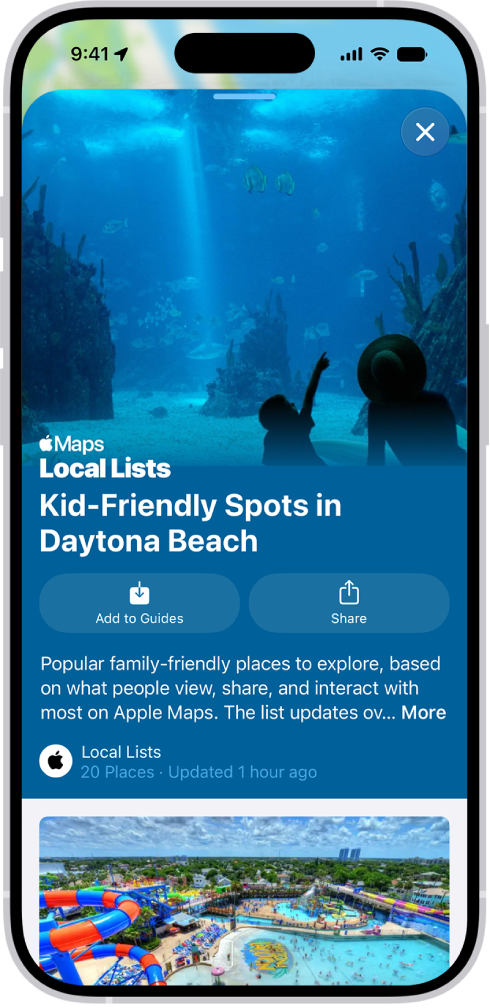
Enter “Local Lists” in the search field, tap Guides, then tap a collection, such as restaurants or kid-friendly spots.
View, share, and save a guide
- Start the Maps app on your iPhone.
-
To open a guide, tap its cover.
To view its contents, scroll down.
You can also do the following:
- Share the guide: Tap Share , then choose an option.
- Save the guide: Tap Add to Guides.
- See saved guides: Tap Places, then tap Guides.
- Close the guide: Tap the Close button.
Quick tip: Look for App Clips buttons.
With these, you can do things like reserve a table directly from a guide.